
Last updated: June 17, 2026
You can make a booking form in Google Forms.
But Google Forms is best at collecting preferred times. It is not, by itself, a real-time scheduling system that shows live availability, prevents staff-calendar conflicts, confirms the slot immediately, and manages every change after booking.
That boundary matters.
If the form says "booking form" but the team still needs to check availability, the respondent may think the reservation is confirmed while the team sees only a pending request.
This guide walks through how to build a reservation request form in Google Forms, what fields to include, how to ask for preferred times, how to word the confirmation email, where Google Sheets tracking becomes weak, and how FORMLOVA can support the follow-up workflow. For the broader booking-form framework, read the parent Reservation Form Guide.
Quick Answer: Google Forms Is Best for Reservation Requests
Start by separating the booking model.
| Booking need | Fit with Google Forms | Why |
|---|---|---|
| Collect first, second, and third preferred times | Good fit | A human can confirm later |
| Accept consultation or visit requests | Good fit | Context can be reviewed before choosing a time |
| Show live open slots and confirm immediately | Weak fit | Availability, staff, duration, and conflicts are scheduling concerns |
| Accept 15-minute automatic bookings | Weak fit | Better handled by a scheduling tool |
| Manage changes, reminders, and no-shows | Weak in Google Forms alone | Status, email, history, and workflow are needed |
If you use Google Forms, treat it as a reservation request form, not a confirmed booking system.
Write this in the form and in the confirmation message:
Submitting this form does not confirm the booking yet.
Our team will check availability and send a confirmed time or alternatives.
That one line prevents many expectation problems.
For more examples of contact, booking, event, and Google Forms post-submit messages, use the Form Thank You Page Guide.
How to Build the Form in Google Forms
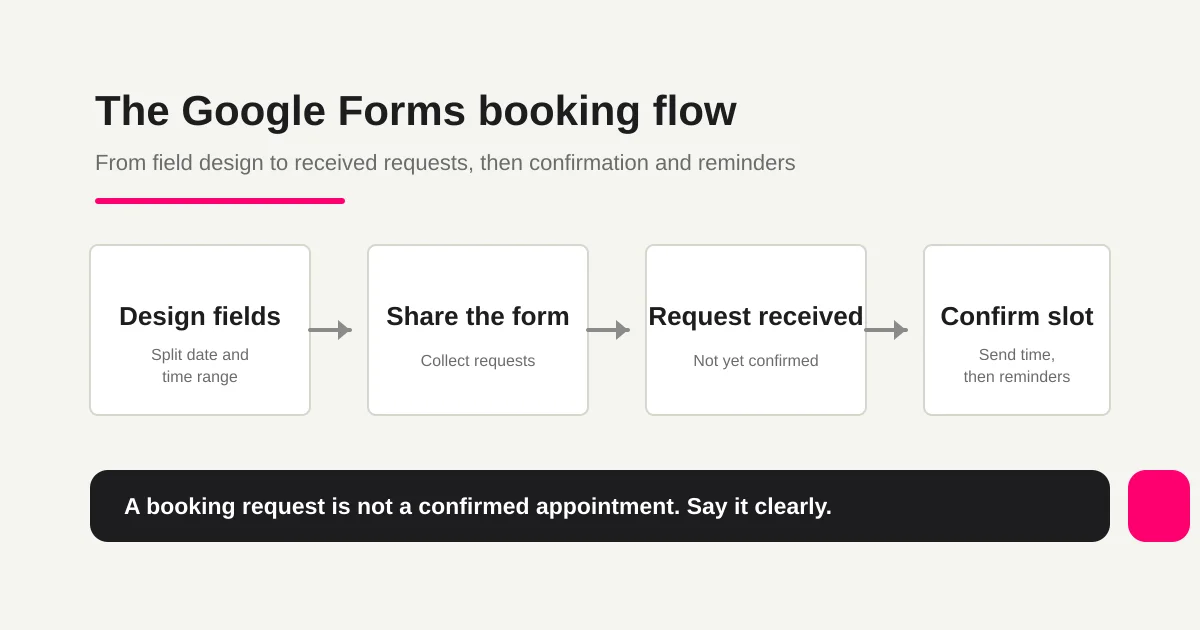
A practical setup flow looks like this:
1. Create a new Google Form.
2. Name it "Reservation Request Form" or "Booking Request Form."
3. In the description, say the booking is not confirmed on submission.
4. Add name, email address, and phone number.
5. Add the requested service or appointment type as a choice field.
6. Split first preferred date and first preferred time range.
7. Add second and third preferences if needed.
8. Add request details or notes.
9. Add cancellation/rescheduling agreement.
10. Configure response notifications or connect responses to Google Sheets.
The most important detail is not to ask for time in one free-text field.
Answers such as "sometime next week," "weekday evening," and "as soon as possible" are readable by a person, but hard to sort, share, filter, or use in reminders.
Split dates and time ranges.
| Field | Recommended format | Why |
|---|---|---|
| First preferred date | Date | Easy to sort |
| First preferred time range | Choice | Reduces impossible times |
| Second preferred date | Date | Reduces back-and-forth |
| Second preferred time range | Choice | Makes alternatives easier |
| Appointment type | Choice | Helps route owner and duration |
| Notes | Short text | Keeps exceptions separate |
Creating the Google Form is the easy part. The hard part is what happens after submission: who checks it, who confirms it, and how changes are handled.
Booking Form Fields to Include
Start small.
Most reservation request forms need:
Name
Email address
Phone number
Service or appointment type
First preferred date
First preferred time range
Second preferred date
Second preferred time range
Meeting method: in person, online, phone
Purpose or request details
Cancellation/rescheduling agreement
Data-use notice or consent
Phone number is not always right for a normal contact form. In a booking workflow, it may be justified when same-day changes, store visits, delays, or urgent contact are realistic.
Do not collect every detail just because you might need it later. Separate information needed before confirmation from information needed after confirmation. The broader field framework is covered in the FORMLOVA Form Creation Guide and the Form Field Examples Guide.
Confirmation Copy: Received Is Not Confirmed
Google Forms can send respondents a copy of their answers.
For booking requests, that is often not enough. Respondents want to know whether the booking is confirmed, when they will hear back, and how to change the request.
For a request-based booking form, use wording like this:
Subject: We received your reservation request

Hi {Name},

We received your reservation request.
Your booking is not confirmed yet.

Our team will check availability and usually send either a confirmed time or alternative options within two business days.

To change or cancel this request, reply to this email.
Only write "your booking is confirmed" after availability or payment is actually confirmed.
The parent Reservation Form Guide covers this request-versus-confirmation wording in more detail.
Where Google Sheets Booking Management Breaks Down
Google Forms can send responses into Google Sheets.
For low volume, that may be enough. The team can open the sheet, review new requests, and send a confirmation email manually.
But as requests grow, spreadsheet management starts to show gaps.
| Spreadsheet pattern | Risk |
|---|---|
| Add a manual status column | New, checking, confirmed, change requested, and canceled are interpreted differently |
| Add a manual owner column | Ownership is not tied to notification or follow-up |
| Send confirmation email separately | The sheet may not show whether the email was sent |
| Receive change requests by email | The original form response and later change drift apart |
| Send reminders from another tool | Reminder state is separate from booking state |
Google Sheets is a useful shared table.
But booking is stateful work. New, checking, confirmed, change requested, canceled, no-show, and completed are not just colors in a sheet. They are workflow states.
If you are deciding how much to keep in Google Forms, Sheets, and Apps Script, start with Google Forms + Sheets + Apps Script Operations.
How FORMLOVA Can Support the Follow-Up Layer
FORMLOVA is not a real-time availability scheduler.
It is useful when booking is a follow-up workflow.
Collect the booking request
Set response status
Assign or review owner
Send confirmed time or alternatives
Receive change requests
Send reminders
Record no-shows
Follow up after the appointment
For change handling, Booking Change Request is the nearest workflow. For reminders and no-show prevention, use Reservation Reminder + No-Show Prevention. For Gmail-based confirmation, use Gmail Reservation Confirmation.
The response-state model is covered in Response Status Management.
When Google Forms Is Enough, and When It Is Not
Use this decision table.
| Situation | Decision |
|---|---|
| A few booking requests per month, manually confirmed | Google Forms can be enough |
| First, second, and third preferred times are collected | Google Forms works |
| Live availability and instant confirmation are required | Use a scheduling tool |
| Staff calendar conflicts must be avoided automatically | Use a scheduling tool |
| Changes, reminders, no-shows, and status need tracking | Add an operations layer such as FORMLOVA |
Google Forms is not a bad choice.
It is a good first step for request-based booking. The key is to remember that a booking request is not the same as a confirmed appointment.
Say that clearly. Structure preferred times. Use Sheets as a shared view, not the entire state machine. Then add a follow-up layer when changes, reminders, and status become real operational work.
FAQ
Can I make a booking form with only Google Forms?
Yes, if the form collects preferred times and a person confirms the booking later. If you need live availability, instant confirmation, or staff-calendar conflict avoidance, use a scheduling tool such as Google Calendar appointment schedules, Microsoft Bookings, or Calendly.
Can Google Forms send a booking confirmation email?
Google Forms can send respondents a copy of their answers. For custom request-received emails, confirmed-booking emails, change notices, and conditional reminders, you usually need Apps Script, an add-on, another form service, or an operations layer such as FORMLOVA.
Should preferred time be one free-text field?
Usually no. Split it into preferred date and preferred time range fields. Free text is readable, but weak for sorting, sharing, reminders, and owner handoff.
Can FORMLOVA replace a scheduling tool?
Use a scheduling tool when the core requirement is real-time slot selection and calendar conflict avoidance. Use FORMLOVA when the booking workflow needs intake, status, confirmation messages, change requests, reminders, and follow-up.
Official Sources Checked
- Google Docs Editors Help: Edit your form
- Google Docs Editors Help: View and manage form responses
- Google Calendar Help: Create an appointment schedule
- Google Calendar Help: Learn about appointment schedules in Google Calendar
Read Next
- Reservation Form Guide
- FORMLOVA Form Creation Guide
- Google Forms + Sheets + Apps Script Operations
- Response Status Management
- How to Set Up Form Auto-Reply Emails
Disclosure and Verification
This guide is for teams creating a booking or reservation request form in Google Forms. I work on FORMLOVA, so the workflow examples use FORMLOVA directly. I checked Google Forms question setup, response management, Google Sheets connection, Google Calendar appointment schedules, and FORMLOVA booking-operation notes on June 17, 2026. Treat this as product and form-design guidance, not legal advice for cancellations, payments, personal data, healthcare, beauty, professional services, or regulated local business rules.