
Last updated: October 15, 2026
Original verification record retained: Last verified: 2026-09-23
Delete Google Forms records from Responses: Individual for a specific submission or Summary → More → Delete all responses for the entire collection. Google states that deleted form responses cannot be restored. Identify the scope and any justified preservation need before confirmation.
The respondent’s Clear form action only concerns an unfinished draft. Forms, a linked Sheet, downloads, attachments and shared reports require separate checks; changing a count is not proof that every copy was removed.
Identify the record you actually want to remove
| Your goal | Where to investigate | The decision to make |
|---|---|---|
| Remove one submitted test response | The owner's response view | Identify that submission reliably |
| Remove every response stored in a form | The owner's response view | Confirm no live records must remain |
| Clean up records in a linked spreadsheet | Google Sheets | Treat the sheet as a separate storage surface |
| Clear answers still being entered | The respondent's form page | Distinguish a draft from a submitted response |
| Exclude test data from a report | The reporting process | Decide whether deleting the original is necessary |
Start with a sentence that describes the desired result. “Remove the two operator test submissions from this event's form” is more useful than “clean the form.” It gives you something specific to verify later. If the task is only to keep tests out of a report, decide whether retaining the original with a documented exclusion would be more appropriate.
This distinction does not mean every unwanted response must be retained. It means the choice to delete should follow the purpose of the work. A duplicate candidate may still need investigation, while a deliberately created test record may already have served its purpose. Apply the policy and responsibilities of your own operation rather than treating every unusual answer alike.
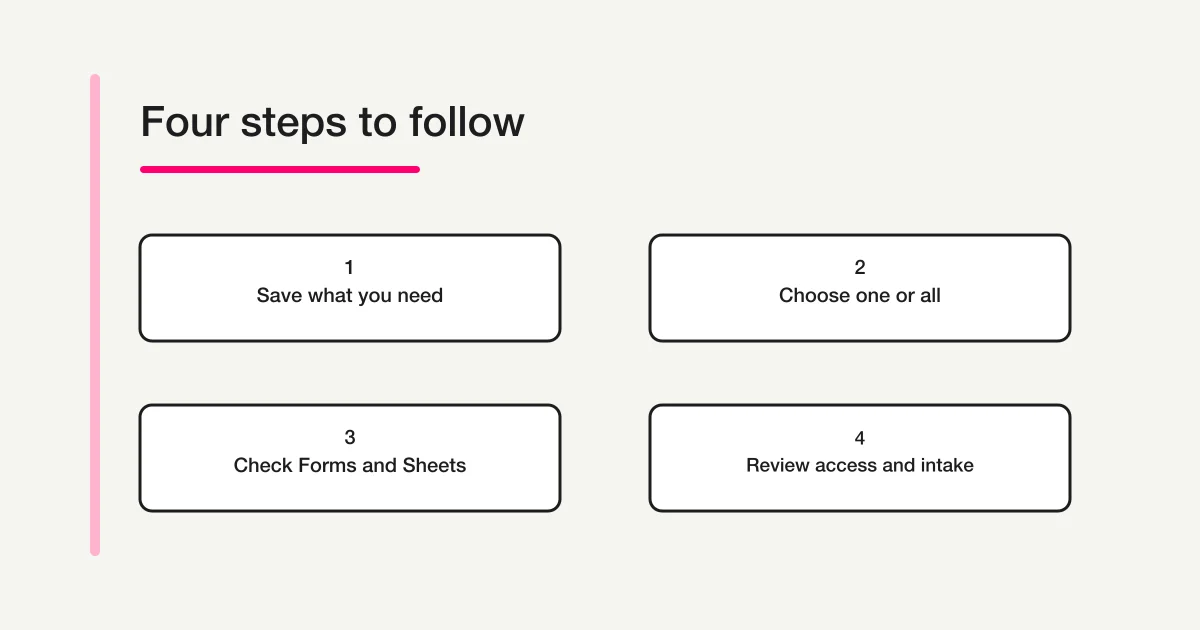
Check the target and decide what to save
Check the event, collection period, submission time, and response content. A familiar form title alone is not enough when several copies have similar names. Compare the form with the distribution link or the organizer's record before making changes. If a submission says “test” but might belong to a real participant, ask the responsible person to identify it first.
If you need to retain a readable copy, Google's response menu includes a CSV download. Open the downloaded file and confirm the expected records are actually present. A file appearing in Downloads does not, by itself, establish that you saved the right form or the information you need. Google's response management documentation
An exported file is a copy for reference, not a promise that you can restore the original form state. Do not describe a CSV download as an undo button. The distinction matters when the reader's real requirement is to recover exactly the previous view, links, or surrounding workflow after an accidental deletion.
Saving a copy is also a decision, not an automatic requirement. If the purpose is to remove information that should no longer be retained, creating additional unmanaged copies can conflict with that purpose. Decide whether a copy is needed, where it will be stored, who can access it, and how long it should remain.
For file opening, encoding, and Excel checks, use the separate Google Forms CSV export guide. The deletion prerequisite is narrower: confirm that any required reference copy is usable before proceeding. If the file cannot be read, resolve that issue before removing the only record you intended to preserve.
Delete one response at a time
- Open the correct form in its editing view.
- Select Responses, then Individual.
- Use the previous or next controls to locate the intended submission.
- Review its details, select the delete icon, and confirm.
Use this route when you have a small number of clearly identified submissions to remove. Do not rely only on their position in the list. After deleting one response, read the newly displayed content before using the delete control again. Repeatedly clicking in the same place is not a reliable way to identify several records.
Consider a fictional event form with two operator tests and ten real registrations. The tests contain distinct labels, and the organizer has recorded when they were submitted. Match those details, delete each intended test, and then check that the real registrations remain. These labels are an operating convention in the example; Google is not being described as automatically classifying the records.
If you cannot distinguish the target from a real submission, pause the deletion task. Another person's confirmation, an event reference, or an existing intake record may resolve the ambiguity. Collect only the information needed for that check. There is no need to copy all respondents' personal information into a general team chat to identify one test.
Delete all responses only when the scope is the entire collection
- Open the correct form in its editing view.
- Go to Responses, then Summary.
- Open the menu and choose Delete all responses.
- Confirm the form and intended scope before accepting the prompt.
This is appropriate only after deciding that no responses in that form should remain. It is not a date filter or a way to keep the real entries while removing a large test batch. If you need to preserve some submissions, the fact that there are many unwanted records does not make whole-collection deletion the right operation.
An active form creates another practical question: can new responses arrive while you are reviewing it? Agree on a working time with the organizer. Consider whether intake should temporarily stop, who will communicate that interruption, and who will check that it resumes. These are operational choices for maintaining a clear scope, not mandatory settings in Google's deletion instructions.
If your aim is simply to prepare for the next event, first decide how the next event's collection should be separated from the previous record. Deletion should not become a routine preparation step merely because an empty counter looks convenient. Someone may still need to reconcile attendance, answer an earlier inquiry, or check a registration from the completed event.
A useful final check is to explain the action to another operator without using the word “reset.” Say which form is involved and whether every stored response is included. If the explanation still depends on phrases such as “the old ones” or “the unnecessary ones,” the scope is not precise enough for an all-response action.
Verify Forms, Sheets, exports, and shared reports separately
Google explains that the response spreadsheet is a separate file from the form. Deleting one file does not delete the other. Unlinking a spreadsheet also has a different purpose from deleting responses: it stops new responses being sent to that sheet while existing data remains. Google's storage explanation
Do not infer the state of every copy from a successful action in the form. Check the locations involved in your operation and record what you observed. The following table is a planning aid, not a claim that one command changes every storage location automatically.
| Location | Decide before acting | Verify afterward |
|---|---|---|
| Responses stored in the form | Exactly which submissions are in scope | The intended records and the records to retain |
| Linked response spreadsheet | How the corresponding entries should be handled | Relevant rows and reporting effects |
| Downloaded CSV files | Whether there is a reason to retain them | Storage location and access |
| Previously shared reports | Whether the report needs correction | The version available to its readers |
Add other locations when they are relevant, such as an attachment store, an add-on, or another tool that received copied data. Do not assume how those systems behave. A form's deletion instruction is not evidence that an external service removed its copy, or that an attached file was handled in the way you intended.
The same distinction helps when a colleague reports that “the spreadsheet did not change.” Establish which action was taken and which record they are inspecting. Repeating deletions until two counts match can remove valid data without explaining the original difference. Investigate the connection and the reporting scope separately.
For connection, disconnection, and missing synchronization, see the Google Forms and Sheets integration guide. Keep that troubleshooting separate from the decision to remove a particular stored response.
Google also states that deleting responses from Forms does not delete attached files. Include the upload location in a deletion checklist rather than assuming response deletion covers it. Google response management help
A respondent's Clear form action concerns a draft
Google describes Clear form as a way to remove the answers in an unfinished response. It belongs to the respondent's draft workflow. It should not be confused with an owner deleting a previously submitted response in the management view. Google's draft autosave guide
If you already submitted a response and want it withdrawn, do not use an empty screen as proof that the submitted record has disappeared. Contact the address or organizer identified in the form and describe the response you want reviewed. Include a submission time or reference when useful, without sending passwords or unrelated personal details.
The organizer should identify the requester, the intended submission, the relevant storage locations, and the scope of the requested action. Before replying that the work is complete, distinguish what was removed from what was merely checked. A confirmation about the form's response store should not imply that every associated copy has also been removed.
A short, precise message is easier to act on than a broad claim. For example, an operator might document that the target response was handled in the form and that the reporting owner still needs to review an exported list. That example describes how to communicate the boundary; it does not establish any particular organization's deletion obligations.
When controls are missing or counts do not match
First confirm that you are in an editing view with the required access, rather than the respondent's entry page. Check that the signed-in account is the one that manages the form. If you lack permission, ask the responsible editor to review the specific target and purpose rather than looking for a way around the access boundary.
A large collection can also affect available views. Google's response management documentation describes limits that can make some response displays or processing features unavailable. Investigate why the view is missing before switching to a different deletion operation. If you cannot inspect the intended record, establish its identity through an available read-only view or export first.
When verifying counts, allow for new submissions received during the work. In a fictional example, a collection starts with twelve records, two tests are removed, and one real response arrives in the meantime. The ending count alone does not prove which records were removed. Check the target records and the records that should remain, as well as the total.
Also compare the time and scope of each observation. A saved report may describe yesterday's collection, while the form shows the current total. A filtered sheet may represent only one event category. Align those definitions before deciding that a difference means the deletion failed. Do not remove additional entries merely to force the numbers to agree.
Leave a small, useful completion note
You do not need to paste entire answers into the work record. Leave enough information for the next operator to understand the action and any remaining follow-up:
- The form and the time of the work.
- Whether the action covered individual responses or the entire collection.
- How the target was identified.
- Whether a reference copy was needed and where it is stored.
- Which storage surfaces were checked and which still need review.
For example: “Removed two identified prelaunch tests individually; checked the responses to retain; linked-sheet review remains with the reporting owner.” This separates completed work from unfinished work without exposing the original answers. If intake was paused, include the result of the reopening check as well.
Treat the successful click as one part of completion. The work is finished when the intended result has been checked across the agreed scope, and any remaining responsibility has a named owner. That makes the record useful when someone later asks why a count changed.
Review the process if deletion has become routine
If the same work returns every week, consider whether the issue is response handling rather than removal. Sales messages, suspected duplicates, and controlled tests may require different decisions. The form response status management guide explains how to organize those decisions when keeping a record is appropriate.
For a broader review of the boundaries between the form, spreadsheet, and external tools, use the Google Forms, Sheets, and Apps Script operations guide. It helps separate what the current setup handles from the checks people still perform manually.
FORMLOVA supports conversational management of response status. If you want to organize the review and follow-up process before deciding which records to remove, you can get started with FORMLOVA.
Test response review on fictional data before any deletion
This is a proposed trial, not an operation or result measured for this rewrite. Use a private test draft first.
Create a private event-question draft with category and message. Propose a test label and review checklist for distinguishing test from real responses. Do not copy Google responses, import data, delete records, publish or send mail. Explain the four supported handling statuses separately from test labels and privacy deletion.
Before proceeding, check:
- Free supports drafting, search, the four states new/in_progress/resolved/spam and CSV/Excel export. A tag or spam status is not erasure.
- Under controlled publication, identify one fictional test by stable response reference in the management tool and change only its supported handling state if authorized; retrieve it again to verify.
- Exports contain form fields and submission time, not automatic ID/status columns. No signup restores deleted Google data or removes copies in another service.
Try a review workflow without deleting live responses
Free supports the separate intake and response-management example. It is not a Google deletion, recovery or cross-service erasure tool.
Register free and draft the review workflow
Register, verify your email, connect a supported AI client, and paste the proposed request above. Check the saved draft before publishing. AI-client account and usage requirements apply separately.
What to do next
For the existing Google collection, finish by verifying the named deletion scope and remaining copies. If organizing future work, test review and exclusion rules first; record status changes and actual deletion as different actions.
Disclosure and Verification
This article is published on FORMLOVA's own blog. Google documentation and FORMLOVA's specification were reviewed on September 23, 2026. Deletion was not tested inside a Google account during preparation. The checklists and numerical examples are original operating examples, not measured customer outcomes or evidence of improved performance.