
Last updated: September 24, 2026
Microsoft Forms can create a QR code for a form from Collect responses. Choose the audience and response scope, select the QR-code option, and download the PNG. Before you hand that image to anyone, test the form link with an account and device similar to the ones your respondents will use.
The QR code is a convenient way to share a responder link. It does not publish a form, change who is allowed to respond, remove a sign-in requirement, or confirm that a response was recorded. Those behaviors depend on the form's current settings and on the account or environment in which it was created.
This guide covers the Microsoft Forms QR workflow: check the responder experience, download the QR image, distribute or print it, and verify the destination. For the wider process of creating a survey, adding it to Teams, and reviewing results, see the Microsoft Forms and Teams survey guide. For use-case-based form creation beyond this QR workflow, see the form creation guide. Google's separate workflow is covered by how to create and test a QR code for Google Forms.
The short answer
Open the form in Microsoft Forms, select Collect responses, choose the audience and response scope that match the people you intend to reach, select the QR-code icon, and download the PNG. Microsoft documents this route in its official instructions for sharing a form. Labels and available options can vary by account and product updates, so use the controls currently shown in your Forms interface.
Then test the image as a respondent would:
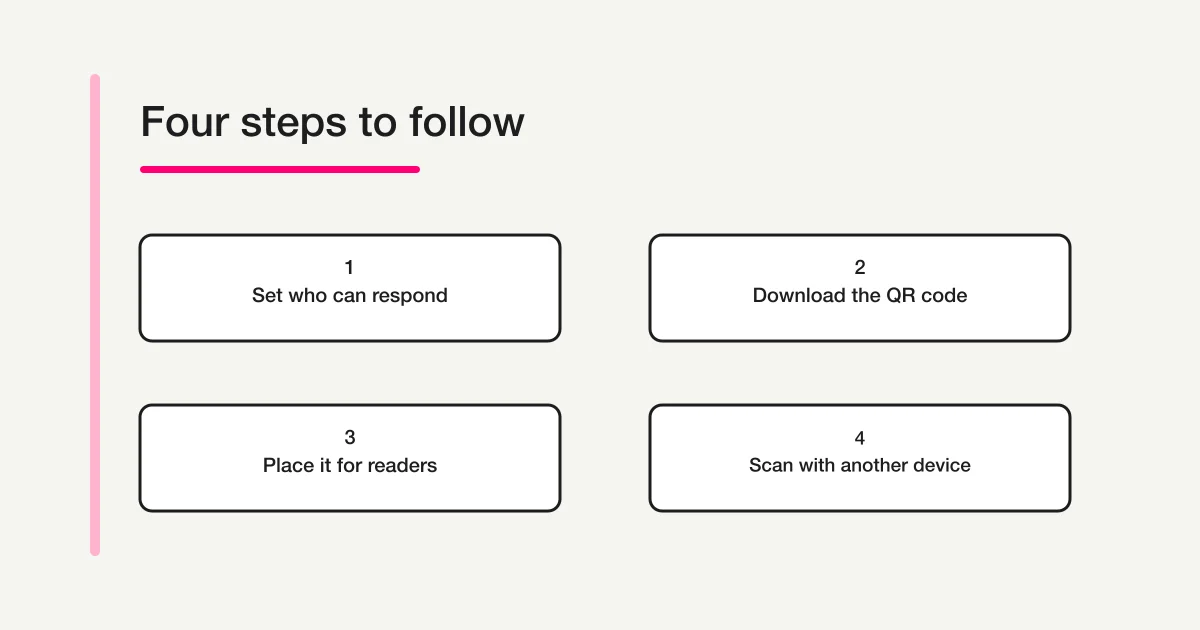
1. Open the downloaded PNG and confirm it belongs to the intended form.
2. Scan it with a phone that is not signed in as the form owner.
3. Check the form title, instructions, sign-in prompt, and first question.
4. If responses are restricted, test with an account inside the permitted audience.
5. If printing, scan a proof at its final size before producing the full batch.
Before you download the QR code
A QR code is only as useful as the page it opens. Confirm the form's audience and response settings first, especially if the code will be printed on a public poster or sent beyond your organization.
Decide who should be able to respond
Microsoft Forms may offer response choices such as anyone who can respond, people in your organization, or specific people in your organization. The exact options depend on the account and environment. Microsoft's official audience guidance describes the available scope choices and related considerations.
Match the choice to your actual audience:
| Where you will share the QR code | What to verify in Forms |
|---|---|
| Public website, open event, or printed flyer | The selected audience can open the form without an organization account, if that is the intended experience |
| Internal team notice | Respondents belong to the permitted organization or group and can sign in as required |
| Invitation to named participants | The selected people or group match the invitation list and can use the required account |
| A mix of internal and external respondents | The current settings support both groups, or you have a separate route for each audience |
Do not infer that a QR code is public just because the image can be downloaded. A person may scan it successfully and then see a sign-in page, an access error, or a message that they cannot respond. The code has not changed the form's access rules.
Review the response settings and form status
Read Microsoft's current form and quiz settings guidance alongside the audience options visible in your form. Check the choices that affect the responder experience, such as whether names are recorded, whether one response per person is enabled, and whether a response period or other limit applies in your environment. These options are not the same across every account, so verify them in the form rather than relying on a screenshot or an old checklist.
If your organization uses a form approval or publication step, complete it before distribution. Open the responder view or preview using the current Forms controls. Confirm that the title and first question are correct and that the instructions explain what a respondent should do. A downloaded QR image is not evidence that the form is open for responses.
If you are new to Microsoft Forms, the Microsoft Forms and Teams survey guide covers survey planning, question design, sharing options, and response review. This page assumes the form is already prepared and concentrates on its QR code.
Download a QR code from Microsoft Forms
Use the form owner's current Microsoft Forms session. The names below reflect Microsoft's documented route; Microsoft may adjust labels or placement over time.
1. Open the form you intend to share.
2. Select Collect responses.
3. Choose the audience and response scope for this distribution.
4. Select the QR-code icon in the sharing options.
5. Download the PNG file offered by Forms.
6. Open the downloaded file and verify that it is the intended code.
Save the file with a clear name that identifies the form and version, for example:
event-feedback-2026-09-24-forms-qr.png
Keep the image with the form's working materials rather than in a folder of unnamed downloads. If you later change the audience, duplicate the form, or replace it with a new one, create and test the QR image for the version you will actually use. Do not assume an old printed code points to a replacement form.
The QR icon is an option in the Forms collection-and-sharing interface. If it is missing, confirm that you opened the form's collection or sharing controls rather than the editing page for a question. Check the current Microsoft documentation and the account's available options; do not rely on a third-party QR site that might encode an editor URL or an outdated link.
Keep the right QR file with the right form
The PNG itself may not tell a teammate which form it opens. Add context when sharing the asset:
- the form's title and owner
- the intended audience
- the date the code was tested
- whether the file is for screen display, print, or both
- the location of the editable form, shared only with people who need owner access
Do not place an editing link in public artwork or share the owner account's access details. The QR code is for responders; editing and administration should remain in the Forms account and collaboration controls.
Share the QR code online or in print
For a digital message, attach the PNG or place it in the intended page, presentation, or invitation. Include a short text link as an alternative for people who are using the same phone to read the message and open the form. A QR code displayed on a phone cannot conveniently be scanned by that same phone without another route, such as opening the direct link.
For a printed poster, card, or handout, insert the PNG without cropping its border or placing text and graphics over the code. Keep it on a plain, high-contrast background. Avoid reducing it until the modules blur or merge, and do not stretch it out of proportion. A quiet margin around a QR symbol helps scanners distinguish the code from surrounding marks; leave the border intact when placing the image.
The reliable size depends on the code's contents, print quality, viewing distance, and scanner. There is no single size that guarantees success for every installation. Use the actual print dimensions and distance in a proof test instead of choosing a size by appearance on a design canvas.
Put a useful label near the code, such as “Scan to complete the event feedback form.” Do not place the code where the instruction is ambiguous or where people may reasonably think it opens a menu, payment page, or unrelated website. If the form collects personal information, show an appropriate privacy notice near the point where people decide whether to respond. A QR code itself does not explain the form's purpose or the handling of answers.
Before producing a large batch, print one copy on the intended paper and printer. Check for low contrast, ink spread, folding, glare from lamination, nearby lines, or a design element touching the code. A screen preview is not a substitute for scanning a physical proof.
Test the QR code as a respondent
Testing both the image and the responder flow catches different problems. A camera may decode a QR code correctly while the page it opens is the wrong form or is inaccessible to the target audience.
Scan the downloaded PNG
Use a phone other than the one displaying the PNG when the code is on screen. Open the camera or QR reader, scan the image, and inspect the destination before submitting. Confirm these points:
- The correct form opens. Compare its title and instructions with the intended form.
- The responder page appears. It should not ask the scanner to edit the form or request owner credentials.
- The sign-in experience matches the audience. If sign-in is required, a respondent must have the accepted account.
- The first step is understandable. The respondent can tell what the form is for and whether they are expected to continue.
- The form accepts a test response where appropriate. Use a clearly marked test or a test copy if a real submission would affect reporting or trigger follow-up.
When the form is intentionally restricted, one successful scan by the owner is not enough. The owner may have access that an ordinary responder does not. Test with an account that represents the intended group, or ask an authorized tester from that group to verify the respondent view.
Test the printed version
Scan a physical proof at the distance and angle people are likely to use. Try more than one device or camera app if the audience is broad. A code that works on the design laptop may still be too small, blurred, or low-contrast on paper.
Use a simple test record:
| Check | Record |
|---|---|
| Form and QR image version | Title or file name and date |
| Test environment | Printed proof or on-screen image; approximate distance |
| Device test | Device type and camera or QR reader used |
| Audience test | Owner, organization account, named respondent, or public browser |
| Result | Correct form, sign-in behavior, and whether the test response was accepted |
Do not store respondent credentials in the record. A short note about which audience type passed is usually enough to make the preflight reproducible.
Check the live form after any change
Retest whenever you change the form, response scope, sign-in requirement, sharing destination, or printed design. If you have replaced the form with a copy, the old code may still open the original. Scan the code already embedded in the artwork, not just the latest downloaded PNG.
For a physical campaign, repeat a quick spot-check after printing and before distribution. If one location uses a resized version or a different print process, test that version too. Keep the responder link available in the same campaign materials so staff can help someone who cannot scan.
Fix common Microsoft Forms QR problems
The code scans, but the respondent cannot open the form
The camera has read the code; the issue is likely the destination or its access rules. Revisit Collect responses and confirm the selected audience. If only people in an organization or named group can respond, a public visitor may be blocked or asked to sign in. Ask a tester who matches the intended audience to repeat the test.
Also check that the form is accepting responses and that the QR code belongs to the current form. A valid QR pattern can lead to a form that is closed, restricted, or no longer the one you mean to share.
The code opens the editor or the wrong form
Do not distribute that image. Confirm that the form owner used the QR option in Collect responses for the right form, download the PNG again, and scan the new file. If the code has already been added to artwork, replace the embedded image and test the actual exported or printed version. Avoid manually converting a copied browser address unless you have verified that it is the responder-facing link.
The camera does not recognize the code
Try the original PNG at a larger display size and check that the full code and its quiet margin are visible. On a print, inspect contrast, focus, blur, glare, folds, and any design elements that touch the image. Re-export from the original downloaded file rather than enlarging a small screenshot. Then test with another phone or QR reader.
The code works for the owner but not for respondents
Owner access can hide an audience mismatch. Test in a private browser session or with a separate account that represents the actual recipient. Do not conclude that the form is public because the owner can open it. Review the audience and any account or organization restriction before printing or sending the asset again.
The QR image is missing or unavailable
Check that you are in the current Forms sharing or collection flow and that the form is saved. Verify which features are available to your account and consult Microsoft's latest form-sharing instructions. If the interface differs from this guide, follow the current product instructions and verify the downloaded image before using it.
Frequently asked questions
Does Microsoft Forms generate its own QR code?
Microsoft Forms provides a QR-code option in its Collect responses flow. Choose the audience and response scope, select the QR option, and download the PNG. Follow the controls visible in your account because product labels and options may change.
Does scanning the QR code make my form public?
No. The image does not alter the form's audience or response permissions. Someone may scan the code but still need an account or be blocked by the selected scope. Review the audience settings in Forms and test with a representative account.
Can I download the Microsoft Forms QR code as a PNG?
Microsoft's Forms QR workflow offers a PNG download. Preserve the original file and insert it into your design without cropping or distorting it. Test the final digital or printed version after placement.
Can people scan the QR code and respond without signing in?
That depends on the audience and response settings available for the form. Do not assume that a QR code removes sign-in. Test the responder link with the kind of account your intended respondents will use, and check Microsoft's current audience options.
Can I put a Microsoft Forms QR code on a poster?
Yes, if the poster's audience is allowed to respond and the code remains readable at the printed size. Keep the code high-contrast, undistorted, and clear of overlaid marks; include a brief scan instruction and test a printed proof from the expected distance.
How can I scan the QR code if it is on my own phone?
Open the responder link directly on that phone, or display the QR code on another screen and scan it. You can also print a test copy. In each case, check that the destination is the responder form and that access matches your test account.
If I update the form, do I need a new QR code?
Retest after any change that could affect the destination or respondent access. If you created a new form or copy, download and verify a QR code for that specific form. Do not assume an image printed earlier now points to the replacement.
A final pre-distribution checklist
Before you publish the image in a message or send the poster to print, confirm:
- The right form and current responder experience are ready.
- Collect responses has the audience and response scope intended for this group.
- The PNG was downloaded for this form and is clearly named.
- A separate device scans the image and opens the correct responder page.
- An account representing the intended audience passes the access check.
- The final placed image keeps its shape, border, contrast, and readable size.
- A printed proof scans at a realistic distance, if the code will be printed.
- A direct link or another way to get help is available for people who cannot scan.
For another Microsoft Forms task, continue with the guide to creating a survey in Microsoft Forms and sharing it in Teams. For QR steps that are specifically for Google Forms, use the separate Google Forms QR-code guide; its product steps do not apply to Microsoft Forms. You can also start a form with FORMLOVA when you want to create and share a FORMLOVA form through its own workflow.
References
- Send a form and collect responses (Microsoft Support)
- Choose who can fill out a form or quiz (Microsoft Support)
- Adjust your form or quiz settings (Microsoft Support)
- Securing margin around a QR Code (DENSO WAVE)
Primary-source check: September 24, 2026. Account-specific settings may vary; verify the current controls in Microsoft Forms before distributing a code.