
Last updated: October 15, 2026
Original verification record (retained; this rewrite does not re-certify every historical statement): Last verified: September 4, 2026
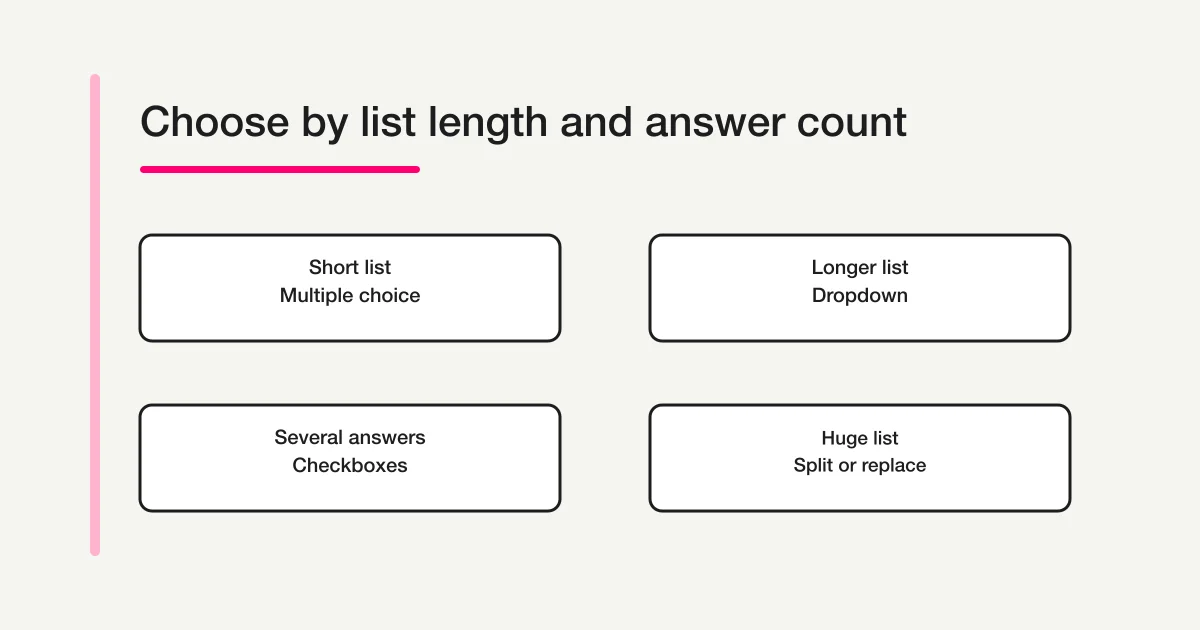
Choose Dropdown in a Google Forms question to collect one value from a fixed list. Use visible multiple choice for a short comparison and checkboxes when several answers are valid. A shorter-looking page does not prove faster completion.
Set a predictable option order, avoid a stored “Please select” placeholder, and test every routing option on phone and keyboard. The standard dropdown is not a promise of search or dynamically fetched dependent choices.
How to create a dropdown in Google Forms
- Open the form in Google Forms.
- Select Add question from the right-hand toolbar.
- Open the question-type menu beside the question title and choose Dropdown.
- Enter each permitted option.
- Turn on Required when an unanswered question must block submission.
- Preview and test the responder experience at desktop and phone widths.
Google's official question-type guide defines Dropdown as a list from which responders choose one option. It is not a multi-select control. The form editor can shuffle option order through the question's More menu. Keep a stable order when alphabetical, geographic, numeric, or operational ordering helps people find the right answer.
Dropdown versus multiple choice and checkboxes
| Question type | Answers allowed | Initial view | Good fit |
|---|---|---|---|
| Dropdown | One | Options appear after opening | A moderately long single-choice list |
| Multiple choice | One | Options remain visible | A short list people should compare |
| Checkboxes | More than one | Options remain visible | A genuine select-all-that-apply question |
Use multiple choice for a visible yes/no decision and checkboxes for several interests. Use a dropdown when one controlled value is required and saving vertical space does not hide an important comparison. The form field examples guide owns the broader field-type decision.
For the broader decision across Google Forms, Sheets, and Apps Script, use the Google Forms operations guide. This page stays focused on the question control.
Design a long option list
Remove values that do not change the next action
Do not turn an old reference list into a responder-facing menu without review. Remove retired departments, duplicate spellings, internal codes that responders do not know, and options that lead to exactly the same processing.
Use a predictable order
Alphabetical, geographic, numeric, or most-used-first order can reduce scanning. Shuffling can reduce order bias in a survey, but it harms findability for a country or department list. Record why the order is fixed before another editor turns shuffle on.
Do not store a fake placeholder as an answer
Adding “Please select” as a real option can store that phrase as valid response data. Use Required when selection is mandatory. When no answer is allowed, define what an empty value means to the team processing responses.
Split a list that has become an index
Google's standard help documents a fixed list of dropdown options. It does not promise a responder search box, autocomplete, or a bulk option manager. Verify the current responder view instead of assuming those features. For dozens or hundreds of values, divide by region, route people through sections, publish audience-specific forms, or use a validated short answer when spelling variation is manageable.
Can a dropdown include “Other”?
Google's question-type guide documents an Other option for Multiple choice and Checkboxes. It does not list free-text Other for Dropdown. If an unlisted answer is valid, change to multiple choice with Other, or include “Not listed” and send those responders to a short-answer follow-up.
Do not treat “Other” and “None of these” as synonyms. Decide who reviews free text and how it becomes a new controlled value before collecting it.
Branch from a dropdown answer
Google Forms can send responders to a particular section based on an answer. Google's dedicated branching help limits Go to section based on answer to Multiple choice and Dropdown. However, its question-type overview also says Checkboxes can route by answer, so the official pages are inconsistent. Check the current question menu in your editor before relying on a checkbox route. The steps below use Dropdown, which both pages explicitly support.
- Create the destination sections first.
- Open More on the dropdown question.
- Choose Go to section based on answer.
- Assign a destination section or Submit form to every option.
- Submit a test response through every route.
This is section routing, not a dependent dropdown that dynamically fetches a new list in the same question. The Google Forms conditional logic guide covers route planning and testing in depth.
Can responders edit the dropdown after submission?
There is no response-editing switch on an individual dropdown. Google Forms provides a form-level Allow response editing setting. If you enable it, test the responder's post-submit route and make sure your identity and sharing model matches the sensitivity of the answers.
Renaming options later does not automatically make old and new labels equivalent. If “Sales East” becomes “Enterprise Sales,” preserve a dated mapping for analysis. For response destinations, see the Google Forms and Sheets integration guide.
Mobile and accessibility checks
Space efficiency is not accessibility. Test with the browsers and assistive technology your audience actually uses.
- The question label says what should be selected.
- Option names reveal their difference early rather than ending with the useful words.
- A keyboard can open, move through, select, and leave the control.
- The label and longest option remain readable at 200% zoom and on a narrow screen.
- A screen reader announces the label, required state, and current value.
- Validation returns the responder to a question they can identify and correct.
W3C's forms tutorial emphasizes clear labels and understandable grouping. With only a few important choices, keeping every choice visible can be more usable than collapsing them to save space.
Alternatives when a dropdown does not fit
- Short list to compare: Multiple choice
- Several answers allowed: Checkboxes
- Unlisted text is expected: Short answer or a type with Other
- Hundreds of values: Split the audience, split the question, or choose a searchable system
- Different next pages: Section routing
- Collect an ordered preference: A ranking-capable tool rather than a single-choice dropdown
“Shorter page” and “faster answer” are different outcomes. Ask several representative responders to find a specific option on their usual device before finalizing the field.
Build a choice field in FORMLOVA
FORMLOVA has distinct single-choice, multi-choice and dropdown field types. A field-visibility rule can show an explanatory question for Other; this is different from Google section routing and does not create a searchable dependent list. The server checks required and allowed values. After duplication or template reuse, verify option values and conditional references rather than assuming they survived every older template format.
User-template reuse maps source field IDs to the new field IDs for conditional references. A template saved before source IDs were recorded may lack that mapping, so test every reused route. Responses can be exported to CSV or Excel on every current plan.
Draft a department selector with a useful Other route
This is a proposed trial, not an operation or result measured for this rewrite. Use a private test draft first.
Create a private inquiry draft. Add required Department dropdown: Sales, Recruitment, Support, Other. Show an optional detail field only for Other. Keep options in this order without a fake placeholder answer. Give me the preview URL before publishing. I will also open it on a phone. Do not publish; show the saved choices.
Before proceeding, check:
- Select each option and return from Other; inspect the visible fields and actual saved values.
- Test the longest label, keyboard and required-empty error on phone and desktop.
- Free export provides fields and submission time; compare selected values in a controlled test, not an assumed search/autocomplete capability.
Try the department selector before distributing it
Free covers field creation, conditional display, collection and CSV/Excel export. Review a real preview before choosing the control.
Register free and draft department choices
Register, verify your email, connect a supported AI client, and paste the proposed request above. Check the saved draft before publishing. AI-client account and usage requirements apply separately.
FAQ
Can a Google Forms dropdown select multiple options?
No. Dropdown allows one option. Use Checkboxes when several answers are valid.
Can Google Forms alphabetize dropdown options automatically?
Google's help describes shuffling options but does not document automatic alphabetizing as a standard dropdown feature. Prepare the source list in the required order and inspect it before publishing.
Can responders search inside the dropdown?
Do not design around a search box that standard Google Forms help does not promise. Test the live responder control and split or replace an unwieldy list.
Why is “Go to section based on answer” missing?
Confirm the question is Multiple choice or Dropdown and that destination sections exist. Google's dedicated branching help names these two types, while the question-type overview also mentions Checkboxes. If using Checkboxes, verify the current editor menu and test every route. Neither official page identifies Short answer as a branching source.
What to do next
Choose single versus multiple answers first, then compare visible choices with a dropdown. Keep a dated mapping when options change so historical responses retain their meaning.
Primary references
- Google Docs Editors Help: Choose a type of question for your form
- Google Docs Editors Help: Edit your form
- Google Docs Editors Help: Show questions based on answers
- Google Docs Editors Help: Publish and share your form with responders
- W3C Web Accessibility Initiative: Forms Tutorial
Pre-publish checklist
- Confirm whether the answer is single or multiple choice.
- Put options in a predictable order.
- Use Required instead of a stored fake placeholder.
- Test a long list on a phone.
- Test keyboard and screen-reader operation.
- Submit every branch route.
- Record changes that affect historical response labels.
Create a free choice form in FORMLOVA
Related Guides and References
Disclosure and Verification
The author develops FORMLOVA. Google Forms behavior was checked against official Google help, accessibility guidance against W3C, and FORMLOVA comparisons against current implementation and specification. Interfaces can change after the September 4, 2026 verification date.