
Last updated: October 15, 2026
Original verification record retained: Last verified: September 22, 2026
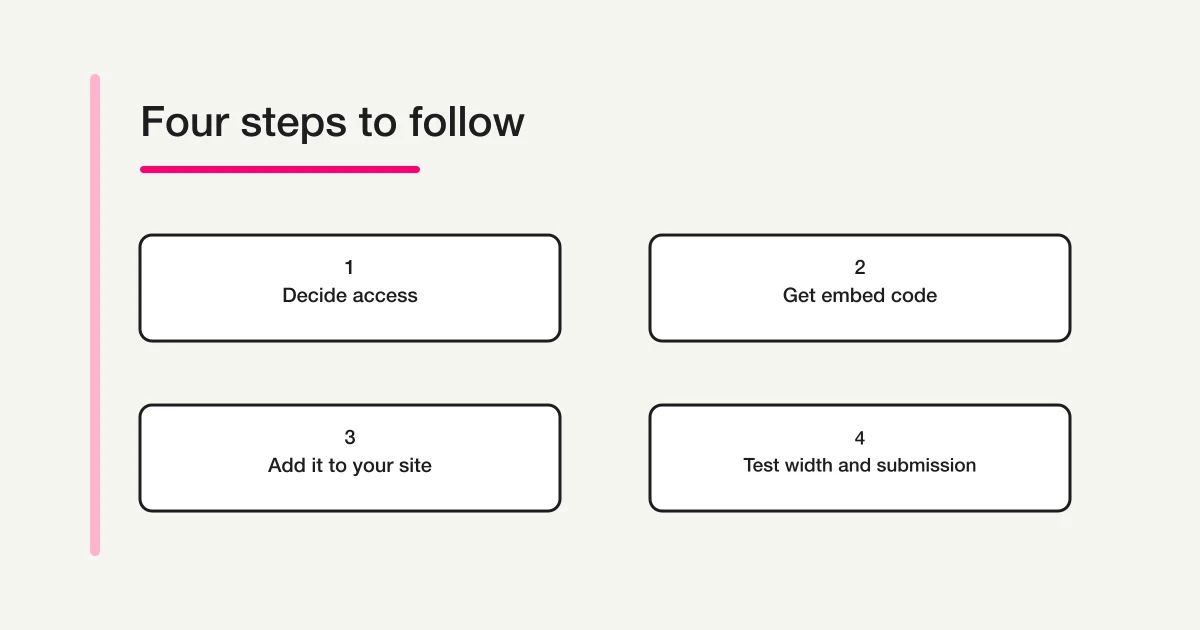
Embed a Google Form from More → Embed HTML, then paste the generated code into a site area that accepts it. Publish the form and verify responder access first. An iframe does not remove sign-in requirements or establish that a visitor can submit.
Test the standalone link, installed page, phone keyboard and final saved response separately. Use a direct link when the CMS or available space makes embedding unsuitable.
Choose between an embedded form and a link
Embedding can make sense when a visitor reads an explanation and is ready to respond on the same page. A separate form link can make sense when the form needs more space or when your publishing system does not accept the necessary HTML.
Neither choice guarantees better conversion. A long form inside a short frame may be less comfortable than a dedicated page. A separate link may interrupt a flow that would otherwise feel straightforward. Choose based on the actual task and then observe whether someone can finish it.
| Approach | Useful situation | What to inspect |
|---|---|---|
| Embed on the page | Explanation and response belong together | Available space, scrolling, and completion |
| Link to the form | A dedicated input screen is preferable | Correct destination and surrounding instructions |
| Offer both | Some visitors may prefer a separate view | Both routes reach the same intended form |
For example, an event page may have a short introduction followed by a compact registration form. A detailed application may benefit from opening separately, especially if applicants need to read supporting material alongside it. These are design examples, not measured outcomes for a particular website.
If you have not created the form yet, start with the Google Forms overview. The rest of this guide assumes you have a form and want to install and verify it.
Check the standalone form first
Google's current documentation describes publication and responder access as prerequisites for people to use a form. Pasting HTML into a website does not change those access conditions. Review who should respond before making the form available. Google's official publication and sharing guide
Open the participant link under conditions that match the audience. If the form is for customers outside your organization, a successful test while signed in as its owner leaves an important question unanswered. If it is an internal process, use an appropriate employee account rather than assuming the public should have access.
Write down what you observe. “The external test account can open the first question” is more useful than “permissions look fine.” It tells the next reviewer what was tested and prevents an editing preview from being mistaken for an access test.
If the standalone form asks for a sign-in, investigate the form's access and response settings before changing the website layout. Making the frame taller will not resolve an account requirement. Similarly, changing the text around the frame does not grant a visitor permission to submit.
This early check creates a reference point. Later, if the embedded version behaves differently, you can compare two views of the same form rather than trying to diagnose the website and the form simultaneously.
Retrieve the current embed HTML
In the current official instructions, the embed action is under the upper-right More menu. Select Embed HTML, copy the HTML, and paste it into the website or blog. Older tutorials may direct you only to a Send button; use the current menu available in your editor.
An embed snippet is different from a participant URL pasted as ordinary text. It describes a frame that displays another page within your page. When you are first setting it up, preserve the generated structure and confirm that the site accepts it before attempting cosmetic adjustments.
Keep the form's participant link available as well. It helps with comparison testing and can provide a separate route if the page layout is inconvenient. Check that the link and embedded frame refer to the same intended form, particularly if the page was copied from a previous campaign.
Website embedding and placing a form inside an email are different delivery methods. Do not apply restrictions described specifically for email embedding to a website iframe without supporting evidence. This article covers the website route.
Find the correct place in your CMS
A content management system is the editor you use to publish pages. Look for its documented support for HTML, custom HTML, or embedded content, and check whether iframe HTML is accepted. The feature name, required permissions, and plan conditions depend on the system you use.
Pasting code into a normal paragraph field may display the code as text. Some editors may also remove unsupported markup when the page is saved. These are conditions to investigate, not claims about every CMS. Check the documentation for your actual editor instead of assuming all services use the same block.
Prepare a preview or test page when that is available. Identify the page you are changing and how you would restore its previous content. Then save the embed and inspect the page after saving; an editor's temporary preview does not prove the published page contains the same result.
If your publishing role cannot insert the required HTML, send the site administrator the intended form and placement. Do not work around the limitation by placing unexplained scripts in unrelated settings. A supported form link may be enough if embedding is not available for that site.
Once the page is published, open its actual visitor-facing URL. Check the form in that context, including surrounding navigation, banners, and other components. An isolated editor preview cannot reveal every overlap or spacing issue on the finished page.
Review width and height across the whole journey
The frame and the surrounding website layout both affect available space. A frame that fits a desktop content column may extend beyond a narrow mobile layout. Long question labels and answer choices also reveal problems that short sample text can hide.
Height needs more than a first-screen inspection. Another section, an error message, or a completion screen can require different amounts of space. Increasing the height without checking the result may replace one issue with a large empty area.
| State | Review question |
|---|---|
| Initial view | Can the visitor identify the form and begin? |
| Long question | Are the label and all options readable? |
| Validation message | Can the visitor find and correct the relevant field? |
| Final step | Can the visitor reach and activate submission? |
| Completion | Can the visitor read what happened and what comes next? |
Do not assume that Google provides automatic height adjustment for every website context. Inspect the generated HTML and your site's supported configuration. If you need an adjustment, distinguish a cosmetic gap from an inability to reach the final action; they deserve different priorities.
Also distinguish frame sizing from changing the form's visual design. Making the surrounding container wider is not the same job as changing a theme, header image, or font. The Google Forms design guide owns those appearance choices.
A useful review record includes the page, approximate viewport, form step, and symptom. “Final button hidden behind sticky footer on a narrow phone” gives a site maintainer something concrete to reproduce. “The form looks strange” does not indicate which part of the experience needs attention.
Test a phone with the keyboard open
A narrow browser preview is useful, but actual input exposes additional conditions. On a phone, enter text and move between questions. Check whether the keyboard covers the active field and whether you can reach the next action without losing your place.
Pay attention to scrolling. A page can scroll while an embedded area also has its own scrolling region. If you repeatedly move the wrong area, reconsider the frame size or whether a separate form link would be easier for that audience. The purpose of the check is to identify friction, not to enforce embedding as the only acceptable solution.
Look at the page components around the form. A sticky menu, consent banner, or floating contact button may overlap the input area. If the standalone form works but a page component covers its controls, changing the questions is unlikely to address the underlying placement issue.
Read the instructions in context. If visitors need to return to eligibility information above the form, can they find it without confusion? Put essential instructions where people can discover them before entering data, and avoid making them search through unrelated promotional sections mid-task.
You do not need a claim that every possible device has been tested. Record the devices and conditions you actually checked, and keep a separate form link available when that is useful for your audience. Specific evidence is more reliable than a broad statement that the page is mobile-ready.
Diagnose display problems by separating the two surfaces
Start with the standalone form and compare it with the installed version. Change one relevant condition at a time, then repeat the check. This makes it easier to understand whether a change helped and easier for another person to continue the investigation.
| Observation | First place to investigate |
|---|---|
| Standalone form also fails to open | Publication, responder access, account |
| Standalone works but the site is blank | CMS support, saved HTML, published page |
| HTML appears as visible text | Type of content field used |
| Only part of the form is usable | Frame dimensions and page overlaps |
| Entry works but completion is unclear | Final action, completion view, recorded response |
Avoid changing publication settings, replacing the whole snippet, and redesigning the page in one attempt. If the result improves, you will not know which change mattered. A short log of observation, change, and retest is enough for a small installation.
If you suspect a browser extension or local setting, compare another suitable environment before asking visitors to change their security preferences. Describe what you observed rather than declaring an outage or a CMS defect without evidence.
The same principle applies to loading problems. Note whether the frame is absent, whether a message appears inside it, or whether content loads but input is unusable. Those observations correspond to different questions and help an administrator choose an appropriate next check.
Verify a real test submission
For the final check, use recognizable test content and submit through the installed page. Confirm both the participant-facing completion information and the record in the form's response view. This gives the installation task a concrete end point.
For a class registration, that might mean choosing a session, entering a test contact, submitting, reading the final instructions, and having the registration organizer locate the test. The test should be distinguishable from genuine applications so the organizer can handle it appropriately afterward.
If the process includes notifications or external automation, check their results separately. A saved response does not establish that an email was delivered or that another system received the data. Keep those outcomes separate in the handoff note rather than using “the form works” to cover all of them.
For question and instruction design across the wider registration process, use the Google Forms registration guide. For ownership and follow-up after responses arrive, see the Google Forms, Sheets, and GAS operations overview.
Using FORMLOVA for a website embed
FORMLOVA returns embed code for an owned published form, with inline and button-popup formats. Inline can use fixed height or a height-adjustment script. The CMS must support the chosen format; code returned in chat is not an installation result. Keep a direct public link for comparison and do not place preview-token URLs into a public page.
Prepare a short inquiry for a site test page
This is a proposed trial, not an operation or result measured for this rewrite. Use a private test draft first.
Draft a private inquiry form with topic, message and optional contact email. Keep labels short and do not publish. Show both previews and ask which embed formats the CMS supports. After explicit publication approval, return code for this owned published form; do not install scripts or modify the website.
Before proceeding, check:
- Review the draft separately before choosing inline, popup or direct link.
- On an approved site test page, inspect actual saved markup, widths, nested scrolling, errors and keyboard overlap.
- After controlled publication, send one non-sensitive test through the installed form and verify storage independently of mail. Do not infer automatic height support or higher CVR for every CMS.
Draft the site inquiry before testing its embed
Free covers form creation, publishing, response collection and embed-code retrieval for an owned published form. Website installation and compatibility still need their own check.
Register free and draft the site inquiry
Register, verify your email, connect a supported AI client, and paste the proposed request above. Check the saved draft before publishing. AI-client account and usage requirements apply separately.
Frequently asked questions
Can I keep the Google Form unpublished?
Putting HTML on a page and allowing visitors to answer are separate matters. Google's documentation requires publication for responder access. Confirm the intended audience can actually use the form before distributing the page.
Does embedding remove a sign-in requirement?
No. Embedding changes where the form is displayed. It does not remove the form's access conditions. Investigate the settings and intended audience rather than treating the frame as a way around authentication.
Will this work in every CMS?
HTML and iframe support depend on the publishing system and its configuration. Consult its official instructions and test the published result. A normal participant link remains an option when supported embedding is unavailable.
Create a website form with FORMLOVA
What to do next
Finish with a stored test response from the actual page and record the devices and formats tested. If embedding is inconvenient, keep the same form available through its standalone public link.
Disclosure and Verification
I develop FORMLOVA. I checked Google's official documentation and FORMLOVA's current specification and implementation on September 22, 2026. I did not install a Google Form in a live CMS or perform a live submission while preparing this article. The tables and testing sequence are original operating recommendations, not measured conversion improvements or a certification of any particular CMS.