
Last updated: October 15, 2026
A Google Forms registration form can collect signups for an event, class, workshop, or information session. Create the questions, define what a successful submission means, publish the form, and test the responder link before distribution. The closing controls can use a date/time or response limit, but a response count is not automatically a seat count.
Does a submission confirm a seat, or only request one? Who can open the form? Will the respondent receive a record? What happens at the deadline? Can simultaneous submissions push the total beyond capacity? Who can see the linked spreadsheet?
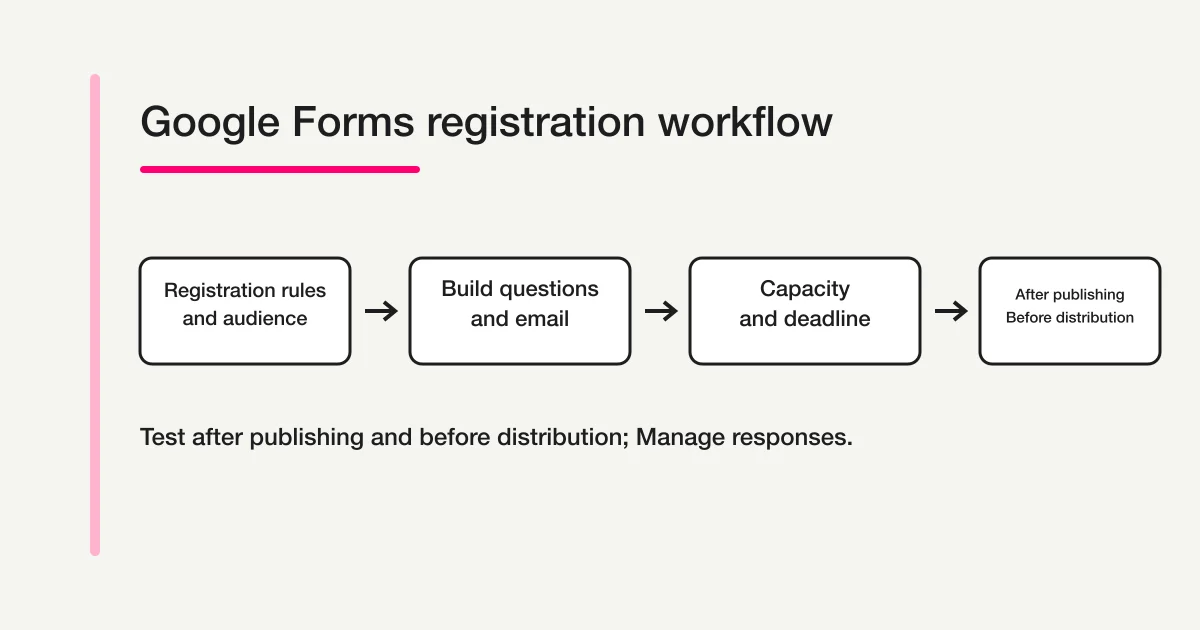
This guide answers those questions using Google’s current closing and sharing documentation, rechecked on October 15, 2026. It covers the native Google Forms workflow from the first registration rule through testing after publishing and before distribution, then response management.
One important update changes older advice. Since January 2026, Google Forms can natively stop accepting responses on a date and time or after a response limit. You do not need an add-on or Apps Script merely to set either basic condition. The response limit is not a strict seat lock, however: Google says simultaneous submissions can be accepted beyond the response limit.
Decide first: does submission mean confirmed or pending?
Write the status created by a successful submission before you write any questions.
| Submission status | Appropriate confirmation | Operator action |
|---|---|---|
| Confirmed registration | “Your registration is confirmed” | Add the person to the attendee list |
| Request received | “We will confirm availability” | Review eligibility or capacity |
| Lottery entry | “We will notify you after the deadline” | Deduplicate and select attendees |
| Waitlist request | “We will contact you if a seat opens” | Maintain order and released seats |
Google Forms counts submissions for its response limit. A submission is not necessarily a person or a seat. If one response can include three guests, a limit of 80 responses is not an 80-seat capacity control.
If you are still deciding which fields and post-submit process a registration form needs, start with the general registration form guide. This page has a narrower job: the Google Forms interface and the checks needed before you share its responder link.
Step 1: Define registration rules and required fields
Create a short registration brief before opening the editor.
Name: October product information session
Event time: October 18 at 2:00 p.m.
Audience: Prospective customers
Submission status: Confirmed registration
Capacity: 80 people; one submission registers one person, no guests
Deadline: October 17 at 6:00 p.m.
Contact method: Collected email address
Purpose of personal data: Event instructions and follow-up
Changes or cancellation: Contact the event desk
This brief prevents a common mismatch: the invitation says “registration confirmed,” while the operator intends to review every submission manually.
Collect only information used for admission, delivery, or necessary follow-up. A typical information session needs a name, email address, organization, selected session, optional advance question, and any required privacy acknowledgment. A mailing address or phone number should not become required merely because the template has a field for it.
Explain why personal data is collected, who controls it, how a respondent can ask a question, and where the organizer’s privacy policy can be read. If consent is required for your use case, present a clear required acknowledgment. Google Forms provides the collection interface; it does not replace the organizer’s privacy obligations.
Google’s How to use Google Forms explains three starting points: a blank form at forms.google.com, a form created from Google Drive, or a form created from Google Sheets. The Workspace Learning Center’s first-form guide also connects question creation, required settings, email collection, and preview in one official workflow. Give the form a specific title with the event name and date rather than “Registration form.”
The description at the top should answer five immediate questions:
- What is the event?
- Who is it for?
- When and where does it happen?
- When does registration close?
- What happens after submission?
This is also the right place to state whether a successful submission reserves a seat. Do not bury that distinction in a later email.
Step 2: Build questions and responder settings
Use the add-question control, then choose the type beside the question title. Google’s current question type documentation covers short answer, paragraph, multiple choice, checkboxes, dropdown, file upload, linear scale, rating, grids, date, and time.
Map each question to the structure you need later.
| Information | Useful question type | Required? |
|---|---|---|
| Full name | Short answer | Usually, if identity is needed |
| Session | Multiple choice or dropdown | Yes for multiple dates |
| Topics of interest | Checkboxes | Often optional |
| Advance question | Paragraph | Usually optional |
| Privacy acknowledgment | Checkbox | Required when applicable |
A choice field produces cleaner filtering than a free-text session name. Free text is useful for an advance question but expensive for data cleanup. Required settings should reflect what prevents the operator from processing a registration, not what might someday be interesting.
Choose email collection deliberately
Google’s response management documentation describes verified email collection and responder-entered email collection. Verified collection associates the response with a confirmed Google Account email. Responder entry does not provide the same verification and can contain a typo.
For a public event, test the experience with an external account before choosing. A sign-in requirement may be acceptable for an internal class and harmful for a broad public session.
Turning on “Limit to 1 response” requires respondents to sign in to a Google Account. Google also says the username is not recorded unless email collection is enabled. Do not describe a form as anonymous merely because the username is not recorded; the questions and access settings still need a separate privacy review.
Treat file upload as a different access decision
A File upload question requires the respondent to sign in to a Google Account. Google also documents that this question type cannot be used when the form is stored in a shared drive or when an administrator has enabled certain Data Loss Prevention restrictions. Uploaded files are stored in a new folder in the form owner’s Google Drive.
That makes File upload more than another field. It changes access, storage, and permission assumptions. If an external applicant must submit a document, test the responder path with the same account conditions the audience will have. The Google Forms file upload guide covers that narrower decision in depth.
Step 3: Set capacity, deadline, and confirmation
Publish the form before configuring response collection. In a published form, open “Published,” then review “Accepting responses.” Google’s current View and manage form responses instructions let the owner stop responses manually or choose “Set close date or response limit.”
For a deadline, select the date and time. Match the value to the invitation, including the time zone. “Registration closes Friday” is ambiguous for an online audience. “October 17, 6:00 p.m. JST” is testable.
For a response limit, enter a value greater than the number of responses already received. The limit applies to the whole form. It does not create separate inventory for Friday and Saturday sessions, and it does not multiply one response by its guest count.
Most importantly, Google states that if several people respond at exactly the same time, their submissions may be accepted regardless of the limit. Use the native response limit when a small overage can be handled. Do not promise a hard seat guarantee from that setting alone. The Google Forms deadline and response-limit guide covers the current closing controls and the boundary with older add-on or Apps Script instructions.
Write the confirmation message
Google’s publishing and sharing help explains how to edit the confirmation message under Settings and Presentation. It appears after a successful submission.
Your registration has been received.
Event instructions will be sent to the email address you entered by October 16.
If the message does not arrive, check your spam folder and contact the event desk.
This screen message is not an email. If you collect email addresses, you can also configure “Send responders a copy of their response” as “When requested” or “Always.” Google notes that response receipts may fail to arrive because of spam filtering or other anti-abuse measures. Do not make a receipt the only delivery path for a critical join link.
Be precise about what the copy proves. It can show the submitted answers. It does not by itself prove that payment cleared, eligibility was approved, or a seat was reserved under a separate capacity system.
Avoid enabling “View results summary” for a registration form without a specific reason. Google warns that a response summary can expose full-text answers or charts to anyone who can respond. Names, contact details, accessibility needs, and advance questions do not belong in a broadly visible summary.
Step 4: Test after publishing and before distribution, then manage responses
Publish the form first; an unpublished Google Form cannot accept responses. Then, before distribution, open the responder link under the conditions your audience will use: signed out, an external Google Account, a mobile browser, or an account outside your Workspace. Do not treat editor preview as the complete test.
Use this checklist.
[ ] The responder link opens for the intended audience
[ ] External attendees have the intended access
[ ] Required questions block incomplete submission
[ ] Email collection behaves as described
[ ] Sign-in is disclosed for one-response or file-upload settings
[ ] The close date and response limit are saved correctly
[ ] The confirmation message states the real registration status
[ ] A response copy is requested or sent as intended
[ ] The test response appears in Forms and the linked Sheet
[ ] Form and spreadsheet permissions were reviewed separately
Run at least three paths: a valid registration, an incomplete required field, and the exact external-access condition. If the form has sections or branching, test every route to the final Submit button. After testing, remove test records only if you are certain they are not needed; Google says deleted form responses cannot be restored.
Manage Forms and Sheets as separate permission surfaces
Responses can be reviewed in Forms by summary, question, or individual submission. Google’s response destination documentation lets you create a new spreadsheet or select an existing one. Google Sheets then structures incoming responses in a table.
The form and linked spreadsheet are separate files in Google Drive. A form collaborator may automatically receive access to the response spreadsheet, but later permission changes are not automatically synchronized. Removing someone from the form is not proof that they lost access to the Sheet. Audit both.
During registration, review more than the headline response count:
- Duplicate or test submissions
- Mistyped responder-entered email addresses
- Cancellations and change requests
- Guest counts that differ from submission counts
- Responses requiring manual approval
- Access to personal data in both files
A spreadsheet is useful for sorting and operational columns. Define the meaning of any added status values, such as received, confirmed, waitlisted, canceled, and attended. Otherwise, two operators can interpret the same row differently.
Keep Google Forms Or Test One Separate Registration Flow
Google Forms is suitable when its questions, audience settings, native close date or approximate response limit, response copies, and linked Sheet cover the work. Keep that route if it fits. The native response limit can accept simultaneous overage and counts submissions rather than accompanying guests.
If you want to create the form and manage registration status from chat, try a separate FORMLOVA form with a small, explicit scope. This sample is for a free event, one response per attendee, no guests, and manual review before attendance is confirmed:
Draft a registration form for a free product information session on November 14.
Require name, email, selected session, and acknowledgment of the organizer's privacy notice.
Make organization and advance questions optional. One submission is for one attendee; no guests.
Set a response capacity of 20 and a deadline of November 13, 2026 at 18:00 Japan time.
State that submission is a request received; the organizer will confirm attendance separately.
Show me the questions, capacity, deadline, and completion message before publication.
Do not send emails or schedule reminders.
Replace the event details and privacy notice with the organizer's real information before publishing. Review the draft and completion page, then publish a test form and submit two fictional registrations with addresses you control. Find one submission, inspect the available statuses, change it to the status you choose, and retrieve it again to confirm the update. Export the records to CSV and check the selected session, email, and submission time for your next task. The current CSV contains answer fields and submission time; response status and response ID are not exported columns. Check status in chat.
Form creation and publishing, collection, search/status management, CSV/Excel export, and basic analytics are free-plan features. A capacity of 20 means 20 accepted responses in this example, where one response is one attendee. It does not establish session-specific inventory, guest counting, or a general guarantee about every concurrency or cancellation scenario. Test any admission rule you will promise before using it in a real event.
Try one registration form through the attendee-list export
Use the free plan to check the registration fields, completion message, response status, and CSV output. Keep attendance approval explicit so a received request is not mistaken for a confirmed seat.
Sign up free to draft a registration form
Sign up, verify your email, and connect a supported AI client. Then use the request above to create a draft and review it before publishing. Your AI client’s access and fees follow its provider’s contract.
Custom confirmation emails and reminders require Standard or above; bulk follow-up and email sequences require Premium or above. Free response notifications are a six-hour digest and do not consume the email quota. The Free plan separately allows 100 quota-counted emails per month. None of this imports past Google responses automatically. For the option of keeping Google Forms with Sheets or Apps Script, use the Google Forms, Sheets, and Apps Script operations guide.
Frequently asked questions
Can Google Forms set a capacity and deadline without an add-on?
The current native feature can close a published form on a specified date and time or after a response limit. These are alternative basic closing conditions in the interface. The response limit can be exceeded by simultaneous submissions, and a response count may not equal seats.
Can registrants receive a confirmation email?
If you collect email addresses, Google Forms can send a copy of the response when requested or always. That receipt contains the submitted answers. It is not necessarily the organizer’s separate approval, payment confirmation, or attendance instruction.
Does File upload require sign-in?
Yes. Google’s question-type help says respondents must sign in to a Google Account to answer a File upload question. Test this constraint with the intended external audience after publishing and before distribution.
Can responses be managed in Google Sheets?
Yes. You can create a new response spreadsheet or select an existing one. Review access to the form and Sheet separately because permission changes do not automatically stay synchronized.
Disclosure and Verification
Google Workspace Learning Center's first-form guide was also checked for question creation, email collection, and preview on the same date.
This article was prepared after checking Google’s official Google Forms overview, question types, publishing and sharing, response management, response destinations, and the official January 2026 closing-control announcement on September 4, 2026. Google’s native closing controls and publishing requirements were rechecked on October 15, 2026. FORMLOVA statements were checked against its current plan definition and form creation/update tools. The trial is a proposed workflow, not an observed admission guarantee. Google can change labels and availability, so confirm the settings in the account used for publication.
Before distributing either form, verify the link, attendee unit, deadline, completion message, and saved test response. To try the separate chat-operated registration example, register free with FORMLOVA, verify your email, and connect your AI client before creating the draft.