
Last updated: 2026-09-29
To make a graded quiz in Google Forms, turn on Make this a quiz in the form settings, then add an answer key and points to each question you want to grade. Choose when to release grades and what respondents can see, then submit test answers to check both the respondent view and the editor's grading view.
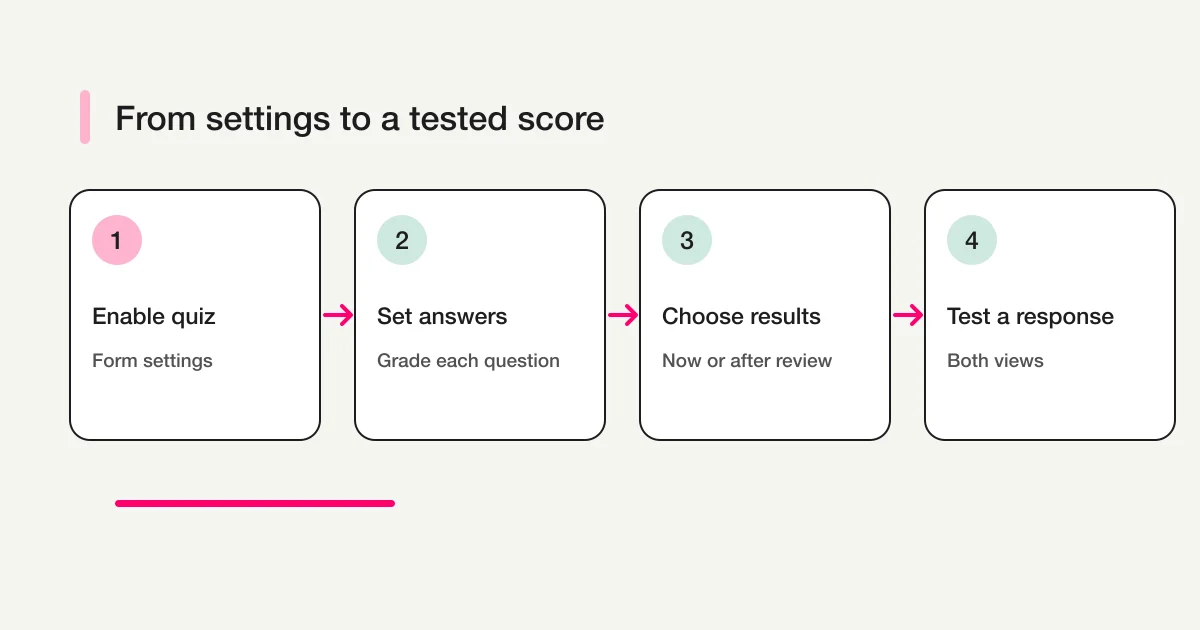
The workflow is: enable quiz mode, add questions, set answers and points, and decide when to release results. Some question types can use answer keys for automatic grading, while others may need manual review. Do not assume every response will be graded automatically.
This guide covers the quiz settings and the checks that keep scores and correct answers from appearing at the wrong time. If you are collecting opinions rather than assessing answers, a regular form may be a better fit.
Decide what respondents should see and when
Before you build the quiz, decide whether respondents should see their grades immediately or after you review them. Google Forms lets the author choose a grade-release timing and control whether the results show missed questions, correct answers, or point values. Immediate release can work well for practice questions. For a class test or workplace assessment, you may want to review responses first.
| Use case | Decide before sharing | Setting to check |
|---|---|---|
| Self-study practice | Should answers appear right away? | Grade release and answer visibility |
| In-class quiz | Should an instructor review responses first? | Release grades after review |
| Training check | Is a pass threshold managed elsewhere? | Score display and respondent instructions |
| Opinion survey | Is there a correct answer or score? | Leave quiz mode off if not needed |
Google's official guide to creating and grading quizzes describes grade-release and respondent-result options. Available controls can differ by account, administrator settings, or interface updates, so confirm the choices in the form you plan to use.
Turn a form into a quiz
Open the form editor and select Settings. Turn on Make this a quiz. Quiz settings enable answer keys and points on supported questions. Labels and placement can change as Google updates Forms, so look in the form's settings for the quiz option.
Choose when grades should be released. With immediate release, respondents can see the result after submitting, depending on the visibility options you select. If grades are released later, review responses first and then publish results. If you collect email addresses to identify respondents, make sure the collection method fits your organization's rules.
Check that the setting remains enabled before leaving the page. Quiz mode applies to the form, so if the form is already collecting responses, consider how the change will affect existing respondents and explain any change in process.
It helps to separate the form's job from the quiz's job. The form collects an answer; the quiz settings define how that answer is scored and returned. A question can be clear to a person reading it and still be difficult for an automatic answer key to judge. Before choosing a question type, write down what counts as correct, whether more than one answer is acceptable, and whether someone needs to review the response. This small planning step can prevent a surprise when the first grades arrive.
For example, a one-answer knowledge check may fit a multiple-choice question. A question that asks respondents to select every applicable item needs a different answer pattern and should be tested with a response that selects only some correct choices. A prompt asking for an explanation needs human judgment if you care about reasoning rather than exact wording. The goal is not to force every question into automatic scoring; it is to make the scoring behavior match the learning objective.
Set an answer key and points for each question
Add a question, then open Answer key on its question card. Select or enter the accepted answer and assign points. Google's official instructions show how to set an answer key and points for a question and add feedback when useful.
For a multiple-choice question, select the correct choice and enter the score. You can add feedback for correct or incorrect answers, such as a short explanation or a link to a lesson. Before sharing, check that any linked material is accessible to the people taking the quiz.
Short-answer questions may allow you to enter accepted text. Decide how to handle spelling, capitalization, punctuation, and alternate valid responses. A strict text match can mark a reasonable variation wrong. If an answer needs interpretation, plan for manual grading rather than relying on an automatic match.
Answer-key options depend on question type. Do not expect every format to support the same automatic grading. If you cannot configure an answer key for a question, test how it will be graded before you tell respondents to expect an automatic score.
Make answer keys and feedback useful
Keep the answer key aligned with the wording of the prompt. If a question asks for one answer, do not accidentally leave several choices marked correct. If several answers are valid, state that clearly in the question so people know whether to select one or more. A respondent should be able to understand the task without guessing the grading rule from the score they receive.
Feedback is most helpful when it explains the next step. A short note can identify the idea behind a correct answer, point out why a common misconception is incorrect, or link to a resource for review. Avoid putting information in incorrect-answer feedback that you do not want visible to respondents yet. If the quiz is used more than once, ask someone who did not write the questions to read the feedback as a learner would.
Try a few realistic responses before publishing. Include a correct answer, a plausible mistake, and any alternate response you intend to accept. For a multi-select question, include one response that selects too few answers and one that includes an incorrect option. Record the score and feedback each response receives. If the result does not match your rubric, adjust the wording or grading setup before inviting respondents.
Choose points and partial credit
Assign points per question. For a question with several parts, decide which conditions earn full or partial credit before you publish. If a multiple-answer question needs partial credit, check whether that option is available in its answer key and test the combinations you expect respondents to choose.
The total points in a form are not automatically the same as your organization's pass or fail rule. If you need a pass threshold, retake policy, or follow-up action, confirm how that process will be handled instead of assuming the score alone automates it.
When questions carry different point values, explain the score structure if respondents need it to plan their time. If all questions have equal weight, keep that consistent. If some questions are practice-only or do not contribute to a score, make that purpose clear in the prompt rather than expecting respondents to infer it. The quiz score can summarize correct answers, but it does not explain why a person missed a concept; feedback or a follow-up conversation may still be needed.
Control grade and answer visibility
Quiz settings separate when results are released from what the result includes. Showing correct answers can help someone learn from a practice quiz. In a test reused for multiple groups, it may also reveal answers to people who have not taken it yet.
Decide each of the following before sharing:
- Release grades immediately or after review?
- Show which questions were missed?
- Show correct answers and point values?
- Manually grade open responses before releasing results?
- Let respondents edit their response after submitting?
Respondent-facing results and the editor's response view are separate. Hiding a score from respondents does not prevent editors from reviewing responses. Showing grades immediately does not remove the need to check manual grading or missed items.
Also think about who can use the feedback. A respondent may open the result on a phone, return to it later, or need to read the explanation without relying on color alone. Use plain language, keep feedback attached to the relevant question, and make any external resource link understandable from its text. If grades are held for review, tell respondents when or how they should expect an update. A clear expectation is more useful than a form that silently accepts answers and leaves people unsure whether the process is complete.
Test the respondent experience before sharing
Do not stop at the editor preview. Submit test responses and inspect both what a respondent sees and how the editor's response is scored. In particular, check whether correct answers appear after submission, whether a manually graded answer remains unscored, and whether respondents can edit a submitted response.
- Open the form preview and read the questions and choices as a respondent.
- Submit one test response with correct answers and another with incorrect answers.
- Check the confirmation screen for the expected score, answers, and feedback.
- In the editor's Responses tab, check points and any answers that need manual grading.
- If grades are released later, test the release process and respondent result.
- Decide how to separate or remove test responses before real results are collected.
If test responses should not be included in the real score totals, use a test copy or decide how to distinguish them before testing the live form. When changing a form that is already in use, note who may be affected and when the change takes effect.
Before you send the link broadly, review the form's title and description, the completion message, and the audience restrictions. The introduction should say what the quiz covers, whether responses identify the respondent, and what happens after submission. If a respondent can edit an answer, test that route as well. A second submission or edit should not leave the person uncertain about which response was recorded.
Consider the operational handoff too. Decide who will watch for new responses, who can resolve a grading question, and who will release results if the original author is unavailable. If more than one editor will review answers, agree on a scoring rubric and a way to flag uncertain cases. The form may collect responses successfully while the grading process still stalls, so ownership and response review deserve a quick check before the quiz opens.
Review responses and correct grading
After responses arrive, review both the question summary and individual answers. Check whether expected answers were marked correct, whether a spelling variation caused an unintended deduction, and whether the feedback still matches the question. If you adjust a score, confirm how it applies to respondents and whether you need to release the updated grade.
For a short test, spot-check a sample of responses from each score range. For a longer assessment, review the questions with unusual answer patterns and any items that attracted many manual changes. A cluster of unexpected answers might mean the prompt is ambiguous, the key is too strict, or respondents did not understand the instructions. It does not by itself prove that a question is defective, but it is a signal to compare the answer pattern with your rubric.
Keep a record of meaningful changes to the key and scoring. If a correction affects submitted answers, make the same decision for everyone in the affected group and communicate the change clearly. This makes it easier to explain a revised score later and reduces the chance that two editors apply different rules. For recurring training, save a clean copy of the quiz as the next starting point only after you have decided which responses and settings should carry over.
If responses are stored in a linked spreadsheet, check the connection and sharing permissions separately. Our Google Forms response spreadsheet guide covers the response destination. For broader choices about running Google Forms with Sheets and Apps Script, see the Google Forms operations guide.
Common problems
I cannot find Answer key
Check that Make this a quiz is on in the form settings. A regular form may not show answer-key controls on question cards. Also check whether the selected question type supports the grading option you need.
A written response is not graded automatically
Two answers can mean the same thing while using different text. If interpretation matters, define a rubric and grade the response manually. Include review time when deciding whether to release grades immediately or later.
I do not want respondents to see the correct answers
Review both grade-release timing and the options that show missed questions, correct answers, or point values. Then submit a test response and inspect its result. The editor view and respondent view show different information.
Respondents seem to have different scores
Check the answer key that was active when each response was graded, any pending manual grading, and whether corrected scores were released again. If you changed a question after responses arrived, verify how the editor applies that change to submitted answers.
Pre-share checklist
- Quiz mode is on
- Each graded question has the intended answer key and points
- Valid variations and spelling are considered
- Questions requiring manual grading have an owner
- Grade-release timing and visible results are intentional
- Revealing answers will not affect later test takers
- Correct and incorrect test responses work in both views
- The linked response sheet and its permissions are correct, if used
- Test responses can be distinguished from real results
Summary
To make a quiz in Google Forms, enable quiz mode, set an answer key and points for each graded question, and choose when respondents see their grades. Question types differ in how they can be graded, so test both correct and incorrect responses before sharing. If you plan to reveal correct answers, consider how that affects people who have not taken the quiz yet.
If your team manages ongoing inquiries, registrations, or other form responses in addition to quizzes, FORMLOVA is another option to consider. Start with the Google Forms operations guide to compare workflows, or create a FORMLOVA account to manage team response workflows.
Sources
- Create and grade quizzes with Google Forms (Google)
- Create a quiz with Google Forms (Google Workspace Learning Center)
This guide covers basic grading settings in Google Forms. It does not guarantee identity verification, exam security, or end-to-end grade management. For sensitive assessments, also check your organization's account settings and procedures.
Disclosure and Verification
I checked Google's official help pages on September 29, 2026. Interface labels and available settings may change, so confirm the controls in the account you will use and follow your administrator's policies before sharing the quiz.