
Last updated: 2026-09-30
In Google Forms, an owner can turn on Allow response editing so respondents can edit their own submitted response through a link shown after submission. The setting applies to the form, not an individual question. Before sharing the form, submit a test response from the kind of account your respondents will use and check that the editing route behaves as intended.
This guide shows where the setting is, how to test it from the respondent side, how it differs from email receipts and collaborator access, and what to check when the link is missing or inaccessible. If you are a respondent trying to find an answer you already submitted, see our guide to checking your own Google Forms response.
What “Allow response editing” changes
When enabled, the setting can provide a link after submission that lets the respondent edit that response. It does not grant access to edit the form itself. Respondents do not get permission to change question wording or choices, or to see other people's responses, simply because response editing is allowed.
Treat the response-edit link as a URL that can change the response. Google's official reference for the edit URL explains that anyone who opens the link can edit the response. Do not publish or forward it to anyone other than the respondent; advise respondents to keep it private.
The response-edit link, an email containing a copy of the response, and a link to a response summary are separate features. Sending a response receipt does not necessarily include an edit link. Allowing edits does not automatically collect email addresses or email a copy of every response. Google's official publishing and sharing help describes response editing separately from showing a response summary.
| Goal | Setting or route to review | What this setting does by itself |
|---|---|---|
| Let a respondent correct their submitted answer | Allow response editing | Makes an editing link available after submission |
| Email respondents a copy of their answers | Collect email addresses and send a response copy | Provides an email copy under the selected receipt option |
| Show response summaries | View results summary | Shows a summary, which is not a personal response receipt |
| Let someone edit the form | Form collaborators | Gives form-level editing access, depending on the role |
Google may change its interface labels or layout. If the exact wording differs, look in the form's Settings under Responses for the option about allowing respondents to edit a submitted response.
Turn on response editing
- Open the form in edit mode.
- Select Settings.
- Expand or open the Responses section.
- Turn on Allow response editing.
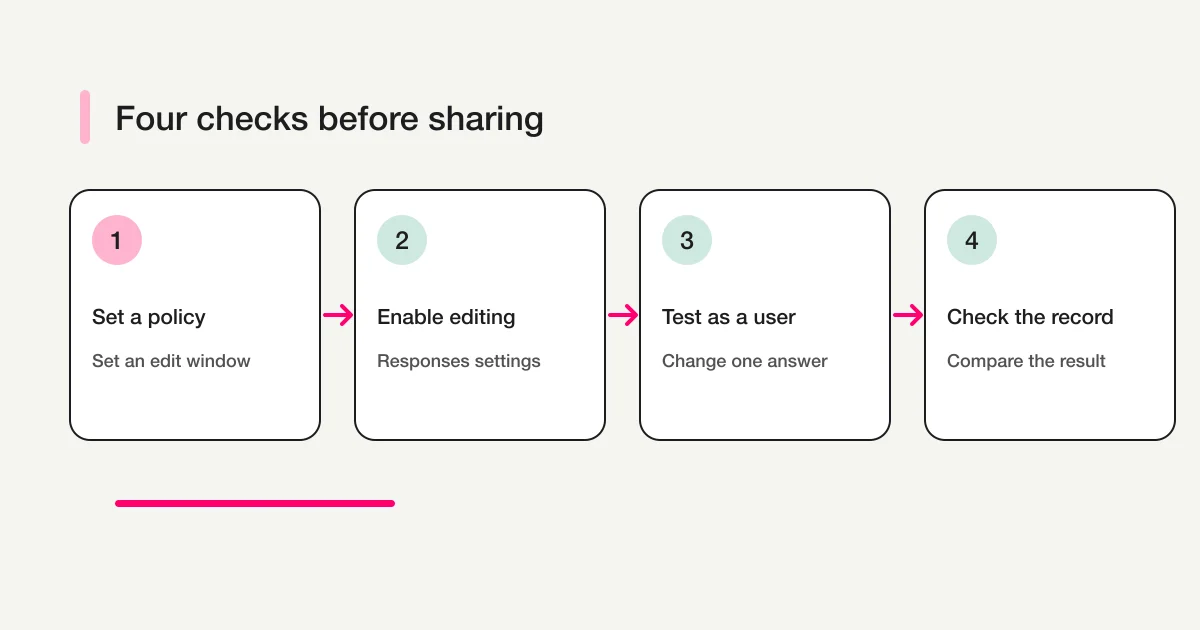
- Check that the setting is saved, then test it before sharing the form.
Google's official help describes the same route: open Settings, expand Responses, and turn on Allow response editing. The layout can vary by account, device, or product update, so look within the form editor's settings rather than relying on a fixed screenshot.
Deciding before publication helps you explain accurately whether someone can correct an answer later. If responses have already been collected, check how past responses are handled without editing a live response. Google's help does not describe every condition for applying a setting change to past responses; avoid assuming retroactive behavior.
Test once from the respondent's view
The editor's settings screen cannot show whether the respondent can see and use the link under the form's access rules. First, test with a copy of the form. If you must test the live form, confirm in advance whether the test will reach reporting, notifications, spreadsheet integrations, or other downstream processes, and who will exclude or remove it. Do not edit an existing response.
- Open the response form with a test respondent account. If the form is limited to an organization, use an account covered by that restriction.
- Enter recognizable test values and submit the response.
- Check whether the completion screen offers a link to edit the response.
- Open the link, change one answer, and submit the edit.
- Check the form's response list and any linked spreadsheet to see how the changed response is recorded.
- Decide how the test data will be handled, including who will remove it or exclude it from reporting before launch.
This test can catch an unsaved setting, a form access restriction, or an account mismatch before respondents encounter it. If test answers must not be included in live results, mark them clearly and decide in advance how downstream processes will exclude them, who can remove them, and how removal will be recorded. Do not edit or delete real responses to test the setting.
What to look for during the test
With the setting enabled, confirm that an editing route appears after submission and that it opens the response you just sent. After changing an answer, inspect the actual form and response sheet. Do not assume how a particular form records an edit without checking it.
Whenever possible, test with an account other than the form owner's. A form restricted to a school or workplace domain can behave differently for someone outside that domain. Success while the owner is signed in does not prove that an external respondent has access. Check the intended audience, sign-in requirements, and whether the form is accepting responses.
Keep email collection and “one response” separate
Allowing response edits and collecting email addresses are independent settings. The edit option does not automatically identify the respondent or record an email address. If you need to identify a person, choose an email collection method separately and explain its purpose on the form.
Limit to 1 response is intended to limit repeat submissions; it is not the response-editing setting. Google's help says respondents must sign in to a Google Account to use that limit. Whether the username is collected is controlled separately by the email collection setting. Some people may not be able to sign in with the account your form expects, so test with the audience and accounts you plan to invite.
Decide whether edits are appropriate based on what the response represents. Editing can help with contact details, schedule changes, or an attendance response that may change. It may be unsuitable for a vote that must remain fixed after submission, an application with a formal review cutoff, or an assessment where answers should not change after the deadline. Consider the collection window, identity checks, and how you will handle changes before enabling the option.
| Use case | Decide before allowing edits |
|---|---|
| Updating contact details or availability | When changes close and how staff find the latest response |
| Event attendance | The change deadline and whether someone must be notified |
| Opinion collection or voting | Whether changing a submitted choice affects fairness |
| Tests or applications | Whether changes are permitted after review starts and what records are required |
How responses are shared and how receipts are delivered are separate design choices. For missing response-copy emails, see how to troubleshoot Google Forms auto-replies and receipts. If a respondent needs to find an earlier submission, send them to how to check their own response.
Troubleshoot a missing or inaccessible link
The edit link does not appear after submission
First, check Settings → Responses → Allow response editing in the form that received the response. Confirm the setting was saved and that the respondent did not open an old copy of the form or a different form with a similar title. When several forms are in use, make sure the one you changed is the one the respondent completed.
The link opens the wrong account or is denied
If the form has organization or account restrictions, the respondent may need to use the same eligible account they used for the form. Check the account in the browser and compare it with the form's audience rules. Do not give respondents the editor's form-management URL as a workaround; they should use their own response-edit link.
The email never arrives
An edit link after submission is not the same as a response-copy email. If respondents need a copy, review email collection and the Send responders a copy of their response option separately. A missing email alone does not show that the response failed to submit or that editing is disabled. Check the respondent's inbox, spam folder, and entered email address, then compare against the owner's response list.
The response appears to have been submitted twice
If the respondent reopened the response form instead of the original edit link, they may have started a new submission. Review the response list and spreadsheet, including timestamps, before deciding which entry is correct. Do not generalize that using an edit link will always update a particular row; verify the behavior in the form before launch.
Do not confuse response editing with collaborator access
Give respondents the public response URL. Adding someone as a collaborator can let them change questions or settings, which is different from allowing them to edit their own answer. Do not share the form's editor URL as a way to help a respondent correct a response.
View results summary is also different from a private copy of one person's answers. Google says a response summary can contain full-text answers or charts and can be visible to anyone who can respond to the form. Do not enable it as a substitute when a person should see only their own response.
For broader decisions about Google Forms, Sheets, and Apps Script, see the Google Forms, Sheets, and Apps Script operations guide. For question-type choices, see how to use dropdown questions.
Check the setting in Apps Script
If you create or maintain a form with Apps Script, the official Google Apps Script Form class includes setAllowResponseEdits(enabled). Google Developers documents false as the default for new forms and says this setting controls whether a link to edit a response is displayed after submission. If you manage settings in code, verify the respondent view after running the script.
const form = FormApp.openById('FORM_ID');
form.setAllowResponseEdits(true);
The script needs permission to edit the form. In a production script, review how the form ID is selected so the change applies to the intended form. Running code alone does not prove that respondents can use the link; verify access restrictions and the response flow with a test submission.
Pre-share checklist
- Decide when and under what conditions an answer may be edited.
- Check the form-wide Allow response editing setting.
- Decide separately whether to collect email addresses or send a response copy.
- If needed, check the one-response limit and its sign-in requirement.
- Submit and edit a response with an account that matches the intended audience.
- Check how the edited response appears in the response list and linked sheet.
- Decide how test data will be removed or excluded from reporting.
- Avoid confusing response summaries or collaborator permissions with a respondent's edit link.
Allowing an answer to be edited is not the same as keeping a record of who changed it and when. If your process needs a change history, define a separate recordkeeping method that meets your organization's requirements. After sharing, compare the actual settings with the respondent's screen whenever someone reports that the link is missing.
Frequently asked questions
Can I allow edits for only one question?
The Google Forms option applies to the form, not separately to each question. If only part of an answer should be changeable, design a separate correction process or a follow-up form.
Does allowing edits reveal a respondent's email address?
No. Response editing and email collection are separate settings. If you need an email address, choose an appropriate collection option and tell respondents why it is needed.
Can I email the edit link?
An edit link and an email response receipt are different. Check Google's current receipt settings if respondents need an emailed copy, and test whether the edit link appears on the submission screen.
Can a respondent always edit later after I turn it on?
Do not assume that every account, form access rule, or response state behaves identically. Test with the intended respondent account and explain any deadline or change policy in the form instructions.
Disclosure and Verification
The setting procedure and response restrictions were checked against Google Forms Help. The Apps Script method and default were checked against the official Google Developers reference. Interface labels may change; test the form with an account in the intended audience before sharing. Keyword volumes are third-party estimates, not observed Google search results or proof of results for this article.