
Last updated: October 15, 2026
Use a Classroom Question for one prompt; use a published Google Form linked or attached from Classroom for several questions. A Classroom Question is identified to the teacher. Turn off peer reply and summary visibility when classmates should not see answers.
Separate assignment completion, a stored form response and grade import. They have different conditions and do not become synchronized simply because a link is attached.
The short answer: one question in Classroom, multiple questions in Forms
Write down the decision you need from the survey before choosing a tool.
| Survey need | Use | Why |
|---|---|---|
| “Did today’s lesson make sense?” | Classroom multiple-choice Question | One prompt and one selection are enough |
| “What should we revisit next?” | Classroom short-answer Question | One focused free-text response is enough |
| Rating, reason, and suggested improvement | Google Forms | Several question types belong in one response |
| Different follow-up questions by answer | Google Forms | Sections and branching can guide the route |
| Automatic grading and grade import | Quiz assignment, only when assessment is intended | Grade import has separate identity and attachment requirements |
A Classroom Question is a single prompt. It can be short answer or multiple choice, but it is not a multi-question form. Google Forms is a separate response surface that can be created or linked from an assignment. Choosing the smaller tool for the job keeps both the student task and the teacher’s review path clear.
If the wording, scale, or order of the questions is still undecided, use the survey design guide first. It separates the survey objective, audience, rating scale, and optional comments. This page stays focused on Classroom distribution and visibility.
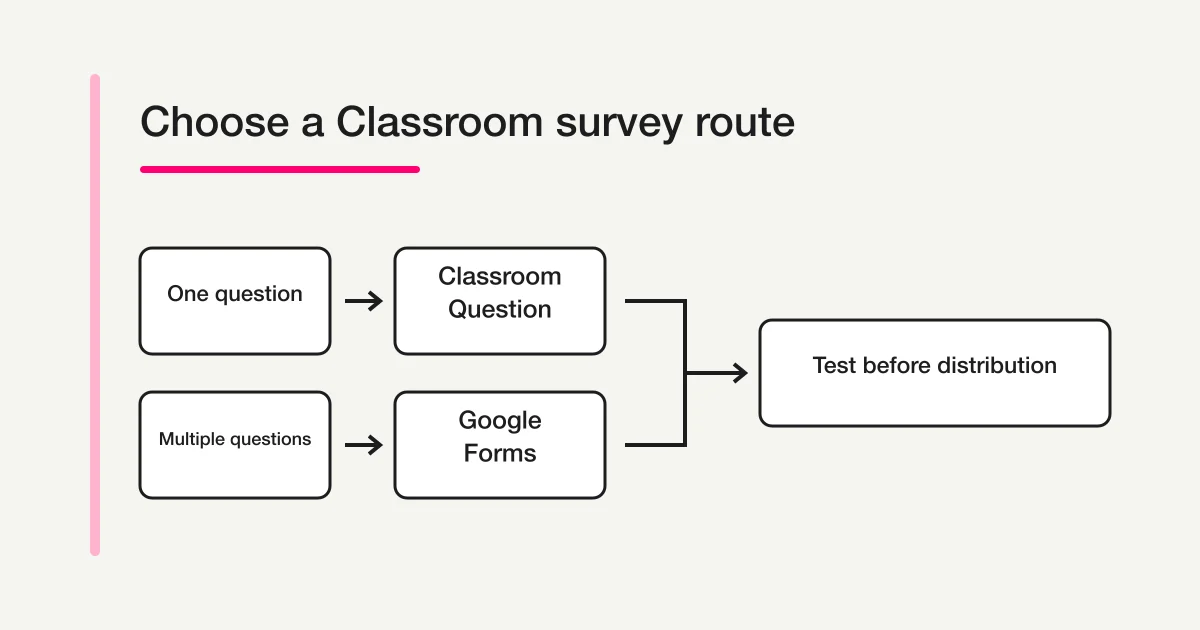
Step 1: Choose one question or multiple questions
Start with a small survey brief. It prevents a quick classroom check-in from turning into an unclear collection of questions.
Purpose: choose what to review in the next lesson
Audience: one Grade 8 class
Deadline: Friday at 4:00 p.m.
Teacher needs to see: submission status and answers
Classmates should see answers: no
Questions needed: understanding, difficult point, next topic
This example needs three prompts, so it belongs in Google Forms. If the only decision is “review or move on,” one Classroom multiple-choice Question is enough.
Decide the identity boundary at the same time. Google’s grade and return Question answers documentation describes an “All student answers” page that groups names by assignment status. The teacher can select a student to review an individual answer and, for multiple choice, select an option to see which students chose it. A Classroom Question is therefore not an anonymous survey.
Hiding responses from classmates does not hide the respondent from the teacher. Similarly, omitting a “name” prompt from a separate form does not automatically prove that no account, email, or platform record can identify the respondent. State precisely who can see what.
For surveys involving minors, school records, health, family circumstances, accommodations, bullying, or other sensitive topics, minimize collection and follow the institution’s policies. Confirm the purpose, people with access, retention period, and student or guardian notice with the responsible school staff. This article is not legal advice and does not promise anonymity.
Step 2: Create a one-question survey in Classroom
Open the class, choose Classwork, then Create and Question. Google’s Create a Question documentation says teachers can post a short-answer or multiple-choice Question and configure the class, selected students, points, due date, topic, and materials. For a non-assessment survey, decide whether the Question should be ungraded.
For multiple choice, write options that describe the student’s next need rather than merely “yes” or “no.”
Question: What would help you most before the next lesson?
Options:
- Another worked example
- A short vocabulary review
- More independent practice
- I am ready for the next topic
If the answers should remain private from classmates, turn off “Students can see class summary.” Google states that students who submit a multiple-choice Question can see the class response summary by default. A percentage may appear harmless, but a small class or rare option can make a student’s choice easy to infer.
For short answer, turn off “Students can reply to each other.” When it is on, students who submit can read classmates’ answers and comment on them. That is useful for discussion and unsuitable for a private reflection. Classroom comments are another visible surface, so do not use a public class comment as a substitute for a private survey response.
Classroom Questions support assignment to a class or selected students. That targeting does not create anonymity. The Question remains part of an assignment-and-submission workflow where the teacher can see who was assigned, who submitted, who is late, and what each student answered.
Google also allows students to edit a short answer before grading when that setting is enabled. Decide whether post-submission editing is appropriate. A pulse check may tolerate edits; an end-of-unit record may need a fixed cutoff and clear explanation.
Step 3: Create a multi-question survey in Google Forms
Use Google Forms when the survey has several prompts, mixed question types, or sections. Google’s Create an assignment documentation shows that an assignment can create a new Google Form or attach a link. A form created elsewhere can therefore be published and shared through the Classroom post.
Build only the questions needed for the stated decision. A practical lesson-feedback form might contain:
- A multiple-choice or scale question about understanding.
- A checkbox question for difficult topics.
- An optional paragraph question for a specific example or request.
- A final notice explaining how the feedback will be used.
Google’s question type documentation covers short answer, paragraph, multiple choice, checkboxes, dropdowns, scales, and other formats. Multiple choice and dropdown answers can route respondents to sections. If the survey genuinely needs different routes, keep the branches short and test every path. The Google Forms conditional logic guide owns the detailed branching setup.
Before distribution, review these settings:
- Publish the form for responders.
- Confirm the responder audience and domain restrictions.
- Decide whether to collect email addresses.
- Decide whether to limit respondents to one response.
- Turn off “View results summary” unless disclosure is intentional.
- Confirm required questions and the confirmation message.
Google’s Publish and share a form documentation explains an important identity boundary. Limiting the form to one response requires a Google Account sign-in. The username is recorded only when the form setting also collects email addresses. Sign-in, email collection, and anonymity are related settings, but they are not the same claim.
The same documentation warns that “View results summary” exposes full-text answers or charts to everyone who can respond. For a school survey, leave it off unless the disclosure has a defined purpose and the questions are safe to aggregate publicly. Free-text comments, accessibility needs, and responses from a small group require particular care.
Google’s first form guide also documents question creation, required settings, email collection, sections, and preview. Preview is useful for layout, but the final test must use the published responder link under the account conditions students will actually have.
For the broader Google Forms creation flow, use How to create a Google Form. For a careful distinction among email collection, domain restrictions, one-response sign-in, and anonymous wording, use the Google Forms anonymous response guide.
Keep quiz assignment grade import separate
A Quiz assignment is for assessment, not a required wrapper for an ordinary survey. Google’s Create a quiz assignment documentation says Classroom can attach a Forms quiz, automatically grade it, and import grades when the workflow is configured correctly.
Grade import has strict conditions. The quiz must be the assignment’s only attachment. Students must be limited to one response and belong to the same domain as the teacher. The form must collect student email addresses. Google also says that a form attached as a link cannot import grades. If any of these settings or the assignment changes after saving or posting, grade import may stop working.
Those requirements are useful for a scored assessment and usually unnecessary for lesson feedback, preference collection, or a climate survey. Turning a survey into a quiz adds points, grading, identity, and return behavior. Use it only when the responses are genuinely part of assessment.
Step 4: Test with student conditions before distribution
For a Classroom Question, publish a copy to an allowed test class when possible; a draft cannot be opened as a student submission. For Google Forms, publish the form first, then test the responder link before distributing the Classroom post. An unpublished form cannot accept student responses, and an editor preview does not prove that the target student account has access.
Use a checklist that covers both products.
[ ] The correct class and students are selected
[ ] “Students can see class summary” is off
[ ] “Students can reply to each other” is off
[ ] The Question is ungraded when no assessment is intended
[ ] The Google Form is published for responders
[ ] A student-domain account can open the responder link
[ ] Email collection and one-response wording match the settings
[ ] “View results summary” is off
[ ] Required questions, branches, and submission all work
[ ] The teacher can find submission status and stored responses
Do not use real student personal data in a test response. Label the record as a test. Before deleting it, confirm whether the response exists in Forms, a linked Sheet, or another storage surface. Google’s response management documentation covers viewing responses by summary, question, or individual response, sending response copies when email is collected, and managing linked response data.
The student-facing notice should say why the survey is being run, whether participation is required, who can identify the respondent, whether classmates can see anything, the deadline, and where to ask for help. Avoid a vague promise such as “completely anonymous” when Classroom assignment records, sign-in, email collection, or institution logs remain in scope.
After distribution, monitor more than the headline response count. Classroom Questions emphasize assigned, submitted, graded, or returned status by student. Google Forms emphasizes submitted records and aggregate charts. Decide which system is the response source of truth and how you will handle late submissions, duplicates, withdrawals, and sensitive free text.
Sharing a form other than Google Forms
An assignment can link to a separate published form, but FORMLOVA does not sync Classroom submission status or grades. Use an institution-approved environment and a fictional prototype before any student data. The free trial below evaluates wording and branching only.
Prototype a lesson-feedback form with fictional data
This is a proposed trial, not an operation or result measured for this rewrite. Use a private test draft first.
Draft a private lesson-feedback form using fictional content. Ask the topic that needs review and an optional question, with no student name, ID, health or family information. Explain that no Classroom status or grade will be changed. Do not publish or send it to students.
Before proceeding, check:
- Confirm the questions do not request or expose student identity.
- Check the short mobile route and the closing explanation.
- Before real use, the school must review purpose, access, retention and default response classification/external AI handling; disable unnecessary processing where supported. Compare stored responses separately from Classroom status.
Try a fictional lesson-feedback draft first
Free supports form drafting, basic branching and collection. This trial does not establish school approval, anonymity, grade import or educational outcomes.
Register free and inspect the feedback draft
Register, verify your email, connect a supported AI client, and paste the proposed request above. Check the saved draft before publishing. AI-client account and usage requirements apply separately.
Frequently asked questions
Is a Google Classroom Question anonymous?
No. Treat it as an identified Classroom activity. The teacher can review student names, assignment status, and individual answers. Turning off peer visibility prevents classmates from seeing responses; it does not hide the respondent from the teacher.
Can students see multiple-choice results?
By default, students who submit can see the class summary. Turn off “Students can see class summary” when results should remain private. Consider whether even aggregate percentages could identify someone in a small class.
Can a Classroom Question contain several survey questions?
No. The Classroom Question post is a single short-answer or multiple-choice prompt. Create a Google Form or another form for a multi-question survey and attach or link it from Classroom.
Do I need a Quiz assignment for a survey?
Usually not. Quiz assignments are designed for grading and grade import. A normal ungraded survey does not need those conditions. Use a quiz only when assessment, points, and grade return are intentional.
Is it safe to collect personal information from students?
Collect only what the survey needs, limit access, define retention, and follow the school’s policies and responsible staff guidance. Surveys involving minors or sensitive educational information need careful institutional review. This guide does not provide legal advice or promise anonymity.
What to do next
Finish the Google setup with a permitted student-condition test. If a separate form is approved, document the response source and who reconciles it with classroom operations.
Related Guides and References
Disclosure and Verification
This article was checked on September 4, 2026, against Google’s official documentation for creating a Classroom Question, reviewing Question answers, creating an assignment, creating a quiz assignment, publishing and sharing a form, Google Forms question types, creating a first form, and viewing and managing responses. The author develops FORMLOVA. Labels and institution-level settings can change, so verify them in the school account used for distribution.
If you want to share a multi-question external form in Classroom and manage branching and responses in a separate workflow, start with FORMLOVA for free.