
Last updated: June 18, 2026
A registration form is not just a page that collects names and email addresses.
Webinar registration, event registration, job applications, resource download forms, consultation requests, and inquiry forms can all look similar. But the fields, confirmation email, status rules, and follow-up workflow should be different.
A webinar form needs a join link and reminders. An in-person event form needs capacity, attendees, check-in, and cancellation handling. A job application form needs role-specific information and candidate status. A resource download form needs delivery and lead handoff. A consultation form needs routing and response timing.
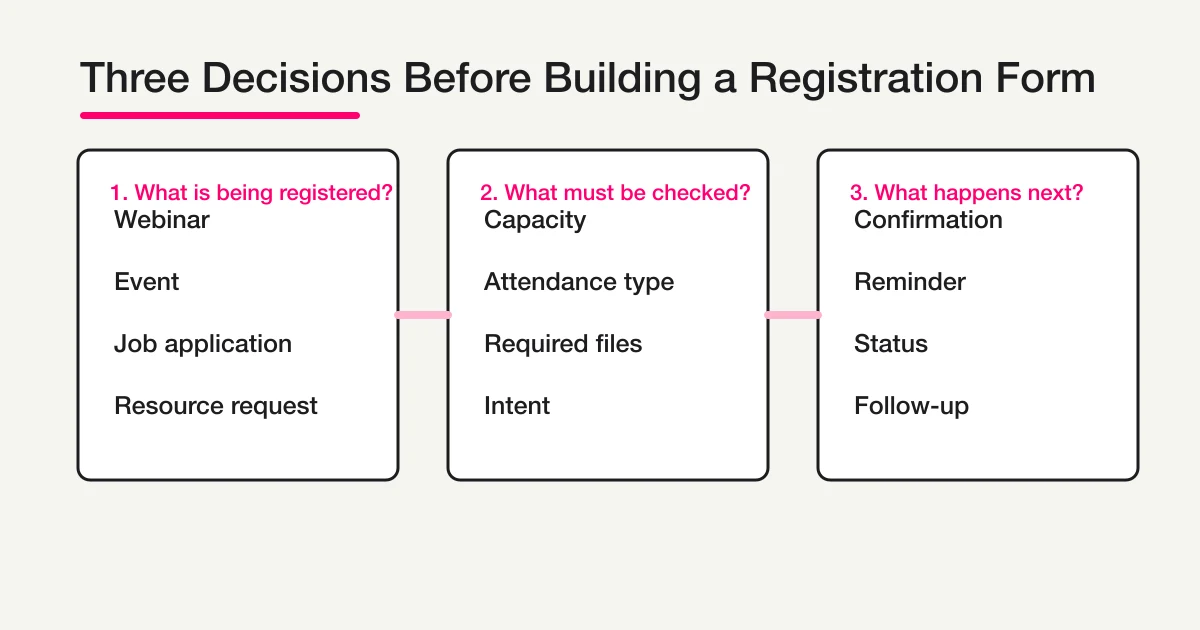
So the first question is not "Which fields should I add?"
The first question is: what should happen after someone submits the registration form?
This guide gives you the practical middle layer. It helps you choose the right type of registration form, decide which fields should be required, write confirmation emails, prepare response status, and route readers into the deeper FORMLOVA guides for webinars, events, hiring, lead capture, surveys, and automation.
Quick Answer: Choose the Form by What It Accepts
Do not start from a generic "registration form" template.
Start from the thing being registered.
If you try to make one form handle every use case, it will usually become too long for respondents and too vague for the team operating it.
Use this table as the starting map.
| Form you want to build | Start here | Workflow after submission |
|---|---|---|
| Pre-event confirmation for a known invitee list | Attendance Confirmation Form Guide | Attending/not attending/undecided, changes, nonresponders, final headcount |
| Webinar or seminar registration | Webinar Registration Form Guide | Confirmation email, join link, reminder, attendee list, follow-up |
| In-person or hybrid event registration | Event Registration Form Guide | Capacity, waitlist, guests, check-in, cancellation, post-event survey |
| Appointment, consultation, or store visit request | Reservation Form Guide | Preferred times, confirmation rules, rescheduling, owner review |
| Hiring or job application | Job Application Form Guide | Application receipt, candidate status, file review, interview scheduling |
| Resource download or lead capture | Lead Capture Form Guide | Resource delivery, consent, qualification, sales handoff |
| Product, merchandise, or supply orders | Order Form Guide | Product, quantity, pickup, payment checks, order status |
| Inquiry or consultation request | Contact Form Template | Category routing, response timing, owner assignment, spam separation |
| Survey or feedback form | Survey Form Guide | Analysis, open-ended answer grouping, action owner, follow-up |
If your use case is still unclear, start with the broader FORMLOVA Form Creation Guide. If you only need a fast first draft, use the ChatGPT Form Builder Guide, then come back here to tighten the fields and workflow.
Registration Forms and Contact Forms Are Not the Same
Registration forms and contact forms overlap.
Both collect information from someone outside your team. Both often ask for name, email, company, message, and consent. Both can trigger an internal notification.
The difference is the expectation after submission.
A contact form usually means: "I have a question or request. Please reply."
A registration form usually means: "I want to participate, apply, receive something, reserve a place, or move to the next step."
That difference changes the design. A contact form needs enough context for routing and reply. A registration form needs acceptance state, confirmation, capacity or eligibility rules, reminders, and follow-up.
For example, a webinar registration form should not look like a generic message box. It needs date, attendance format, email, possible pre-event questions, and a confirmation email. A job application form should not just ask for "message." It needs the role, experience summary, files or portfolio, and candidate communication state.
Registration is a signal that someone wants to move forward.
The form should make that next step clear.
Start With a Small Core Field Set
Most registration forms can begin with a small field set.
| Field | Required or optional? | Why it exists |
|---|---|---|
| Full name | Usually required | Registration list, confirmation, identity context |
| Email address | Usually required | Confirmation, reminder, resource delivery, follow-up |
| Company or organization | Useful for B2B, optional for consumer events | Segmentation, badges, sales context |
| Phone number | Required only with a clear operational reason | Urgent event changes, hiring contact, high-touch consultation |
| Registration type | Depends on the use case | Date, ticket, role, resource, category, routing |
| Open text | Use with a specific prompt | Question, request, reason, experience summary |
| Consent checkbox | Use when data use needs explicit notice | Privacy, marketing permission, hiring use, event communication |
The important rule is simple: do not make a field required unless the workflow truly needs it.
Phone number is the easiest example. It can be useful for an in-person event with same-day changes. It is often unnecessary for a webinar. It may hurt conversion on a resource download form if the visitor is only trying to read a white paper.
Company is similar. It is helpful for a B2B lead capture form. It may be irrelevant for a community meetup. It can be useful for event badges, but not always required.
Every field should earn its place. For the consent checkbox specifically -- wording, purpose statements, and copy-paste examples -- see Contact Form Privacy Consent Wording -- Checkbox, Purpose, and Examples.
Field Examples by Registration Type
The best registration form depends on the operational job.
Webinar Registration
The goal is not only to collect attendees. The goal is to deliver the join information, remind people at the right time, and make follow-up possible.
Useful fields:
- Full name
- Email address
- Company
- Role or department
- Session date
- Attendance format
- Pre-event question
- Consent notice
Workflow decisions:
- Where will the join link be delivered?
- Will you send a reminder the day before?
- Who owns the attendee list?
- Will you send a survey or follow-up after the session?
Use the Webinar Registration Form Guide for the detailed version.
Event Registration
Event registration needs more operational context because the form affects the day of the event.
Useful fields:
- Full name
- Email address
- Number of attendees
- Ticket or session choice
- Guest information
- Food restrictions or accessibility needs
- Emergency contact when needed
- Agreement to event rules
Workflow decisions:
- What happens when capacity is reached?
- Will you allow a waitlist?
- What does the check-in list need to show?
- How do cancellations work?
- What happens if the event is paid?
Use the Event Registration Form Guide when capacity, waitlists, check-in, or paid registration matters.
Job Application
A job application form should collect enough information to start the hiring process without becoming an unnecessary screening wall.
Useful fields:
- Full name
- Email address
- Role applied for
- Experience summary
- Resume or file submission method
- Portfolio URL
- Preferred contact method
- Hiring data-use notice
Workflow decisions:
- What confirmation should applicants receive?
- Who reviews the application first?
- Which candidate statuses will the team use?
- What information should be requested later instead of in the first form?
- When should candidate data be deleted or archived?
Use the Job Application Form Guide for role-specific field examples and status design.
Lead Capture or Resource Download
A resource download form has two jobs: deliver the resource and help the team decide whether follow-up is appropriate.
Useful fields:
- Full name
- Email address
- Company
- Requested resource
- Problem or interest
- Buying stage
- Marketing or sales contact consent
Workflow decisions:
- Should the resource appear on the thank-you page or in the confirmation email?
- Which answers indicate high intent?
- What fields should pass to a CRM or Google Sheets?
- How do you separate simple research from a real sales opportunity?
Use the Lead Capture Form Guide for a deeper version.
Required Fields Should Support the Next Step
Required fields create friction.
That does not mean you should avoid them. It means each required field should be tied to a real next step.
Before making a field required, ask:
Can we accept the registration without this?
Can we send the confirmation without this?
Can we operate the event, hiring process, or delivery without this?
Can the next owner make a decision without this?
Can we ask for this later if needed?
The last question is often the most useful.
A hiring form does not need every detail in the first submission. A lead capture form does not always need phone number, employee count, budget, and timeline before it can deliver a resource. A webinar form does not need a long company profile if the main job is registration and attendance.
The first form should get the person through the front door. Ask for deeper context only when the workflow needs it.
Write the Confirmation Email Before You Publish
Confirmation emails are part of the registration experience.
The respondent wants to know:
- Did the registration go through?
- What did I register for?
- What happens next?
- When will I hear from you?
- How do I change or cancel?
- Where is the link, resource, or next instruction?
A simple webinar confirmation can look like this:
Thanks for registering.
We have received your registration for {session_name}.

Date: {date}
Time: {time}

We will send the join link to this email address before the session.
If you need to update or cancel your registration, reply to this email.
A resource download confirmation can be shorter:
Thanks for requesting the resource.

Resource: {resource_name}
Download: {download_url}

If you would like to discuss implementation, reply to this email and we will follow up.
For reusable examples, read Form Auto-Reply Email Examples.
Registration Management Needs Status, Not Just a List
Once a registration form is live, responses will collect in a list.
That is enough at the beginning. It is not enough once the team has to operate the list.
Use status values.
| Use case | Useful statuses |
|---|---|
| Webinar | Registered, confirmed, attended, no-show, followed up |
| Event | Registered, waitlisted, payment pending, checked in, canceled |
| Hiring | New, reviewing, interview invited, on hold, closed |
| Resource download | Delivered, needs follow-up, sent to sales, not qualified |
| Inquiry | New, in progress, waiting, done, sales pitch |
Start with three to five statuses. Too few statuses hide work. Too many statuses will not be maintained.
For many teams, New, In progress, and Done are enough for the first version. Add waitlist, payment pending, needs follow-up, or sales pitch only when the workflow needs them.
FORMLOVA's response management flow is covered in View, Filter, and Update Response Status. If the team needs exports or a shared spreadsheet, continue into Export Responses to CSV or Sync Them to Google Sheets.
Plan the Workflow After Registration
The form is only the first step.
Plan the operational flow before launch.
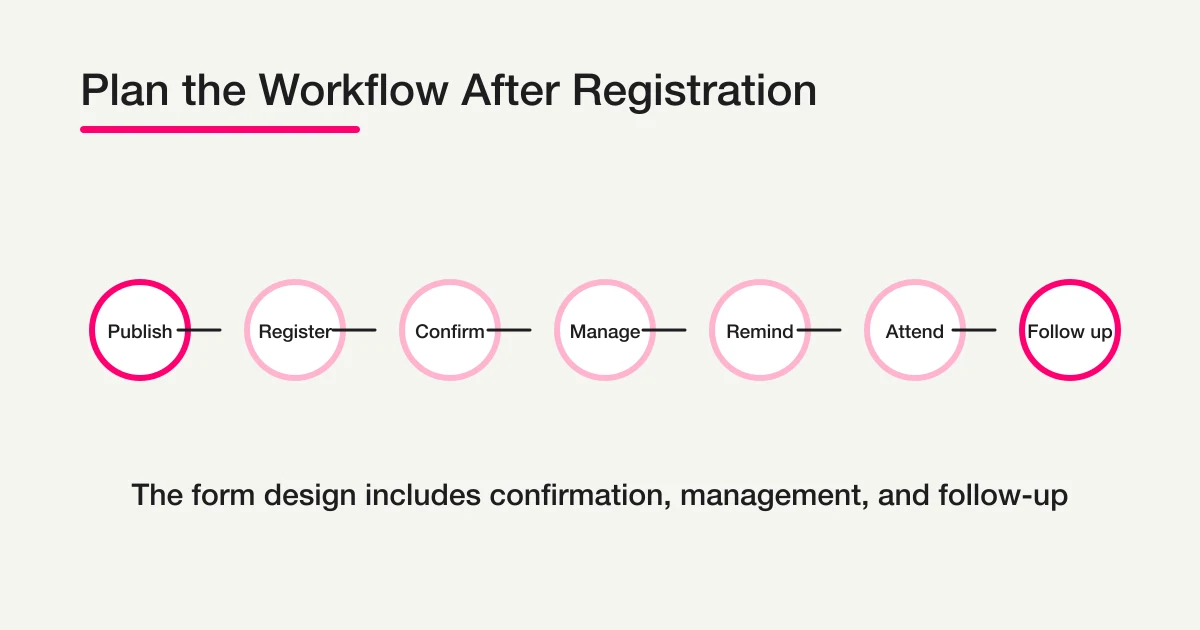
Before publishing, decide:
What should happen immediately after submission?
Who reviews new registrations?
Which conditions trigger an internal notification?
When should reminders be sent?
Where do changes and cancellations go?
What list will the team use on event day or during review?
Will there be a survey, follow-up, or sales handoff?
Webinars need reminders and follow-up. Events need capacity and check-in. Hiring forms need candidate status. Resource download forms need delivery and lead qualification. Consultation requests need routing and response timing.
If you want to design auto-replies, routing, Google Sheets sync, reminders, and MCP operations as one system, use the FORMLOVA Form Automation Guide.
Create a Registration Form in FORMLOVA
In FORMLOVA, you can draft a registration form from an MCP-compatible client such as ChatGPT or Claude.
Start with a short prompt.
Create a webinar registration form for a June 20 online session.
Fields: full name, email, company, department, pre-event question, and privacy consent.
After submission, send a confirmation email.
For an in-person event:
Create a registration form for a 30-person networking event.
Ask for attendee count, guests, dietary restrictions, emergency contact, and agreement to the cancellation policy.
Send a confirmation email and prepare a reminder for the day before.
For a resource download:
Create a B2B resource download form.
Ask for requested resource, company, email, problem, buying stage, and permission for sales contact.
Send the resource URL in the confirmation email.
After the draft is created, review it before publishing:
- Are there too many required fields?
- Does every field have a clear reason?
- Is the confirmation email specific?
- Who owns new registrations?
- Are reminders or follow-up needed?
- Is the data-use notice clear?
- Did you test the form and email on mobile?
Use Review a Form Before Publishing for the launch review workflow.
If You Use Google Forms or Microsoft Forms
You can create registration forms in Google Forms or Microsoft Forms.
Google's official help covers adding questions, sections, images, response views, Google Sheets export, CSV download, response receipts, and response management. Microsoft publishes official limits for forms, questions, responses, and characters.
For small internal registrations, simple events, and lightweight intake, those tools may be enough.
The question is not whether the form can be created.
The question is whether the post-submit workflow fits:
Can you customize the confirmation email?
Can you send reminders?
Can you manage registration status?
Can you notify the right owner conditionally?
Can you analyze responses without manual cleanup?
Can you separate sales pitches or irrelevant submissions?
Can you hand data to CSV, Sheets, or a CRM?
Can an AI client or MCP workflow operate the form?
If Google Forms is enough, use it. FORMLOVA is a better fit when registration needs confirmation emails, response status, classification, reminders, analysis, and MCP-based operation in the same context.
For a broader tool comparison, use the Form Services Comparison Guide.
Launch Checklist
Before publishing a registration form, check the following:
[ ] The title makes the registration purpose obvious.
[ ] Required fields are limited to what the workflow needs.
[ ] Phone number or company is required only with a clear reason.
[ ] The form includes the registration type, date, role, resource, or category needed for routing.
[ ] Open text fields include instructions.
[ ] The data-use notice is visible.
[ ] The confirmation email is ready.
[ ] Change, cancellation, or contact instructions are clear.
[ ] The response list shows the important fields first.
[ ] Initial status rules are defined.
[ ] A test submission has been checked end to end.
[ ] The form works comfortably on mobile.
Mobile testing matters.
Many registration forms are opened from email, social posts, QR codes, or messaging apps. A form that feels fine on desktop may feel heavy on a phone. Test the real submission path before sharing the link.
Common Mistakes
The first mistake is asking everything upfront.
Registration forms often become long because the team wants to reduce follow-up work. But a long first form can reduce submissions. If something can be asked later, do not require it in the first step.
The second mistake is using a weak confirmation email.
"Thanks for submitting" is not enough. Registration creates expectation. Tell the person what they registered for, what happens next, and how to change or cancel.
The third mistake is treating the response list as the operation.
A response list is raw material. The operation needs status, owner, export, reminder, and follow-up rules.
The fourth mistake is forgetting changes and cancellations.
People change plans. Events fill up. Applicants update files. Emails bounce. Put a clear path in the confirmation email and keep a status field for the team.
The fifth mistake is measuring only registration count.
Registration count is useful, but it is not the whole story. Attendance rate, no-show rate, qualified lead rate, candidate progress, and follow-up completion are often more useful.
References
I checked the following official sources while writing this guide.
- Google Docs Editors Help: Edit your form
- Google Docs Editors Help: View & manage form responses
- Google Docs Editors Help: Create a form with Gemini in Google Forms
- Microsoft Support: Form, question, response, and character limits in Microsoft Forms
- W3C WAI: Labeling Controls
- MDN: Forms and buttons in HTML
- MDN: Client-side form validation
FAQ
Should phone number be required on a registration form?
Only require phone number when the workflow needs it: same-day event changes, urgent contact, hiring communication, or high-touch consultation. For webinars and resource downloads, email is often enough.
Should contact forms and registration forms be separate?
Separate them when the workflow after submission is different. Contact forms are about reply and routing. Registration forms are about confirmation, capacity, status, reminders, and follow-up. If you keep one form, use categories that allow the team to operate the responses differently.
What should a registration confirmation email include?
Include receipt confirmation, registration details, next steps, response timing, change or cancellation instructions, and a contact path. Event and webinar emails should include date, time, location or join-link rules, and reminder expectations.
Can I use Google Forms for registration?
Yes. Google Forms can work well for simple registration. Compare tools when you need customized confirmation emails, reminders, response status, conditional notifications, sales-spam separation, analytics, exports, or MCP-based operation.
What can I do on FORMLOVA's free plan?
The free plan supports form creation, unlimited responses, response search, status management, and CSV/Excel export. Custom auto-replies, reminders, conditional emails, and Google Sheets auto-sync are available on Standard or higher. Standard is 480 JPY/month and Premium is 980 JPY/month.
Summary
A registration form is not finished when the fields are created.
You need to know what is being registered, which fields are truly necessary, what the respondent receives, who reviews new registrations, when reminders go out, and what happens after the event, application, download, or inquiry.
Once those decisions are clear, the form usually gets shorter and more useful.
FORMLOVA is designed to help with both sides: creating the registration form and operating what happens after submission. You can draft the form from chat, review the fields, send confirmation emails, manage response status, export data, sync with Google Sheets, and use MCP workflows as the registration process grows.
If you are still choosing the form type, start with the FORMLOVA Form Creation Guide. If you know you need automation after submission, continue to the FORMLOVA Form Automation Guide.
Disclosure and Verification
This guide is for teams creating an online registration form. I work on FORMLOVA, so the workflow examples use FORMLOVA directly. I checked official information from Google Forms, Microsoft Forms, W3C WAI, and MDN on May 1, 2026. Treat this as product and form-design guidance, not legal advice for privacy, hiring, payments, or compliance.