
Last updated: October 15, 2026
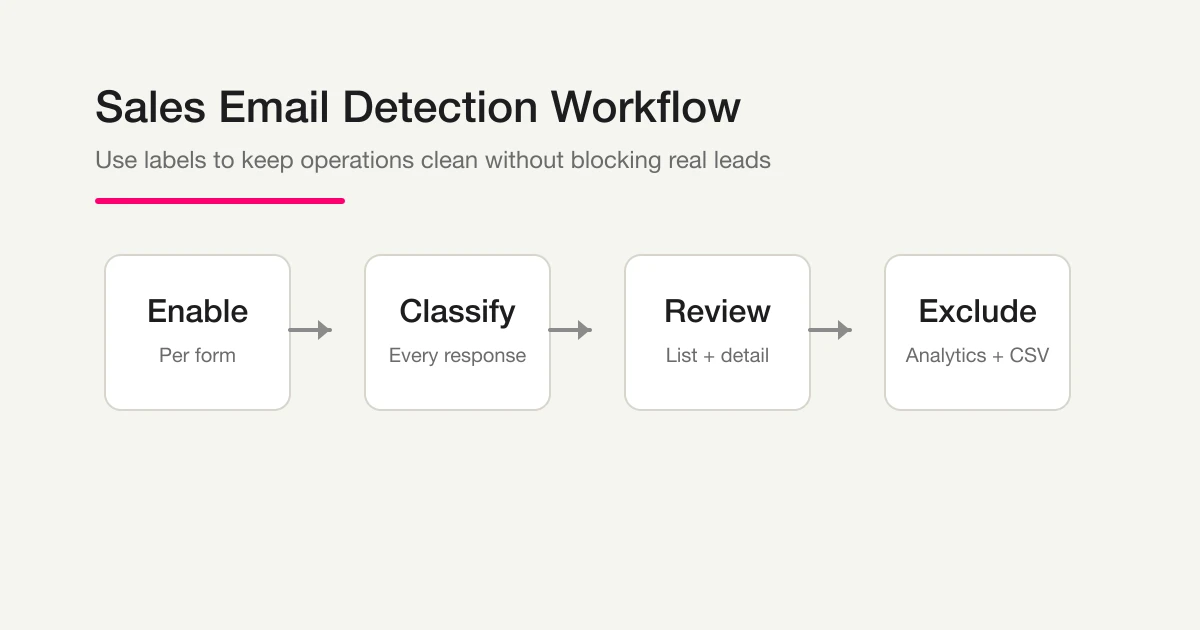
Use sales email detection in this order: identify the form and enable it, check new actual responses, correct mistakes, then verify filtering for analysis/export. Classification happens after saving; it does not prevent a pitch from being submitted. All plans support it, but paid forms are excluded and historical responses are not automatically reclassified.
Assign ownership for suspicious responses, unclassified records and samples of excluded sales/junk. Turning the feature on alone does not resolve missed enquiries or validate marketing conversions.
New eligible forms default to detection enabled. They need at least one supported free-text input; selection-only forms and paid forms are excluded. Inspect the actual setting, and disable it if inappropriate. Older forms retain their settings; undecided eligible older forms can require a choice before publishing. The published checklist should disclose classification and the processing of responses by an external AI service.
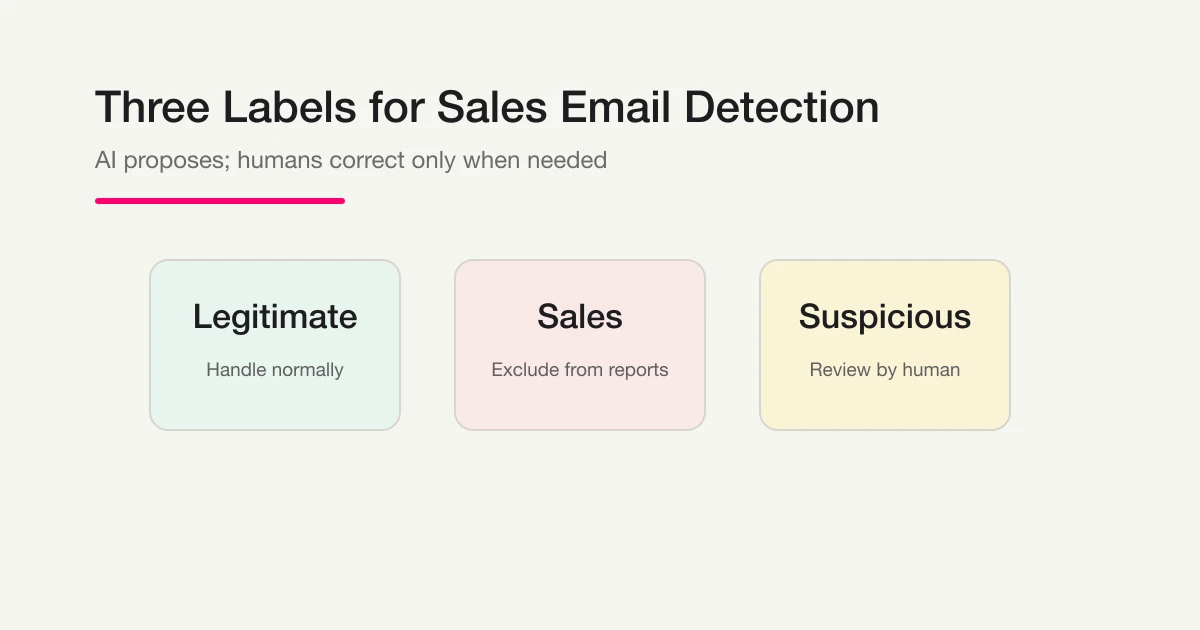
Four current labels and human review
| Label | Meaning | Review action |
|---|---|---|
legitimate | Fits the form purpose | Normal review; not proof of accuracy or a qualified lead |
sales | Product/service pitches | Exclusion candidate; sample for missed genuine enquiries |
suspicious | Ambiguous or mixed context | Human review |
junk | Meaningless, link-only or unrelated material | Exclusion candidate, still subject to error review |
Unclassified is a separate state. Processing, failure or pre-existing records can leave a label unset. Do not automatically treat it as legitimate or delete it. A score indicates model confidence, not a guaranteed probability of correctness or commercial value.
Check the target and test plan before enabling
The following is a proposed trial request, not a result measured for this article. Use a test form before changing an existing live form.
Identify the contact form, check whether detection is enabled and whether it is an eligible non-paid form. Do not change settings yet. If actual responses exist, separate counts by label and unclassified and propose review candidates. Otherwise return a proposed test checklist, not invented retrieved data.
Check the output before proceeding:
- Are hypothetical examples clearly separated from retrieved responses?
- Are sales/junk and unclassified checks assigned, as well as suspicious review?
- Is it clear that saved new responses to eligible forms are classified, and preview does not test production classification?
Try a review process for sales-noise filtering
Eligible forms can use classification on Free. Start with the draft/settings and inspect actual responses after publishing. This is not a guarantee of accuracy or a submission-blocking feature.
Start classification review for free
Create an account, verify your email, connect FORMLOVA to a supported AI chat, then paste the proposed request above. Review the saved draft before publishing.
These are illustrations from the original three-label release. The current system also includes junk, as explained in the table above.
Enable and verify
- Identify the owned form, confirm it is not a paid form, and inspect its current setting.
- Request detection for that form, then retrieve the saved enabled state.
- If testing live, agree the published target and harmless dummy content. Preview does not save production responses.
- After saving, allow classification to run and inspect the label/score. Processing or failure can leave a record unclassified.
- Correct a mistaken label on the identified actual response and verify the saved result. Manual corrections are not meant to be silently overwritten by the model.
A proposed enable request:
Enable sales email detection only for the contact form we identified. Show the saved setting. Do not reclassify historical records or change other forms.
Classification failure must not discard the response. Check storage separately from the classification result.
Sales exclusion removes sales and junk
exclude_sales excludes sales and junk. It retains suspicious and unset labels. The filtered count is not automatically genuine enquiries or qualified leads: tests, duplicates and out-of-scope messages still need checks.
For this form and this month, show total responses separately from the count after sales exclusion. Explain that sales/junk are excluded while suspicious/unclassified remain. If the count cannot be retrieved, report it as unknown.
For advertising or SEO evaluation, use the same period, exclusion rule and denominator. Total submissions, human-qualified enquiries and completed registrations are separate metrics.
CSV, Excel and downstream tools
Choose all responses or sales exclusion, and inspect the applied condition. Do not assume an arbitrary label-only export or guaranteed label/status/response-ID columns. Basic output contains form fields and submission time. Review labels in the response list/details and arrange a separate report using authorized records when needed.
Export the identified form using the normal CSV export with sales exclusion. Confirm the applied filter and count, and do not label the remaining count as qualified leads.
MCP response/contact email displays are masked. Do not manually join them to raw email addresses or reuse them as recipients. Use an authorized full CSV or supported response-recipient/server-side integration paths. For Slack or other destinations, inspect scope read-only before execution, and distinguish a chat run from automation actually saved.
Early operating checks
- Assign a reviewer and deadline for suspicious and unclassified records.
- Sample sales/junk regularly for genuine enquiries incorrectly excluded.
- Correct based on content; high confidence alone is not proof.
- Avoid hostile auto-replies or automatic deletion based only on a label.
- Check separate plan requirements for added email operations, such as custom automatic replies on Standard or above.
Frequently asked questions
Does it classify old responses automatically? No. It applies to new responses after enabling.
Does it support paid forms? Paid forms are excluded; use it for eligible normal contact forms.
Does it stop pitches arriving? No. Classification after storage is different from front-door copy, bot prevention or separate sales channels.
Can I try it free? All plans support the feature. Begin with one draft, then inspect settings and actual responses.
Next step
Pick one contact form and assign review ownership. Inspect new saved responses, retain manual correction, and make unclassified checks part of routine operation. Treat labels as review aids rather than ground truth.
Further Reading and Original References
- Contact Form Operations Guide
- MCP form service guide
- Contact Form Spam Guide
- AI Now Detects Sales Emails in Your Forms
- Why We Built Sales Email Detection
- Response to HubSpot Contact
- Lead-score Routing
- Pricing Inquiry Follow-up
- Demo Request Handoff
- Export Responses to CSV or Sync Them to Google Sheets
- Start free
Disclosure and Verification
This is written by FORMLOVA's developer. Four-label behaviour, exclusion rules, paid-form exclusion, new-response scope and manual correction priority were checked against the repository on October 15, 2026. Requests and examples are proposals; this rewrite did not measure classification accuracy or conversion improvement.