
Last updated: 2026-08-31 Last verified: 2026-08-31
You can create a survey from a phone. The reliable order is not “write as many questions as possible and publish.” Define the decision the survey will support, keep the questions easy to answer with a thumb, test the respondent view on a real phone, then publish and share the public URL.
With a FORMLOVA-connected MCP client, you can ask for a draft, review previews, follow the publication checklist, and inspect responses from a phone-first workflow. This guide focuses on that sequence, including what to do after the first responses arrive.
The short answer: a phone-first survey sequence
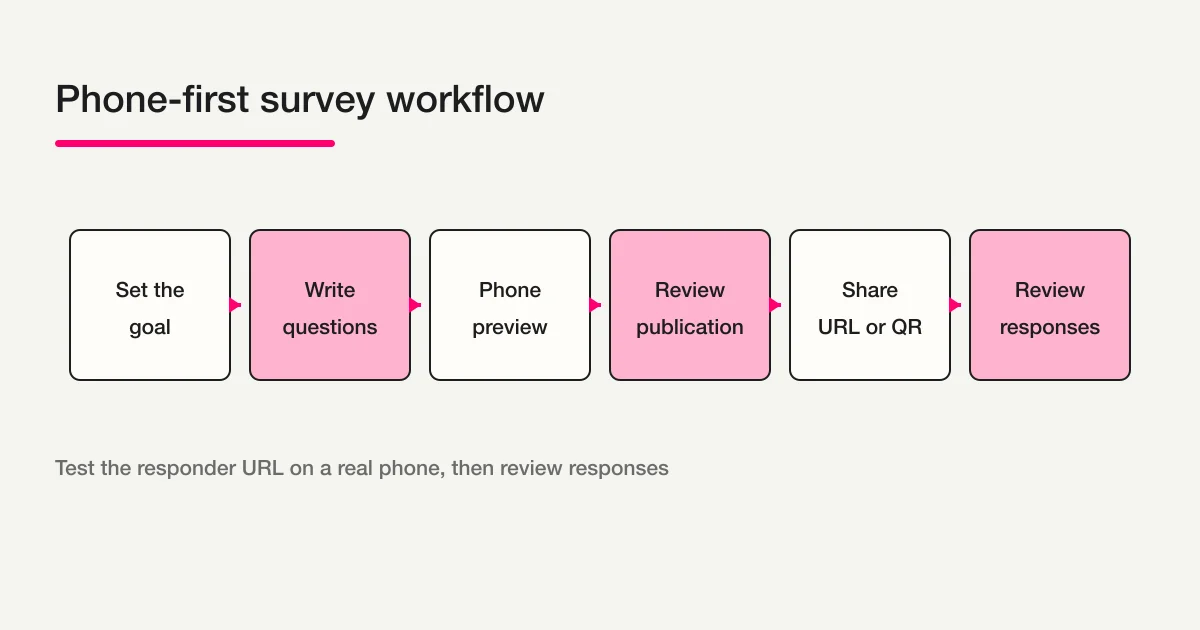
Use this order when you want to create a survey without opening a computer:
| Order | Task | Done when |
|---|---|---|
| 1 | Define the goal and audience | You can state the decision in one sentence |
| 2 | Choose questions and answer types | Required, optional, and choice rules are clear |
| 3 | Create a draft | Title, introduction, and questions form one coherent draft |
| 4 | Test the respondent view | A person can tap, type, and submit without guessing |
| 5 | Publish and share | The public responder URL opens as intended |
| 6 | Review responses | Counts, content, and follow-up states have owners |
Creating on a phone and creating a phone-friendly survey are related but different jobs. The creator view can look fine while the respondent has to scroll too far, tap a small choice, or type into a field hidden behind the keyboard. Test the public respondent experience.
Step 1: define the goal in one sentence
Start with what you will decide after the answers arrive. For example: “Learn how attendees felt about the session and choose a better time for the next one.” This is more useful than “collect feedback,” because it gives every question a job.
From your phone, you can give FORMLOVA a short request such as:
Create a survey for event attendees. Ask about satisfaction and the preferred time for the next event. Keep it short enough to answer on a phone in about three minutes.
What comes back
The draft proposal can include a title, introduction, audience, estimated answer time, and initial questions. It is still a draft, so you can change the wording before anything is published.
What to check on the phone
Open the returned preview URL on your phone. Confirm that the purpose appears near the top and that you can tell who should answer. Keep a note of which URL is for respondents and which is for editing or review.
Small note
If the survey purpose is still vague, questions tend to multiply. For deeper work on objectives, question types, and leading wording, continue with the survey design guide.
Step 2: choose question types that work with a thumb
Small screens make repeated typing expensive. Use a choice when the possible answers are known, and keep an open-text question only where the reason or example matters.
| Need | Useful type | Mobile check |
|---|---|---|
| Satisfaction | Single choice | State “choose one” immediately before the options |
| Several useful topics | Multiple choice | State that multiple answers are allowed |
| Reason or improvement idea | Short open text | Make it optional when it is not required for the decision |
| Preferred time | Single choice or date | Avoid a long list of nearly identical options |
| Follow-up request | Email plus consent | Explain why the contact detail is needed |
Ask for the design in one message:
Make Q1 a five-level single-choice satisfaction question, Q2 a multiple-choice question about useful topics, and Q3 an optional open-text improvement question. Keep the options short enough to scan on a phone.
What comes back
You should receive a question list with answer types, choices, and required or optional states. Check that every free-text field has a reason to exist and that the answer type matches the decision.
What to check on the phone
On the respondent preview, tap the label as well as the control. Confirm that a respondent can tell single choice from multiple choice and that the keyboard does not hide the field being edited.
Small note
For a deeper implementation discussion about input types and page splitting, read How to Make Mobile Forms Easier to Fill Out. This guide keeps the focus on the end-to-end survey sequence.
Step 3: create a private draft from your phone
Once the goal and questions are clear, ask a FORMLOVA-connected MCP client to create the draft. Do not treat the first generated version as ready to publish.
Create a survey draft from the goal and questions above. Include the title, introduction, required and optional settings, and the message shown after submission. I want to review a private preview first.
What comes back
The response can include a draft and preview URLs for the respondent form and the post-submission experience. If the order or wording feels wrong, revise it before publication.
What to check on the phone
Open the respondent preview in your mobile browser and complete it with your finger. Check the first screen, every required mark, the open-text field, the error recovery path, and the final submission.
Small note
The FORMLOVA form creation guide is the parent map for choosing a form use case. A phone-first workflow still needs the same publication review as a desktop workflow.
Step 4: test the real respondent experience
Use the preview as if you were a respondent. Do not stop after confirming that the page loads.
- Read the title and estimated answer time.
- Select one single-choice answer and several multiple-choice answers.
- Type a short sentence into the open-text field.
- Leave a required field blank and see where the error sends you.
- Review the final screen and the post-submission message.
- Try the back action, a reload, and the keyboard state that appears during typing.
What comes back
When you request a revision, the draft or preview is updated. Device and browser behavior can differ, so include the device and browser when you report a problem instead of assuming every respondent will see the same result.
What to check on the phone
Focus on the public-facing preview: choice spacing, field position, submit control, and completion message. The respondent’s ability to finish matters more than a setting that merely looks correct in the creator view.
Small note
For a broad mobile checklist covering tap targets, keyboards, connectivity, and error recovery, use the Mobile Form Optimization Guide. A short survey does not automatically become better by being split into many pages.
Step 5: complete the publication review, then share
Ask to publish only after you have opened the previews and checked the respondent flow. Follow the server’s current review items in order. Confirm the form preview, post-submission view, duplicate-response policy, and privacy-policy choice. If the form has text fields, also decide whether the sales-email detection check should be enabled or treated as unnecessary.
Keep this checklist in your phone notes:
[ ] I opened the respondent preview.
[ ] I checked the post-submission view.
[ ] Required and optional questions are intentional.
[ ] I decided how to handle duplicate responses.
[ ] Privacy and consent wording is ready when personal data is collected.
[ ] I confirmed the public responder URL.
What comes back
If a requirement is missing, the publication response tells you what to review next. After every required item is complete, give explicit approval. When the public URL is returned, open it again outside the editor or preview context.
What to check on the phone
Close the page, then open the public responder URL again. It should show a form that the intended audience can answer, not an editor route or a preview-only screen.
Small note
Sharing a URL does not make a form available by itself. Check publication state, audience access, deadlines, and the wording around the link before distributing it.
Step 6: share a URL or QR code
Pair the responder URL with a short explanation:
- What the survey is for.
- How long it takes and when it closes.
- The responder URL and a contact route for problems.
For a published FORMLOVA form, the MCP generate_qr_code tool can create a PNG for the respondent URL. It does not accept an unpublished form. Generate it after publication, print or post it, and scan the real copy with another phone. This is separate from reading paper answers or synchronizing paper responses. If you are keeping a paper channel, the paper survey creation guide explains the boundary between paper records and web responses.
What comes back
For a URL share, you receive the link that respondents should open. For a QR share, the output is an image tied to the published responder URL. Test both the link and the image so an editor URL is not distributed by mistake.
What to check on the phone
Use another phone or a private browser window. Confirm the title, answer start, required marks, and completion message as the intended audience will see them.
Small note
A QR image does not publish a form or grant access. The destination’s publication and audience settings still control the respondent experience.
Step 7: review responses from the same workflow
Publication is not the end of the job. FORMLOVA supports response retrieval, keyword search, status and note updates, and CSV or Excel export. Decide what you will inspect before the answers accumulate.
| Review item | Example | Next action |
|---|---|---|
| Response count | Today, this week, or since publication | Record the collection pace |
| Unchecked answers | New responses no one has reviewed | Mark them in_progress while reviewing |
| Follow-up requests | A respondent asks for contact | Keep a note and assign an owner |
| Duplicate candidates | Similar answers or the same person twice | Review the evidence before deleting anything |
| Open text | A complaint, request, or concrete example | Group themes for the next revision |
Use search and date filters to keep the mobile review small. Status names only help when the team agrees what “new,” “in progress,” “resolved,” and “spam” mean. For aggregation, cross-tabs, and free-text analysis, continue with the survey form aggregation and analysis guide.
A ready-to-adapt phone survey template
Here is a compact post-event example. Remove anything that does not support the decision.
Title: Event feedback survey
Introduction: This takes about three minutes. Answers help us improve the next event.

Q1. How satisfied were you with the session? (Choose one)
[ ] Very satisfied  [ ] Satisfied  [ ] Neither  [ ] Dissatisfied

Q2. Which parts were useful? (Choose all that apply)
[ ] Examples  [ ] Demonstration  [ ] Q&A  [ ] Handout

Q3. What would you improve? (Optional)
[Open text]

Q4. What time would suit you next time? (Choose one)
[ ] Weekday daytime  [ ] Weekday evening  [ ] Weekend

Q5. Would you like a follow-up message? (Choose one)
[ ] Yes  [ ] No
If Q5 leads to contact details, explain the purpose, storage location, people who can access the data, retention period, and contact route before collecting it. Do not make a name or email mandatory simply because it might be useful later.
Common phone-first mistakes and fixes
Starting with too many questions
Remove anything that does not change the decision. Make a question optional, move it to a follow-up, or save it for a later survey before adding more pages.
Checking only the creator view
The creator’s phone is not the respondent’s complete environment. Test the public URL, a second device when possible, the keyboard, the submission, and the completion message.
Making every answer an open text field
Typing on a phone takes more effort than tapping a clear choice. Use choices for known answers and reserve optional open text for the context you actually need.
Deciding response management after publication
Without a review rule, new answers, follow-up requests, and duplicate candidates get mixed together. Decide filters, statuses, notes, and export columns before you share the URL.
Promising identical behavior on every device
Camera permissions, keyboards, browsers, and network conditions vary. Describe the intended flow, then verify the actual public URL on the devices your audience uses.
FAQ
Can I create a survey only with a smartphone?
Yes. Define the goal and questions, create a draft from your phone, open the respondent preview, and publish only after testing the public flow. A page loading is not the same as a respondent completing it.
Should I use a free smartphone app?
Choose based on the complete operation, not the presence of an app. Check the responder URL, publication state, duplicate handling, response review, and export format against your needs. For service-specific controls, confirm the provider’s current instructions.
How many questions should a mobile survey have?
There is no universal limit. Start with the questions needed for the stated decision and test the full completion time. A short list of choices can feel easy, while several open-text fields can become tiring quickly.
Can I make a QR code from my phone?
For a published FORMLOVA form, MCP generate_qr_code can create a respondent-URL PNG. It cannot be used for an unpublished form. Scan the printed or posted result with another phone before distributing it.
Can I check responses on a phone?
FORMLOVA supports response lists, search, status and note updates, and CSV or Excel export. As the volume grows, filter by date or keyword and decide how to limit unnecessary exposure of personal data during review.
If you want to try a phone-first survey draft and response workflow, start FORMLOVA for free.
Read next
- FORMLOVA Form Creation Guide: the parent map for choosing a form use case.
- Mobile Form Optimization Guide: a broad check for taps, keyboards, connectivity, and recovery.
- How to Make Mobile Forms Easier to Fill Out: input types, page splitting, and implementation details.
- How to Design a Survey: goals, question formats, and wording.
- Survey Form Aggregation and Analysis: response filtering, aggregation, and free-text review.
Reference links
Disclosure and Verification
On August 31, 2026, I reviewed the blog inventory, cluster registry, Search Console snapshots, and the August 31 official API raw reference values. The descriptions of FORMLOVA drafts, previews, publication review, response search, response management, and export follow the current product specification and implementation scope. Device and browser differences, as well as privacy and consent decisions, should be checked against your own policy and real devices before launch.