
Last updated: October 15, 2026
Original verification record (retained; this rewrite does not re-certify every historical statement): Last verified: September 4, 2026
Excel survey work has three routes: distribute an .xlsx template, create a Microsoft Form from an eligible Excel web environment, or collect in Forms and analyze results in Excel. Use a form for private multi-person intake and keep the live response workbook separate from the analysis copy.
A downloaded workbook is a snapshot. A connected workbook needs its actual storage and refresh conditions checked. The later FORMLOVA example follows a deliberate export route, not live Excel synchronization.
Start by separating the three Excel survey routes
| Route | What respondents use | Best fit | Main boundary |
|---|---|---|---|
| Standalone Excel template | A distributed .xlsx file | A register maintained by operators or a very small co-authoring group | A standalone Excel workbook is not a web form; collection, merging, and version control remain manual |
| Excel for the web to Microsoft Forms | A browser-based Microsoft Form | Online response collection in an eligible work or school environment | Availability depends on account, OneDrive location, Microsoft 365 Group, and site conditions |
| Forms results handled in Excel | Microsoft Forms for collection and an Excel workbook for results | Online collection followed by table-based analysis | A live connected workbook and a downloaded snapshot behave differently |
Microsoft Forms being available to personal users does not mean that Forms for Excel is available through every personal Excel workbook. Microsoft documents the Excel for the web route for work or school OneDrive and for certain new team sites connected to a Microsoft 365 Group. If the command is absent, verify the account, license, workbook location, and site rather than assuming that every Forms-capable account exposes the same Excel entry point.
For the broader form creation, respondent scope, Teams sharing, and results workflow, use the Microsoft Forms survey guide. This page stays focused on Excel as the design and analysis surface.
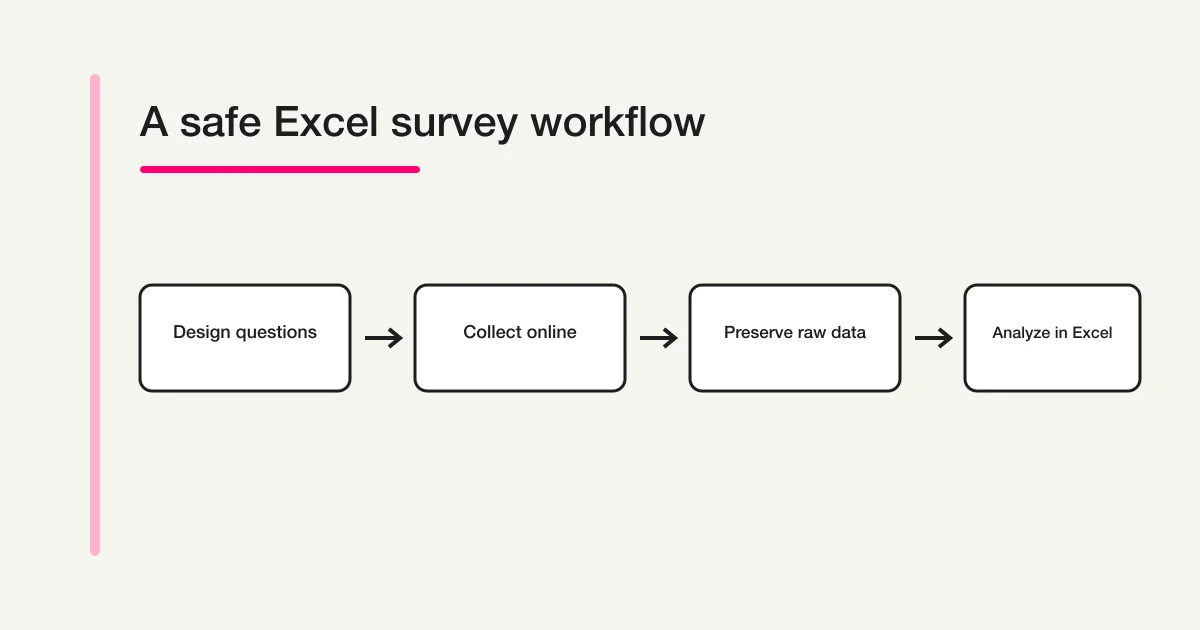
Step 1: Design questions and columns from the analysis backward
Begin with the decision the survey must support. “Compare training satisfaction by department” is useful because it tells you which grouping and score fields the analysis needs. “Collect feedback” is too vague. If you need help separating objectives, closed questions, scales, and open text, start with the survey question design guide.
Treat one row as one response and one column as one field. Avoid merged cells, subtotal rows, blank headers, and duplicate columns in the raw sheet. Use short, unique field names. A practical initial structure might be:
response_id | submitted_at | department | score | reason | comment
Keep the stable identifiers and original answers even if they do not appear in the final report. response_id supports duplicate checks, submitted_at preserves the collection sequence, and explicit category columns make later grouping more reliable. Do not encode the same meaning in formatting alone, such as a red cell for “urgent,” because formatting is harder to validate and audit than a named status value.
For a standalone workbook, use Excel data validation and drop-down lists for fields such as department, status, or score. Validation reduces spelling variants, but it is not a complete data-quality control. Microsoft notes that copied or filled values and some formula operations may introduce invalid values without showing the usual validation warning. Before analysis, check blanks, out-of-range scores, unexpected labels, and duplicate response IDs.
Plan personal-data handling at the same time. If names or email addresses are necessary, tell respondents why they are collected, who can access them, and how long they will be retained. Open-text answers can reveal people even when a name column is absent. Consider keeping identifiers in a restricted source and using a de-identified analysis copy for broader reporting.
Step 2: Distribute either a controlled workbook or a Microsoft Form
If you distribute a standalone workbook, create separate instruction and input sheets. State the deadline, allowed cells, return channel, and filename convention. Locking headings and formulas may reduce accidental edits, but it does not solve collection design. Sending a separate file to each respondent creates a later merge task and makes it easy to analyze different versions of the template.
OneDrive co-authoring can avoid multiple attachments, but all editors may be able to see the shared response table. Use it only when that visibility is appropriate and when simultaneous edits will not alter formulas or column definitions. A web form is safer when respondents should see only their own input screen.
For online collection, open the intended workbook in Excel for the web and check whether the current interface offers the Forms command under Insert. If the route is unavailable, create the survey in Microsoft Forms and open its results in Excel later. Use Microsoft’s current form creation guidance and Forms and Excel workbook guidance as the source of truth; interface labels and eligibility can change.
Before broad distribution, test with conditions close to those of a real respondent. Check required questions, answer options, branching, confirmation content, and whether an external person can open the link when external responses are intended. Verify the workbook destination as well. A form created from OneDrive, Excel for the web, or a group context may place its connected workbook in a different location.
Treat question deletion as destructive after collection begins. Microsoft states that deleting a question permanently deletes that question and its collected response data. Save an appropriate copy first, document the change date and reason, and decide whether pre-change and post-change responses can still be compared. Renaming a label is also not harmless if it changes how analysts interpret earlier answers.
Step 3: Preserve the raw responses and verify the workbook connection
In Microsoft’s current Forms results guidance, distinguish Open results in Excel from Download a copy. The first can open a workbook with a live connection stored in OneDrive or SharePoint when the creation route and environment support it. The second produces a disconnected snapshot. A snapshot is appropriate for a dated analysis or a handoff that should not change later.
Older support text and older articles may refer to Open in Excel, while current Microsoft guidance uses Open results in Excel and separately exposes Download a copy. Do not decide connection status from an old button name. Check the action you used, the file location, the connection or refresh status, and the latest response timestamp in the workbook.
Microsoft’s real-time update guidance currently explains live connections from supported OneDrive, SharePoint, Excel web, Teams and group creation routes. The current results page cited above separately specifies Windows Current Channel Version 2410 (Build 16.0.18227.20000) or later for opening in desktop Excel, with a future Mac update described. Refresh is restricted to the form owner and internal workbook editors. External users cannot trigger refresh. Check the latest availability and a test row in your environment.
Do not add custom tables, formulas, columns, or other structural changes to the live connected response workbook. Microsoft’s workbook synchronization guidance lists workbook modification as a potential source of problems. Keep the connected workbook as the source of record. For analysis, use Download a copy, make a separately named snapshot, or pull values into another workbook according to your organization’s approved process.
Record enough provenance to reproduce a report:
Source form: Training feedback 2026-Q3
Source workbook: OneDrive / Survey Operations / Training feedback.xlsx
Connection: live connected source
Analysis snapshot: 2026-09-04 15:00 JST
Filters: submitted_at through 2026-09-04, test responses excluded
Owner: Survey Operations
If expected responses are missing, compare the Forms response count, the latest workbook row, and the workbook’s connection state. Follow Microsoft’s guidance for checking whether data is up to date and retrieving missing data. Avoid repeatedly editing the source workbook in an attempt to force a refresh, because those edits can make diagnosis harder.
Step 4: Analyze a copy with tables and PivotTables, then share the right layer
Convert the response range in the analysis copy to an Excel table. A table provides stable headers, filters, and an expandable range for additional snapshot rows. Preserve all source columns. Add classifications and calculations to the right of the copied source rather than overwriting the original answer values.
Use a PivotTable when you need repeatable counts or comparisons. Put department or respondent segment in Rows, score in Columns, and a response ID count in Values. This reveals the distribution rather than only an average. Add missing-response counts and sample sizes so that a small group is not presented as if it represented the whole audience.
For open text, create a separate coding column with a controlled category list. Keep the original comment unchanged beside the code. Two analysts can review ambiguous comments or sensitive cases without rewriting the evidence. Frequency is useful, but a rare comment may still reveal an operational or safety issue that deserves attention.
Formulas should refer to table columns or stable named ranges where practical. Before deleting columns, identify dependent formulas and PivotTables. Microsoft’s guidance on broken formulas and #REF! errors is relevant because deleting a referenced range can invalidate downstream calculations. Save a version before structural changes and retain the dated analysis snapshot used for each report.
The survey form analysis guide covers the broader path from response counts and distributions to follow-up actions. The CSV export and ongoing spreadsheet workflow guide helps distinguish a one-time export from a maintained synchronization route.
Share three layers separately:
- Raw source: restricted to the smallest group that must inspect identifiable responses.
- Analysis workbook: available to analysts who need formulas, coding columns, and PivotTables.
- Report: aggregated tables and charts for stakeholders who do not need row-level data.
Worksheet protection is not a security feature. It can discourage accidental edits, but it does not replace OneDrive or SharePoint access control, file-level permissions, or careful sharing. Review who can view, edit, download, and reshare each layer. A password or protected sheet should never be used as the sole control for sensitive survey responses.
Common failure patterns
Treating the .xlsx template as a public survey
A standalone workbook requires distribution, response return, merge, and version handling. It is useful for a controlled register, not as a substitute for an anonymous or public web intake flow.
Building the report directly in the connected response workbook
This mixes system-managed data with analyst-managed structure. Keep the connected source unchanged and build formulas, tables, and PivotTables in a snapshot or separate workbook.
Assuming a shared workbook can be refreshed by anyone
A workbook sharing link alone does not prove that a recipient can refresh the live data. Verify the supported connection, access and latest test row in that recipient’s environment before relying on refresh.
Publishing row-level responses to a broad team
Names are not the only identifiers. Departments, timestamps, unusual circumstances, and open text can expose a respondent. Share aggregate results unless recipients genuinely need row-level access.
FORMLOVA does not provide live synchronization to Excel. Treat exported data as a dated snapshot, and record the source and filters.
Using FORMLOVA before Excel analysis
FORMLOVA Free supports web intake, response search and CSV/Excel export. Current MCP exports contain form fields and submission time, not automatic response-ID, status or owner columns. The earlier response_id column is an operator’s analysis schema: define a suitable question or generate a local analysis key if needed, and keep that origin clear. Status is managed separately as new, in_progress, resolved or spam. There is no native live Excel sync.
Collect workshop feedback before a PivotTable
This is a proposed trial, not an operation or result measured for this rewrite. Use a private test draft first.
Draft a private workshop feedback form with broad team category, a five-label usefulness choice and optional reason. Do not collect names. Add workshop code as a defined field. Prepare an Excel analysis layout separately; do not import data, publish or claim live synchronization.
Before proceeding, check:
- Match the saved field labels to the planned analysis columns.
- After controlled test publication, inspect export columns and counts, including blank reasons; record snapshot time.
- Keep raw rows unchanged, add a local analysis key if needed, and build a PivotTable in a copy. Avoid small-group identification.
Try web intake with an Excel snapshot
Form creation, collection and CSV/Excel export are Free. Detailed analytics and response import require Standard or above; this example uses neither.
Register free and draft the feedback intake
Register, verify your email, connect a supported AI client, and paste the proposed request above. Check the saved draft before publishing. AI-client account and usage requirements apply separately.
Frequently asked questions
Can an Excel-only survey be anonymous?
Removing a name field does not guarantee anonymity. File-return identity, sharing history, timestamps, small-group attributes, and open text can identify a respondent. Explain the actual collection and access path rather than promising complete anonymity.
Does the Forms workbook update automatically?
It depends on creation route, storage location, account, application, and connection state. Distinguish the live Open results in Excel route from the disconnected Download a copy snapshot and verify the latest response row before analysis.
Can I build a PivotTable in the connected Forms workbook?
Custom structure in a live connected response workbook can cause synchronization problems. Preserve the connected source and build tables, formulas, and PivotTables in a downloaded copy or a separate analysis workbook.
What to do next
Verify one latest test row before analysis, keep the raw workbook intact, and report the snapshot and exclusion rules with the chart. Export and live sync are different operating choices.
Disclosure and Verification
This article was checked on September 4, 2026 against Microsoft Support documentation for creating Forms, eligibility, Forms and Excel workbooks, results, real-time updates, freshness and synchronization repair, missing data, Excel data validation, tables, PivotTables, sharing, co-authoring, OneDrive permissions, worksheet protection, security, and broken formulas. Product labels, availability, licensing, storage routes, and permission behavior can change, so verify the current interface and destination in your actual environment. The author develops FORMLOVA.
If you want to collect responses through a web form, search and manage them, and then export a controlled snapshot to CSV or Excel, start with FORMLOVA for free.