
Last updated: October 15, 2026
Original verification record retained: Last verified: September 22, 2026
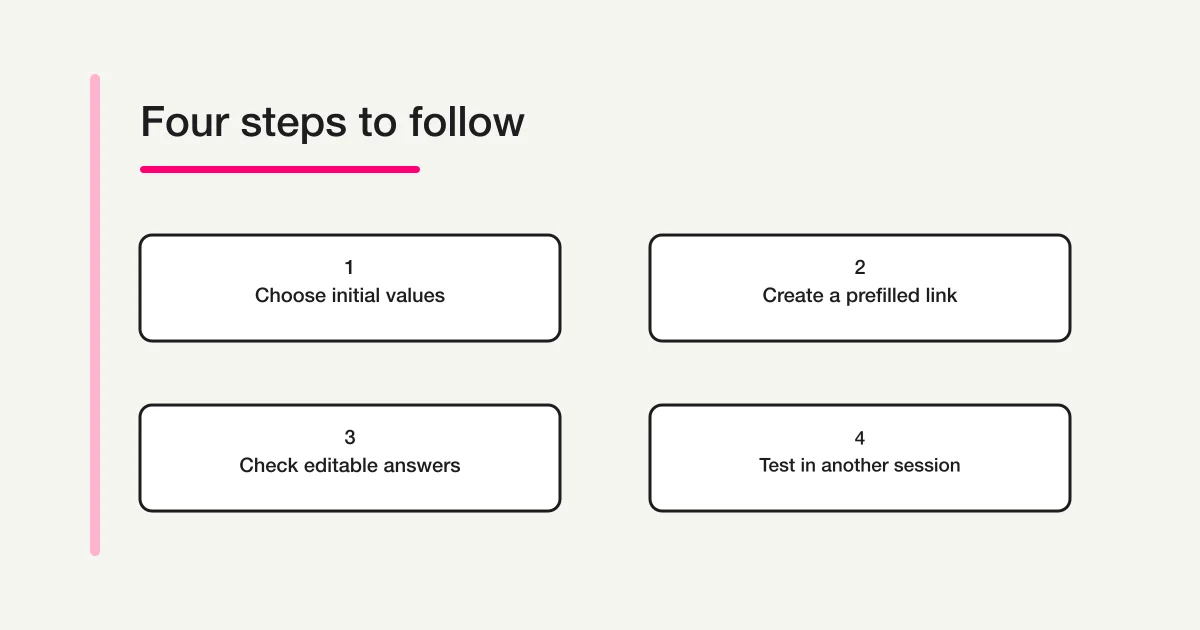
Create a Google prefilled link through More → Pre-fill form → Get link after entering the desired starting answers. Test that exact generated URL with the intended audience. Opening it starts a response; it does not submit, authenticate a person or retrieve a past response.
Use public shared context such as a workshop name. Treat URL values as changeable input, keep personal details out of distribution links, and check both the visible initial value and the final submitted answer.
Choose a value that helps the participant
Consider an organizer running the same introductory workshop at two public venues. The form asks which session the participant wants. A link labeled “Riverside workshop” could open with that session already selected, allowing the participant to review it before answering the remaining questions.
That is a convenience. It should not silently decide something the participant has not agreed to. If the session is only a suggestion, say so in the introduction. If it is the only session available through that invitation, make the scope clear in the page heading as well.
A useful planning table separates the value from its purpose:
| Candidate value | Why include it? | Question before using it |
|---|---|---|
| Public workshop title | Avoid repeated typing | Can the participant recognize and check it? |
| Public venue name | Match a venue-specific invitation | Could forwarding the link create confusion? |
| Broad referral label | Help organize distribution | Is it merely descriptive, rather than proof of origin? |
| Participant's private details | Save typing for one person | Is putting those details into a shared URL necessary? |
My recommendation is to begin with non-sensitive, shared context. Leave personal answers for the participant to enter unless you have a specific, reviewed reason to handle them differently. A shorter form is helpful only when the shortcut preserves the meaning of the answers.
If you are still deciding which questions the form needs, use the general Google Forms creation guide first. Prefilling an unnecessary question does not make it necessary.
Create the prefilled link in the editor
Google documents a dedicated prefill flow: open the form, use the upper-right More menu, select Pre-fill form, fill the desired answer fields, then use Get link and copy the resulting URL. The same help page treats publication and responder access as separate settings. Google's form sharing and prefilling instructions
Work from the correct form before opening that flow. When several event copies have similar titles, compare the event date and introduction with your distribution plan. A perfectly generated link to last month's form is still the wrong invitation.
Enter only the values you intend to provide. For the venue example, set the workshop title and venue choice, then leave participant-specific answers empty. Review the entered values before generating the link, particularly if you used a previous test as a starting point.
After copying the result, give it a descriptive label in your working notes. Do not replace it with a generic form link because the address looks too long. The link you test and the link you distribute should be the same destination.
This guide does not provide a hand-built query-string recipe. Using the editor's generated output avoids making undocumented assumptions about question identifiers or the encoding of a particular answer type. If your real values contain punctuation, line breaks, or unusual characters, include those exact values in your own test rather than assuming every variation behaves identically.
Keep five different jobs separate
The word “link” can hide several different purposes. Before sending one, describe what opening it is supposed to do.
| Job | What you need to establish | What prefilling alone does not establish |
|---|---|---|
| Start an answer | Useful initial values appear | A completed submission exists |
| Restrict access | The intended audience can respond | Possession of an answer value grants permission |
| Identify a person | An appropriate identity process | A typed or prefilled name proves identity |
| Protect a value | A trusted rule governs the value | A value is protected because it arrived in a URL |
| Edit a previous response | The appropriate editing route for that response | The prefilled link retrieves a submitted record |
These distinctions matter in everyday situations. A venue label can help the organizer sort responses, but it should not be the sole basis for granting a restricted benefit. A prefilled customer number is an answer value; calling it an identifier does not turn it into authentication.
Likewise, someone opening a form with answers already visible has not necessarily submitted those answers. If a participant is trying to verify a previous submission, point them to the guide to checking a Google Forms response instead of sending another prefilled starting link.
Design your process on the assumption that the supplied answer can be different when the response arrives. Check critical eligibility or identity information through the process intended for that purpose. This is an operating boundary, not a claim about a particular locked-field feature.
Keep an inventory when you create several variants
A single link is easy to recognize. Several similar links become harder to manage when they are copied into email drafts, event pages, and printed material.
For the workshop example, keep a small distribution sheet:
| Label | Intended initial values | Where it will be used | Verification status |
|---|---|---|---|
| Riverside session | Workshop title; Riverside venue | Venue notice | Pending recipient test |
| Central session | Workshop title; Central venue | Event page | Pending recipient test |
| General information | No suggested venue | Organizer's reply template | Pending recipient test |
Use actual URLs in your private working sheet, with access appropriate to their contents. The table above deliberately contains no live links or personal details. It illustrates the relationship you need to maintain between a label and a destination.
When one venue changes, update the associated row and the places where its link is distributed. Do not assume that changing the wording of an email updates an already copied URL. Check the destination separately.
Also decide who maintains the list. One person can prepare links while another checks them, but both should use the same inventory. Two uncoordinated lists make it easier for a correct link to acquire the wrong label during a last-minute edit.
Test the link as a recipient
Open the copied link in a context that represents the intended audience, rather than relying only on the editor session. An organizer's successful access is not sufficient evidence that an invited participant can respond.
For an open event, include a test without the organizer's account. For a restricted event, use an appropriate permitted account and confirm the intended restriction separately. The goal is to test the audience you actually plan to invite, not to remove an intentional access rule just to make a link open everywhere.
Use this sequence:
- Open the exact destination from the distribution inventory.
- Read the visible title, date, and introduction.
- Check each intended initial answer against the inventory.
- Confirm that participant-specific questions remain appropriate to answer.
- Review required questions and any path affected by a supplied answer.
- If you conduct a submission test, identify it clearly and confirm its stored result.
Opening a form and submitting it are separate checks. A display test can tell you what appears initially; it cannot prove that a response was stored. When a submission test is necessary, decide how the test record will be recognized so it does not become a real registration or distort your count.
Ask the tester to report observations, not just “works.” A useful note is: “The Riverside link opened the October workshop, showed Riverside as the initial venue, and allowed me to review the remaining questions.” If no submission was made, write that explicitly.
Check the last distribution surface too
A link may be correct in your notes and wrong in the message that participants receive. Test the finished email draft, event-page button, or other distribution surface before release. Read both the visible label and the destination it opens.
A common editing mistake is to change a button from “Central workshop” to “Riverside workshop” while leaving the old destination in place. Another is to paste the general form link where the venue-specific version was intended. Neither problem is solved by checking the form editor again.
If you turn the URL into a QR code, scan the actual output and inspect the initial answers. The Google Forms QR-code guide covers the separate creation and print-testing process. A code that scans successfully still needs a destination check.
For printed material, record which link version the print file uses. If you replace a destination before printing, test the final file rather than an earlier screenshot. This is a suggested release habit, not an additional requirement imposed by Google.
Troubleshoot the symptom you can observe
When someone reports a problem, begin with what happened after opening the distributed link. Avoid asking for a screenshot containing personal answers unless those details are necessary; a description of the page and affected question may be enough.
| Observation | First check | Next useful action |
|---|---|---|
| The form opens without the expected starting answer | Whether the exact generated link was used | Compare it with the tested inventory entry |
| The wrong session appears | Whether the label matches its destination | Correct the distribution source and retest |
| The participant cannot access the form | Publication and intended audience settings | Test with the appropriate recipient context |
| A supplied value differs in the stored response | The intended meaning and validation process | Review the response rather than trusting the initial value |
| An old response does not appear | Whether the person needs submission confirmation or editing | Use the appropriate response-checking route |
Change one thing at a time. If you simultaneously change the form, regenerate the link, and replace the invitation, you lose a clear account of which change resolved the issue. Keep a short before-and-after observation in the link inventory.
Review links after copying or changing the form
A new event often starts with a copied form. Treat that destination as a new release: choose the correct copy, generate its intended initial values, and test its distributed link. Do not assume a link saved for the original has moved to the new copy.
The Google Forms copying guide covers the wider reuse checklist. Here, focus on the relationship between the new destination and its starting answers.
Editing a relevant question is also a reason to rerun the recipient test. If you change venue labels, remove a choice, or alter a path, inspect what the existing distributed link now does. This guide does not promise how every question type or editing operation preserves prefilling; the final behavior needs checking for your form.
FORMLOVA hidden fields solve a different problem
FORMLOVA hidden fields can use a configured URL parameter or default. They do not reproduce Google’s visible prefilled answer flow. Use a visible question when a participant must review a venue or agree to a choice. A hidden source label is descriptive, not authentication, authorization or tamper protection; adding a hidden field also does not implement honeypot rejection.
Separate the visible venue from a descriptive source label
This is a proposed trial, not an operation or result measured for this rewrite. Use a private test draft first.
Create a private workshop draft with visible venue choice Riverside/Central and an optional question. Keep participant details blank. Add a non-sensitive hidden source field using parameter source and fallback unspecified. Explain that source is changeable and must not determine identity or discounts. Do not publish or import Google links.
Before proceeding, check:
- Try present, absent and modified source values while checking the saved field configuration.
- Verify the visible venue remains the participant’s answer and is not silently confirmed by the source label.
- After controlled publication, compare actual stored/exported fields with the URL and fallback. Preview display alone does not prove persistence or Google prefill compatibility.
Try visible choices and hidden context separately
Free supports these fields, collection and export. It does not turn URL parameters into verified identity or import a Google response history.
Register free and draft venue choices
Register, verify your email, connect a supported AI client, and paste the proposed request above. Check the saved draft before publishing. AI-client account and usage requirements apply separately.
What to do next
Use Google’s generated prefill link for the existing form and test its distribution copy. For a separate form, decide which values the participant must see and confirm before adding hidden context.
Related Guides and References
Disclosure and Verification
I develop FORMLOVA. I checked Google's linked help page and FORMLOVA's current hidden-field implementation and schema on September 22, 2026. I did not create a prefilled link or submit a live response in a Google account while preparing this article. The workshop inventory, testing sequence, and troubleshooting examples are original operating recommendations. Support for every question type, unusual character combination, and later form edit was not tested.