
Last updated: 2026-08-13
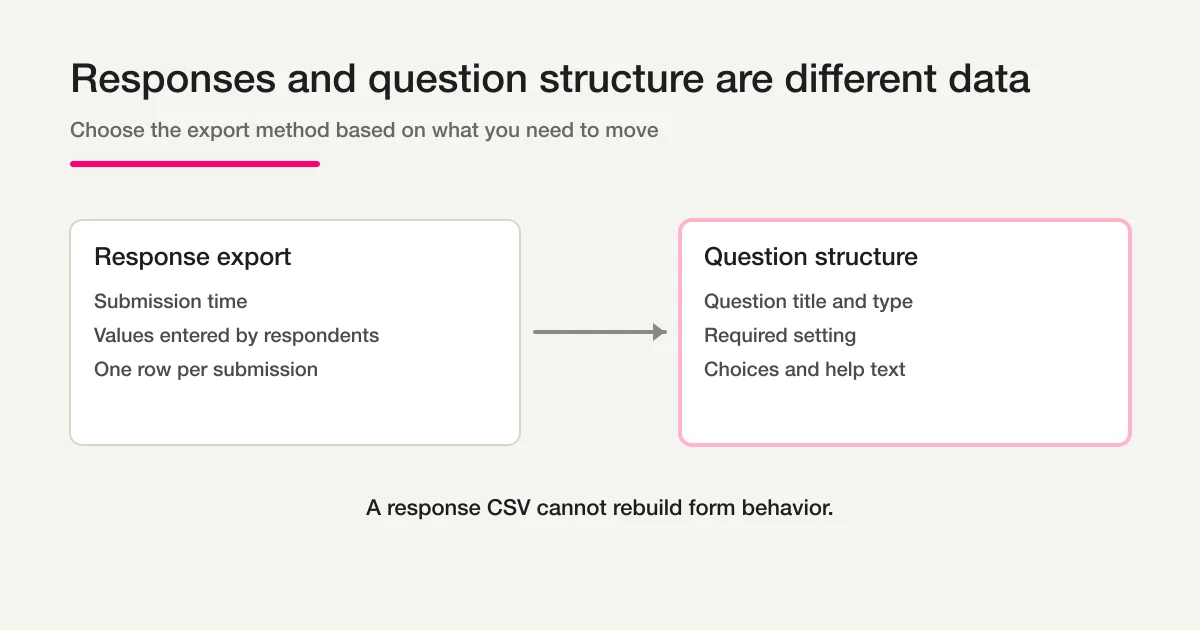
The Google Forms response download contains submissions. It does not give you a complete inventory of the questions and settings that make the form work.
If you need a list of question titles, types, required settings, choices, and help text, use one of two methods:
- For a short form, copy the structure into a spreadsheet while reviewing the editor.
- For a long form or a portfolio of forms, use Google Apps Script to read the form items, then verify the result against the live form.
This distinction matters during a migration. A response CSV may preserve a question title as a column heading, but it does not preserve every possible choice, whether the question was required, its validation rule, or where branching sends the respondent.
The short answer: Google Forms has no question-list CSV button
Google Forms lets you view responses in Forms, send them to Google Sheets, and download response data. It does not provide a standard editor button that exports the full question structure as a CSV inventory.
Choose the method based on the job:
| Method | Best for | What you get | Main limitation |
|---|---|---|---|
| Manual inventory | One short form | Exactly the details you choose to record | Easy to miss a setting |
| Copy the form | Reusing the same form in Google Forms | A working Google Forms copy | Not a portable inventory |
| Apps Script | Many questions or multiple forms | Item titles, types, help text, and type-specific settings | Requires code and manual verification |
| Forms API | A maintained migration tool | Structured form resources and item IDs | More authentication and implementation work |
If your only goal is to make another Google Form, use the form-copy function. If you need a review sheet, a migration map, or a comparison across several forms, create an explicit inventory.
Do not confuse question structure with response data
There are four different things you may be trying to move.
| Data | Examples | Appropriate method |
|---|---|---|
| Submitted responses | Timestamp, name, email, selected answer | Responses tab, Google Sheets, or CSV |
| Question structure | Title, type, required status, choices, help text | Manual inventory, Apps Script, or Forms API |
| Presentation | Theme, images, spacing, section appearance | Separate visual review |
| Behavior | Branching, validation, quiz scoring, notifications | Separate behavior map and test plan |
The first row of a response CSV can look like a question list. It is not one. It only exposes labels used for collected columns. It cannot reliably tell you every allowed option, whether a blank value was permitted, or what would have happened after a particular choice.
For response export instructions, use Export Google Forms Responses to CSV. This page stays on the question side of the boundary.
Method 1: inventory a short form manually
For a form with ten or twenty questions, manual review is often faster than writing and validating a script.
Create a spreadsheet with these columns:
| Order | Question | Type | Required | Choices | Help text | Behavior to verify |
|---|---|---|---|---|---|---|
| 1 | Full name | Short answer | Yes | - | Enter your legal name | Personal data |
| 2 | Inquiry type | Multiple choice | Yes | Pricing, Setup, Other | Choose one | Branches to sections |
| 3 | Details | Paragraph | No | - | Up to 500 words | Length validation |
Then work from top to bottom:
- Open the Google Form editor.
- Record every item in order, including section headings.
- Record whether each question is required.
- Copy every choice, including an “Other” option.
- Record help text, response validation, and file restrictions.
- Mark branching, quiz behavior, images, and videos for separate review.
- Open the responder preview and compare the inventory against what a respondent can actually see.
The final preview step catches a common mistake: editor items and respondent-visible behavior are related, but they are not interchangeable.
Method 2: read the question structure with Apps Script
Google's Apps Script Forms Service can open a form by ID or URL. Each Item exposes methods such as getTitle(), getType(), and getHelpText(). Type-specific interfaces expose settings such as isRequired() and getChoices().
The following example exports a useful starting inventory to the execution log:
function exportQuestionStructure() {
  const formId = 'PASTE_FORM_ID_HERE';
  const form = FormApp.openById(formId);

  const rows = form.getItems().map((item, index) => {
    const type = item.getType();
    let required = '';
    let choices = [];

    if (type === FormApp.ItemType.MULTIPLE_CHOICE) {
      const question = item.asMultipleChoiceItem();
      required = question.isRequired();
      choices = question.getChoices().map((choice) => choice.getValue());
    } else if (type === FormApp.ItemType.CHECKBOX) {
      const question = item.asCheckboxItem();
      required = question.isRequired();
      choices = question.getChoices().map((choice) => choice.getValue());
    } else if (type === FormApp.ItemType.LIST) {
      const question = item.asListItem();
      required = question.isRequired();
      choices = question.getChoices().map((choice) => choice.getValue());
    } else if (type === FormApp.ItemType.TEXT) {
      required = item.asTextItem().isRequired();
    } else if (type === FormApp.ItemType.PARAGRAPH_TEXT) {
      required = item.asParagraphTextItem().isRequired();
    }

    return {
      order: index + 1,
      title: item.getTitle(),
      type: String(type),
      required,
      choices: choices.join(' | '),
      helpText: item.getHelpText(),
    };
  });

  console.log(JSON.stringify(rows, null, 2));
}
This is deliberately a small script. If your form uses dates, times, scales, grids, ratings, file uploads, or quiz questions, add an explicit branch for each type you need. A generic cast can throw an error when an item is not the expected type.
Google's Apps Script Forms Service lists the available item interfaces. The Forms API form resource is the better primary reference when you are building a maintained integration rather than a one-off inventory.
How to run the script safely
- Confirm that you have permission to edit the form.
- Create a project at
script.google.com. - Paste the example into the editor.
- Copy the form ID from the URL between
/d/and/edit. - Replace
PASTE_FORM_ID_HERE. - Run
exportQuestionStructure. - Review the authorization request. Do not bypass an organization policy.
- Copy the JSON from the execution log.
- Test the result on a small form before adding direct spreadsheet output.
Some Google Workspace organizations restrict Apps Script or its authorization scopes. If the authorization flow is blocked, ask the Workspace administrator. A migration inventory is not a reason to work around an access policy.
What the sample does not preserve
An item list is useful, but it is not a restorable backup.
Review these details separately:
[ ] Section order and section descriptions
[ ] Branch destinations for each applicable choice
[ ] Response validation rules and custom error text
[ ] Quiz answers, points, and feedback
[ ] File type, count, and size restrictions
[ ] Images and videos attached to items
[ ] Email collection and response-copy settings
[ ] Add-ons, notifications, triggers, and linked spreadsheets
[ ] Theme, header image, and presentation
Branching deserves particular care. A choice value and its destination are two pieces of information. Even if an API exposes the source behavior, the destination platform may model sections and conditions differently. Verify each path with test submissions after migration.
A practical migration workflow
Use the inventory as a contract between the old form and the new one.
- Freeze edits to the source form or record the extraction time.
- Export the question structure.
- Create a separate behavior map for branching and validation.
- Build an unpublished destination form.
- Compare labels, types, required settings, and choices.
- Test every branch with representative submissions.
- Only then move response operations, links, and traffic.
Do not mix this with historical response import. Building the destination questions and importing past submissions are separate changes with different failure modes.
Using a public form URL with FORMLOVA
FORMLOVA can inspect the visible fields of a public form URL and use them as the basis of an unpublished draft.
For example:
List the visible questions, field types, required settings, and choices on this public form.
After reviewing the result:
Create an unpublished draft with the same visible fields.
This is not a promise of complete Google Forms migration. A public page may not reveal questions behind later branches, editor-only validation, quiz configuration, add-ons, notification rules, or the original theme. Sign-in-gated forms may not be inspectable at all.
The safe sequence is still extract, review, draft, configure behavior, test, and publish.
For field design decisions, read Form Field Examples and Selection Guide. For the wider Google Forms, Sheets, and Apps Script operating boundary, return to Google Forms + Sheets + Apps Script Operations.
Use the inventory to improve the form, not just copy it
Migration is a good time to remove accidental complexity.
| Review question | Warning sign | Better decision |
|---|---|---|
| Are labels consistent? | “Details,” “Message,” and “Request” mean the same thing | Use one clear label |
| Is every required field necessary? | Phone, address, and company are all mandatory before first contact | Require only what the next step needs |
| Are choices current? | Old products or departments remain | Align choices with current routing |
| Does free text have a purpose? | Several open-ended fields ask similar questions | Explain what belongs in one field |
| Can every branch be tested? | Nobody owns the path map | Assign test cases before launch |
Once the destination form is verified, How to Start Form Automation with FORMLOVA explains how notifications, ownership, and post-submission work fit around it.
FAQ
Can I download only the questions from Google Forms as CSV?
There is no standard Google Forms editor button for a complete question-structure CSV. Use a manual spreadsheet for a short form, Apps Script for a larger inventory, or the Forms API for a maintained migration tool.
Can a response CSV rebuild the form?
No. Column headings may preserve question titles, but the file does not reliably preserve the question type, required setting, all possible choices, branching, validation, quiz settings, or presentation.
Can Apps Script export branching?
Apps Script can expose some navigation behavior through type-specific methods, but a reusable migration requires additional logic and destination-specific mapping. Treat branching as a separate behavior map and test every path.
Is copying the Google Form enough?
It is enough when you only need another Google Form. It does not create a portable inventory for review, standardization, or migration to a different system.
Can FORMLOVA reproduce a Google Form completely?
No complete reproduction is promised. FORMLOVA can extract visible fields from an accessible public form and create an unpublished draft, but hidden branches, validation, quizzes, add-ons, notifications, and visual details require separate review.
Read next
- Google Forms + Sheets + Apps Script Operations
- Export Google Forms Responses to CSV
- How to Use Google Forms
- How to Start Form Automation with FORMLOVA
When your inventory is ready, create a free FORMLOVA account, connect through the setup guide, and create a test draft before touching the live form.
Disclosure and Verification
The author develops FORMLOVA. This article was verified on 2026-08-13 against the current FORMLOVA public-form extraction boundary and Google's Apps Script Forms Service and Forms API documentation. Product and API behavior can change; verify the current Google documentation and test with a non-production form before migration.
Primary sources: