
Microsoft Forms can collect documents alongside answers through a File upload question. That can be useful for an internal request, a class assignment, or a process where the people responding already belong to your Microsoft 365 organization.
The feature has an important audience restriction. Microsoft's support article says a file-upload question is available when the form is set to Only people in my organization can respond or Specific people in my organization can respond. It is not a general attachment field that can simply be added to every public form.
This guide walks through the question setup, file limits, individual OneDrive versus group SharePoint storage, and the checks to make when the upload option is missing. It also shows how to test the respondent experience before sharing your form.
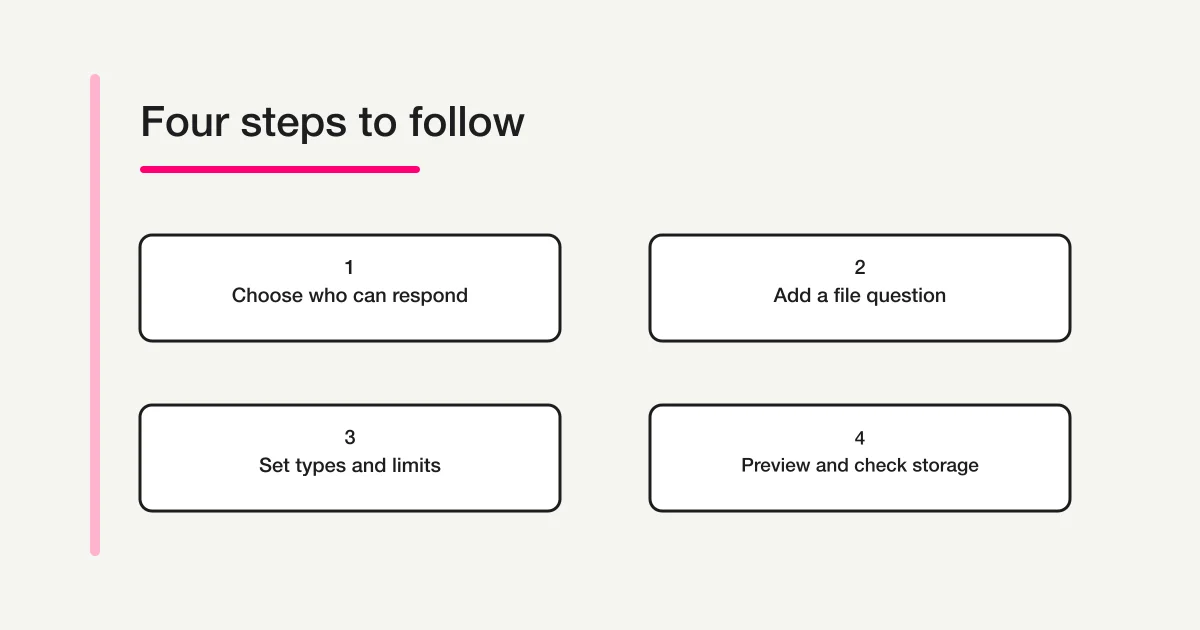
Decide who can respond before adding a file question
Start with the intended audience, not the file settings. Microsoft Forms can allow anyone with the link to respond, restrict responses to people in the organization, or restrict them to specified people in the organization. The File upload question is documented for the latter two organization-scoped choices.
That distinction matters when you need files from customers, applicants, vendors, parents, or other people outside your tenant. Changing a question setting does not turn an organization-restricted upload into a public upload. If outside respondents must attach documents, check whether the Forms audience and upload requirements can be met together in the account and tenant you will use. Do not promise that a respondent outside the organization can upload merely because the person can open a form link.
Microsoft's audience settings can also affect other parts of a form. Depending on the account, organization-only response settings can expose options to record names or limit responses to one per person. Review the full response policy together: who can access the link, whether names are recorded, whether repeat submissions are allowed, and which staff members will review the files.
For documents containing personal, financial, educational, or employment information, decide in advance who needs access and how long the files should remain available. A successful upload only proves that the respondent submitted a file; it does not establish that the storage permissions, retention process, or follow-up workflow are right for your organization.
Add a File upload question
- Open the form in Microsoft Forms.
- Select Add new to create a question.
- Open More question types, then choose File upload.
- Enter a clear prompt that tells respondents what they should submit.
- Set the maximum number of files allowed for that question.
- Choose the maximum size for each file.
- Under the question's additional settings, select the file categories you will accept.
- Turn on Required only if every respondent must provide a file.
- Preview the form as a respondent and check that the upload control is available.
The author view and the respondent view may look different. Microsoft's instructions note that the Upload button is inactive for the form author but active for respondents. When you test the form, use Preview and, where possible, a test account that represents the intended respondent. An inactive author-side button is not by itself proof that the question is broken.
Make the prompt specific. “Attach your file” leaves basic questions unanswered: which document, which format, how many files, whether a scan is acceptable, and how the file should be named. A more useful instruction might say, “Upload one PDF quote. Include your company name in the file name.” Keep the example aligned with your actual review process, and avoid collecting extra documents that the process does not need.
If respondents need to submit different documents for different purposes, consider whether separate questions will make the request clearer. Each question has its own accepted types and file-count settings. A single broad request can make the resulting folder harder to review and can encourage respondents to attach information that was never needed.
File count, size, and type limits
Microsoft's current support article lists a maximum of 10 files per File upload question. For each file, the available size choices are 10 MB, 100 MB, or 1 GB. The additional settings let the author select categories such as Word, Excel, PowerPoint, PDF, image, video, and audio.
These controls describe a question's configuration. They are not a guarantee of the storage capacity available to a tenant, a promise that every upload will succeed on every network, or a statement about an organization's retention policy. Microsoft 365 administration, OneDrive or SharePoint configuration, and the respondent's account can affect the practical process. Confirm the values that appear in your own form and with your administrator when the limit is important to the workflow.
| Setting | Microsoft's documented option | What to decide |
|---|---|---|
| Files per question | Up to 10 | How many separate documents the reviewer actually needs |
| Size per file | 10 MB, 100 MB, or 1 GB | A size that fits the request, connection, and storage process |
| File categories | Word, Excel, PowerPoint, PDF, image, video, and audio | Which formats the receiving team can review safely |
| Required | Set per question | Whether every eligible respondent must submit the document |
For a request involving large video files, choose a limit based on the real task rather than automatically selecting the largest value. Large uploads can take longer for respondents, require more storage, and create more work for reviewers. If only a signed PDF is useful, accepting video or spreadsheets adds options without helping the process.
Tell respondents about the constraints before they start. The question subtitle can clarify the requested document or format, but the form's chosen limit still governs what the respondent can attach. A short instruction near the question reduces avoidable failed attempts and follow-up messages.
Where uploaded files are stored
The storage location depends on the form type. Microsoft Learn says uploads from an individual form are stored in the form author's OneDrive for work or school. Uploads from a group form are stored in the document library on that Microsoft 365 group's SharePoint site.
For an individual form, open Files in the author's OneDrive for Business, then Apps → Microsoft Forms → the form folder → the upload-question folder. For a group form, open the group's SharePoint document library and follow the corresponding Apps → Microsoft Forms → form → question folders. Site labels and navigation can vary by organization, so confirm the form type and storage site if the folder is not where expected.
The attachment is separate from the response workbook. Opening Microsoft Forms responses in Excel is a way to view or work with the answer data; it does not make the uploaded file itself an Excel cell or necessarily put it beside the workbook. For the connected response workbook, see How Microsoft Forms Works with Excel. Check the correct OneDrive or SharePoint location for the file itself.
The people who can reach the form and the people who can browse its storage location are separate access questions. A collaborator may be able to edit a form or view responses without that alone proving which permissions apply to uploaded files. Confirm access using the intended reviewer account and the relevant OneDrive or SharePoint location. Do not create a broadly accessible link to work around a permission error.
Microsoft Learn also documents a transition detail: when an individual form is moved to a Microsoft 365 group, its existing file-upload questions may need to be deleted and recreated. New uploads then go to the group's SharePoint site, while previously uploaded files remain in the former owner's OneDrive. Do not assume a move automatically relocates the old files. Coordinate the change with group owners and reviewers, and confirm both storage locations before deleting anything.
Why File upload may be unavailable
Check the conditions documented by Microsoft before changing unrelated settings. The following sequence helps narrow the cause.
1. Check the response audience
If the form is set to allow anyone to respond, the documented file-upload condition is not met. Check whether an organization-only or specified-people response setting is available and appropriate for the form. Changing the audience may prevent some of your intended respondents from accessing the form, so do not broaden or narrow access just to make the control appear without considering the audience.
Microsoft says the organization-only choices are available to eligible work or school accounts. Personal Microsoft accounts may not offer those choices. The options visible to you therefore depend on the signed-in account and Microsoft 365 environment. If your organization needs outside respondents and file attachments, ask the administrator which supported submission process is approved.
2. Check whether an Information Barrier applies
Microsoft notes that File upload questions are unavailable for personal forms when Microsoft Information Barriers are enabled. Its guidance says a group form can still be used in that situation. Treat this as a specific documented workaround for that condition. A group form does not, by itself, make a restricted upload available to the public or remove the organization-audience requirement.
Before moving a form into a group, confirm the ownership, collaborators, file location, and access model with the people responsible for the Microsoft 365 group. Moving the form can change how it is managed, so check those consequences rather than creating a group form without an owner or review plan.
3. Ask about organization policies and account access
If the expected response audience is selected but File upload is missing, cannot be saved, or does not work for respondents, check with your Microsoft 365 administrator. Tenant policy, account eligibility, and access to OneDrive for Business may need an administrator's review. Include the account type, whether the form is personal or group-owned, the response-audience setting, and the exact step that failed. This information is more useful than changing several settings at once and then trying to remember which change affected the result.
Do not assume the cause is a single global Forms outage based only on one account. If allowed by your organization, compare the form in the intended author account and test as an eligible respondent. Keep personal documents out of troubleshooting submissions.
4. Check for a SharePoint domain move
Microsoft's upload-question guidance says existing file-upload questions stop working if the associated SharePoint site is moved to a different domain. The guidance says the questions need to be recreated in the new domain. If an administrator recently completed a SharePoint move, confirm that history and follow the Microsoft guidance for the affected questions rather than repeatedly editing their size or file-type settings.
Test the respondent route before sharing
After configuration, test the whole route that matters to the respondent and reviewer:
- Open Preview and confirm the question wording, required marker, and accepted file instructions.
- Confirm that the Upload button is active in the respondent view.
- Submit a small, non-sensitive test file in an allowed format.
- Check that the response appears as expected.
- Locate the file in the correct location: the author's OneDrive for an individual form or the group's SharePoint document library for a group form.
- Confirm that the intended reviewer can open it with their normal account.
- Remove test responses and files according to your organization's process before inviting real respondents.
Preview helps inspect the form, but it is not proof that every account, network, permission, or storage condition will work in production. If the form only allows named members of your organization, test with an account from that intended audience where permitted. A link that opens for the owner does not prove that it opens for every respondent.
Use a test file that contains no real personal or confidential information. Make sure you can identify the test response and file before cleaning them up so you do not delete real submissions by mistake. If the files are important records, follow the organization's retention and deletion rules instead of improvising a cleanup process.
If Microsoft Forms does not fit your respondent-access requirements, compare other form services and their storage rules. FORMLOVA supports file-upload fields on Standard and higher plans. Create a FORMLOVA account.
Google Forms has a different upload rule
Google Forms also offers file-upload questions, but its sign-in and storage behavior is not the same as Microsoft Forms. If your question is whether Google Forms can collect uploaded files without a Google sign-in, use the dedicated Google Forms file upload and sign-in guide. Do not transfer one product's audience rule to the other.
For a broader starting point on choosing and building a form, see the form creation guide. For general Microsoft Forms question creation, audience settings, sharing, and results, see the Microsoft Forms survey guide. For response workbooks, use How Microsoft Forms Works with Excel. If a respondent needs to check their own submitted answers, see How to Check Your Own Microsoft Forms Response.
Frequently asked questions
Can people outside my organization upload files to Microsoft Forms?
Microsoft's documented file-upload question requires the form to be limited to people in the organization or specified people in the organization. Do not assume an external respondent can upload a file because the link itself is open. Ask your administrator about an approved method if outside people need to submit documents.
How many files can respondents attach to one question?
Microsoft's support article documents a maximum of 10 files for one File upload question. Set the number according to the review task and tell respondents what they should submit.
What is the maximum file size?
The question settings offer 10 MB, 100 MB, or 1 GB per file. These question-level choices do not promise that the tenant has unlimited storage or that every network can upload a file at the largest size. Confirm organization requirements before relying on a large limit.
Where can I find the uploaded files?
For an individual form, Microsoft points owners to OneDrive for Business: Files → Apps → Microsoft Forms → the form folder → the upload-question folder. For a group form, check the Microsoft 365 group's SharePoint document library. The form type determines which location applies.
Why is the Upload button disabled for me?
The author view may show an inactive Upload button, while the respondent preview allows an upload. Check the respondent route before treating the author-side control as a failure.
Can I use a group form to accept files from the public?
A group form is mentioned in Microsoft's guidance for a particular case involving Information Barriers and personal forms. It does not remove the separate response-audience requirement for file upload. Confirm who can respond and who owns the files before changing form ownership.
Summary
Microsoft Forms file uploads depend on the respondent audience. Microsoft's current guidance supports File upload questions when responses are limited to members of the organization or specified people in it. One question can accept up to 10 files, with per-file size choices of 10 MB, 100 MB, or 1 GB. Individual-form uploads go to the author's OneDrive for work or school; group-form uploads go to the Microsoft 365 group's SharePoint document library.
When the option is unavailable, check the audience setting, account and form type, Information Barrier conditions, organization policy, and any SharePoint domain move. Before sharing, preview as a respondent, submit a harmless test file, verify the author's OneDrive for an individual form or the group's SharePoint library for a group form, and confirm reviewer access.
This guide was checked on October 3, 2026 against Microsoft's official documentation for adding file-upload questions, choosing who can respond, and resolving file-upload errors. Microsoft may update interface labels and account eligibility. Confirm organization-specific policies with your Microsoft 365 administrator.
Disclosure and Verification
The author works on FORMLOVA. Product behavior described here is based on Microsoft's published documentation; it does not report customer submission outcomes or product performance.